3 Easy Steps to Create Your AI YouTube Host (No Camera, No Crew)
The complete walkthrough for creating an AI YouTube host: design a consistent AI presenter, give it a unique voice, and generate a lip-synced talking video — all in one platform, no camera required.

Try 7 days for $2.50 · or 25% off your first month · Cancel anytime
Key Takeaways
- An AI YouTube host is a consistent, AI-generated presenter that speaks your script on camera — so you can publish videos without filming yourself.
- You only need 3 steps: create your host character, give it a voice, and generate the lip-synced talking video.
- Character consistency is what makes it work: the same face and voice in every video builds recognition and trust, just like a human host.
- You don't even write the script — describe what the video should be about and Postcrest scripts it, voices it, and plans the shots.
- One host scales infinitely: long-form videos, Shorts, multiple languages, and daily uploads without a single reshoot.
Want a face for your YouTube channel without putting your face on YouTube? An AI YouTube host is a consistent, AI-generated presenter that delivers your content on camera — same face, same voice, every video. No camera, no lighting, no reshoots, no "sorry, I was sick this week" upload gaps.
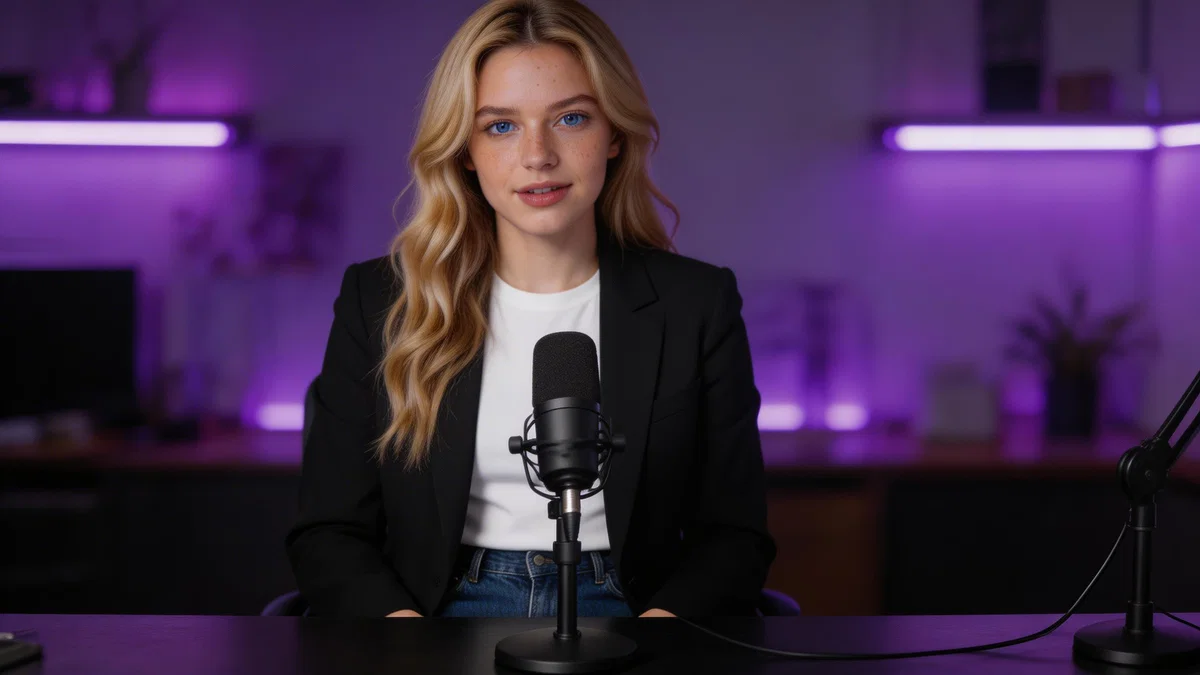
In this guide you'll create your own AI host in 3 easy steps: design the character, give it a voice, and generate a lip-synced talking video ready to upload. Here's the kind of result you'll be able to produce by the end — meet Vera, the AI host we'll build in this walkthrough:
Everything below happens inside Postcrest — one platform for the character, the voice, and the video. Let's build your host.
What Is an AI YouTube Host (and Why Channels Are Switching)?
An AI YouTube host is a virtual presenter generated with AI: a realistic character that speaks your script with accurate lip-sync, facial expression, and natural movement. Think of it as hiring an on-camera talent that:
- Never needs a studio. No camera, microphone, lighting, or editing suite.
- Stays perfectly consistent. The same "person" appears in video #1 and video #100 — which is exactly how channels build recognition and trust.
- Records anytime, in minutes. A new video is one idea away. Daily uploads stop being a production problem.
- Delivers every line flawlessly. No flubbed takes, no awkward pauses, and you can even localize the same video into other languages.
This is why faceless channels, solo creators, marketers, and brands are moving to AI presenters: you get the engagement of a talking-head video — which consistently outperforms slideshow-style faceless content — without ever being on camera. If you've been putting off YouTube because you don't want to film yourself, this removes the last excuse.
Step 1: Create Your AI Host Character
Your host's face is your channel's brand, so this step matters most. With Postcrest's AI Characters you create a reusable character — not a one-off image — so your host looks identical in every video you ever make.
Create a new character and fill in the details that define the persona: name, role (in our example, "YouTuber"), a short description, age, gender, visual style, and personality traits like friendly, energetic, or professional. These aren't just labels — they shape how your host looks, sounds, and delivers content later. You can also start from up to 10 photos of a real person if you want the host based on someone (yourself included).
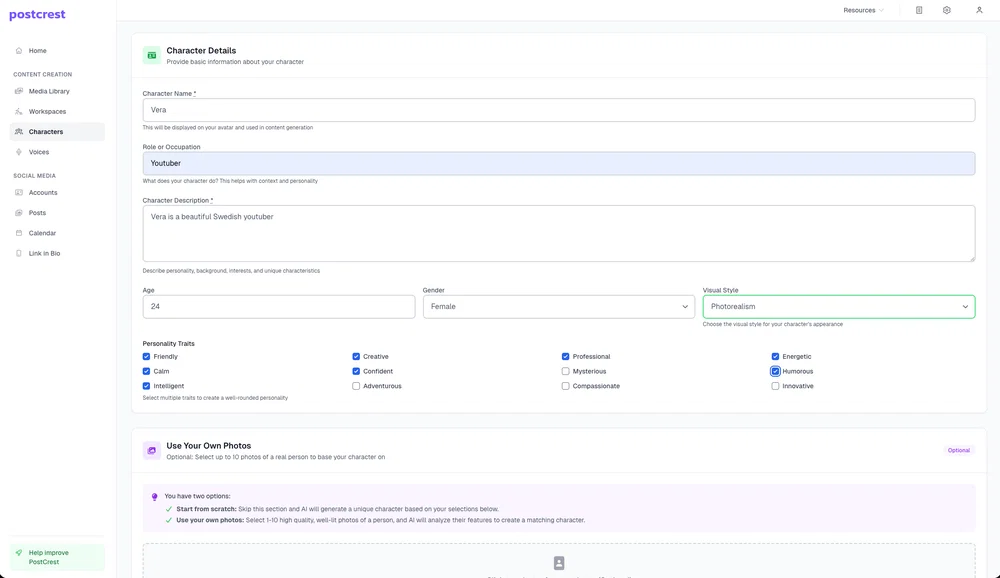
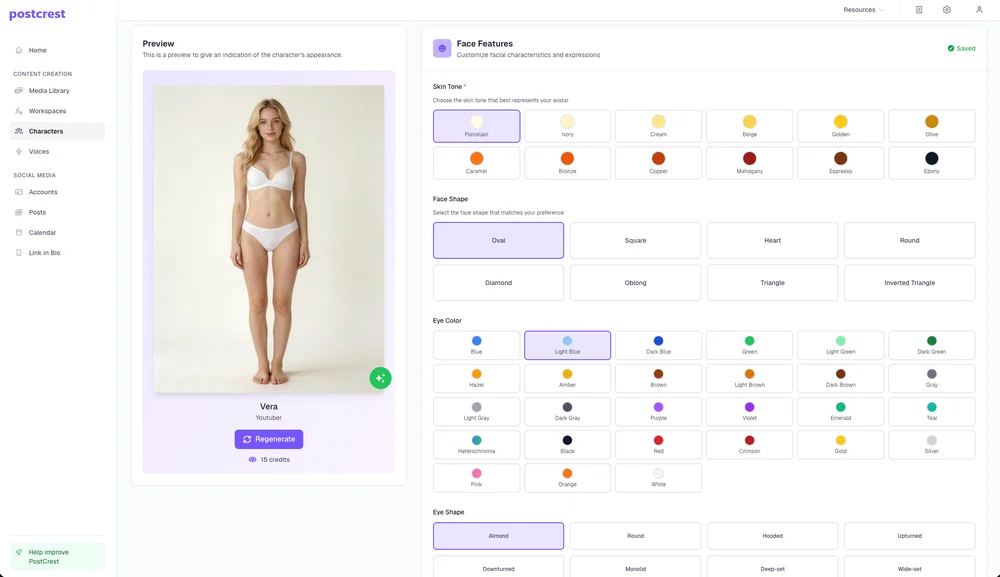
Next, fine-tune the face. Postcrest gives you granular control over skin tone, face shape, eye color, eye shape, and more — with a live preview that updates as you go. Regenerate until the face feels right. Aim for a look that reads clearly at thumbnail size: distinct features, good contrast, a face viewers will recognize in the feed.
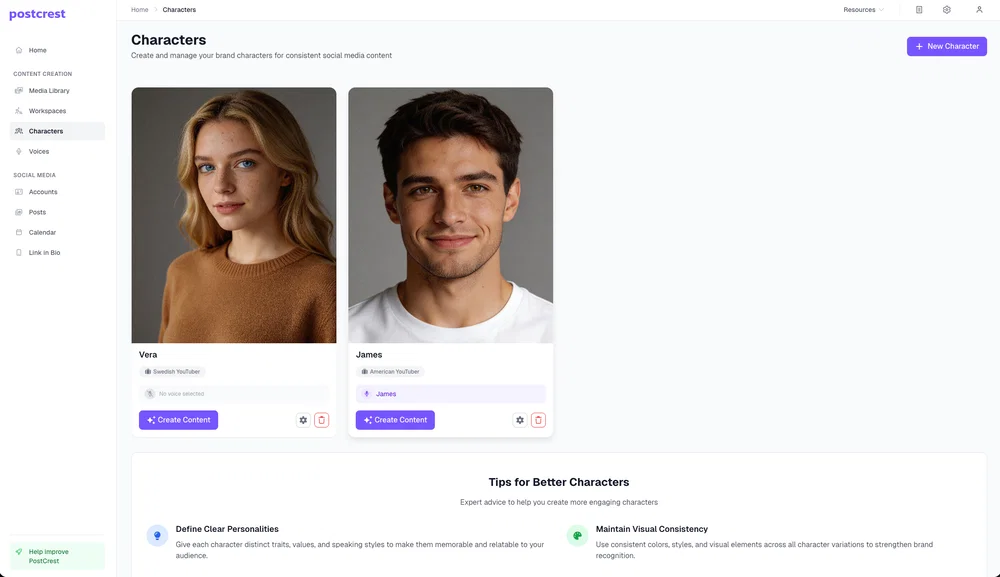
Save the character and it appears in your Characters library, ready to create content. This is the moment your host becomes reusable: Postcrest locks in the identity so you can generate this exact person for every future video, thumbnail, and post — and you can build multiple hosts for different channels or formats.
Pro tips for a host that performs:
- Design for the niche. A finance channel host and a gaming channel host should not look the same. Audiences subconsciously check for fit.
- Write the personality seriously. The role, description, and traits feed into how your host's videos are scripted and delivered later — a "calm, professional educator" and an "energetic, humorous entertainer" produce very different videos.
- Keep it recognizable. Distinct features and consistent styling are what make viewers think "oh, it's her again" — the foundation of channel growth.
Create your AI host now — it takes about two minutes.
Step 2: Give Your Host a Voice
A consistent face needs an equally consistent voice — it's half of your host's identity. In Postcrest's Voices section you create a dedicated voice for your host, and you have three ways to do it:
- Search the voice library — browse and preview thousands of pre-made, studio-quality voices and pick one instantly.
- Clone a voice — upload a clean audio recording (your own voice, for example) and create an AI voice clone of it.
- Design a voice — describe the voice you want in plain language and generate a completely custom one.
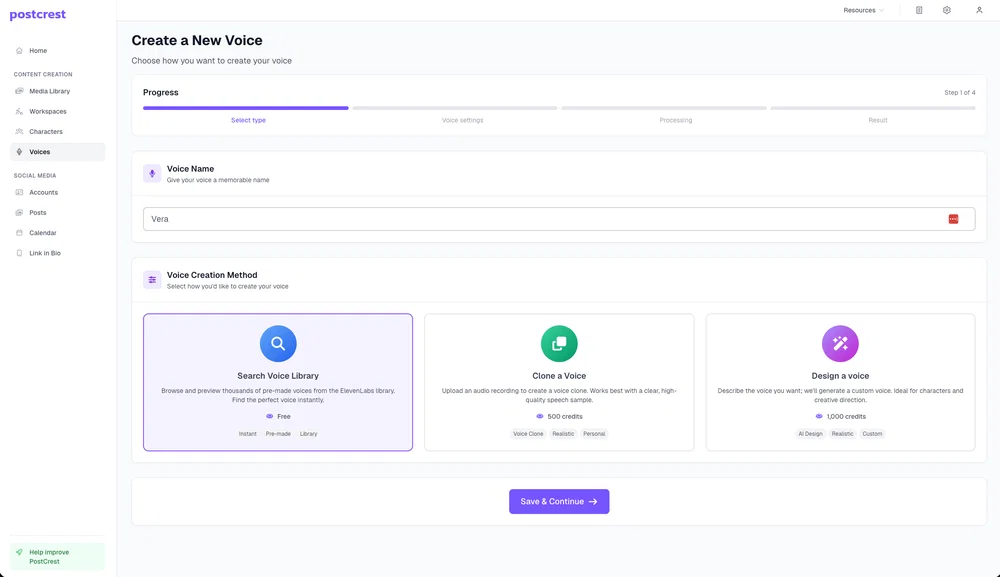
Designing a custom voice is the most powerful option for an original host: describe the age, accent, tone, and speaking style, and the AI voice generator creates it. For Vera we described a young, warm, upbeat female voice with a light Swedish accent and a personable YouTube delivery — the more specific you are, the closer the match to the character.
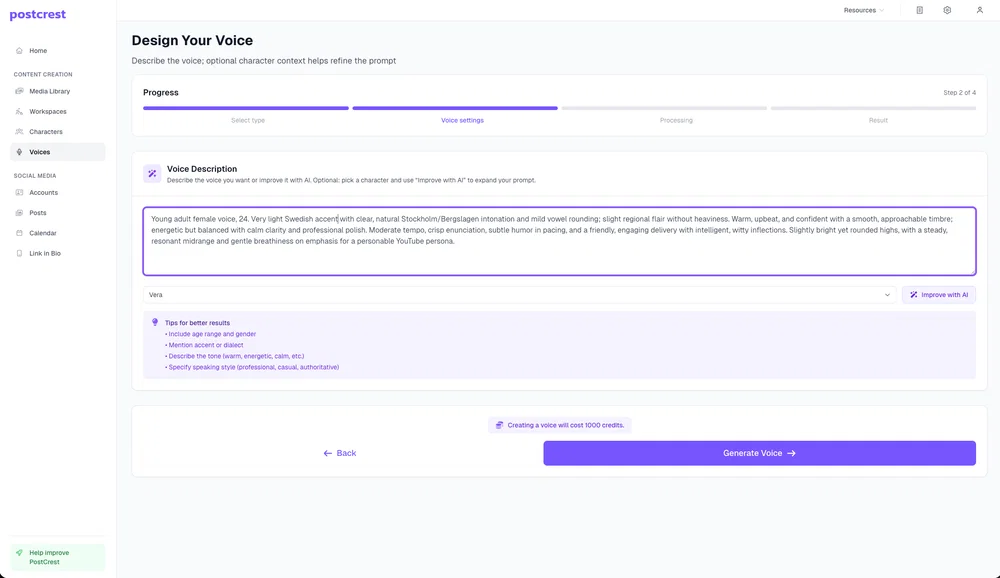
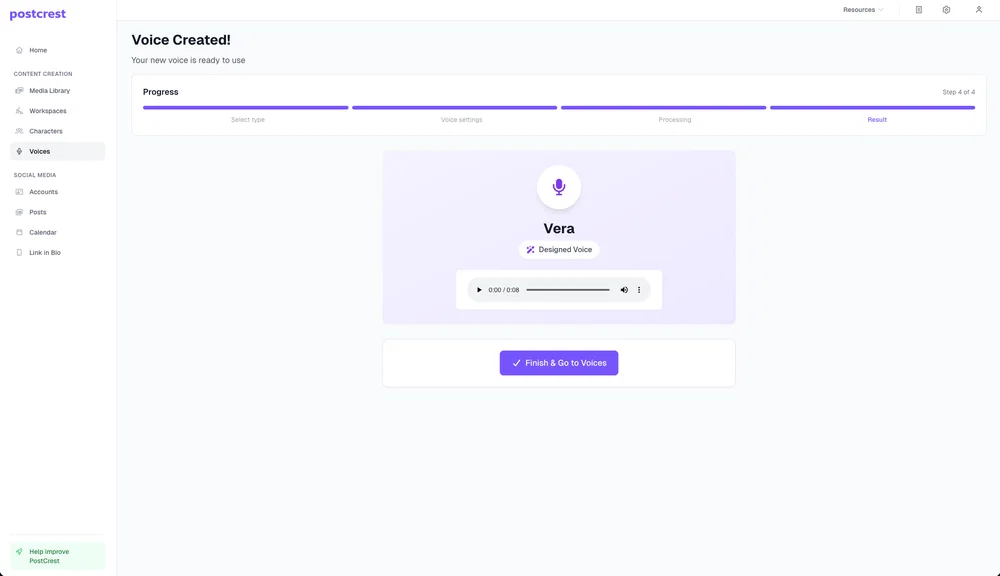
Generate the voice and preview it. If it doesn't sound like your host looks, tweak the description and regenerate — the face-voice match is what makes an AI host feel real.
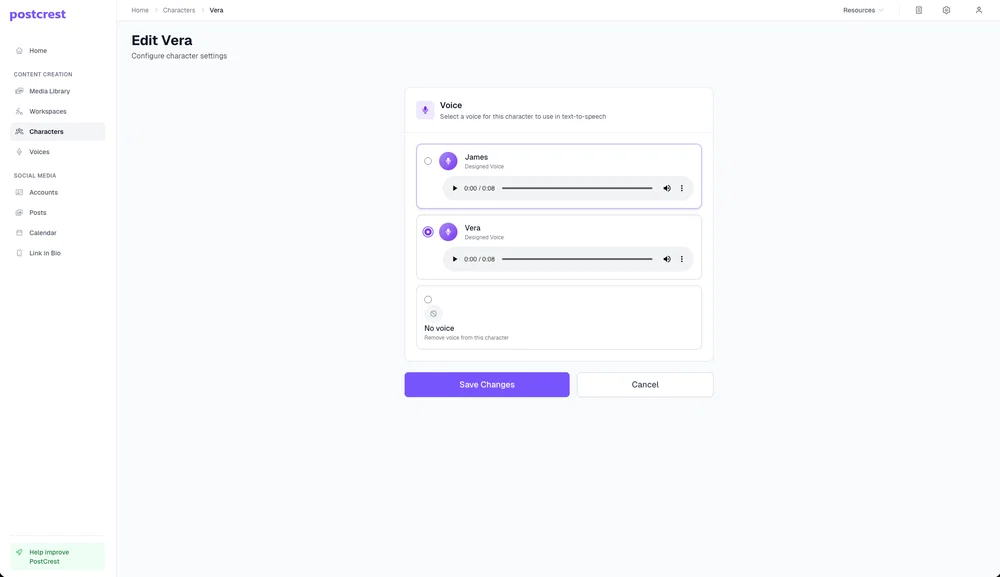
Finally, attach the voice to your character in the character's settings. From now on, every talking video you generate with this host automatically uses this voice — consistency handled, forever.
Pro tips for a voice that keeps viewers watching:
- Match energy to format. Higher energy for Shorts and entertainment, calmer and slower for tutorials and finance.
- Describe the delivery, not just the sound. Words like "warm", "confident", "witty", or "authoritative" in your voice description shape the performance, not just the timbre.
- Stick with one voice. Just like the face, the voice is part of your channel's identity — changing it resets audience familiarity.
Step 3: Generate the Talking Video
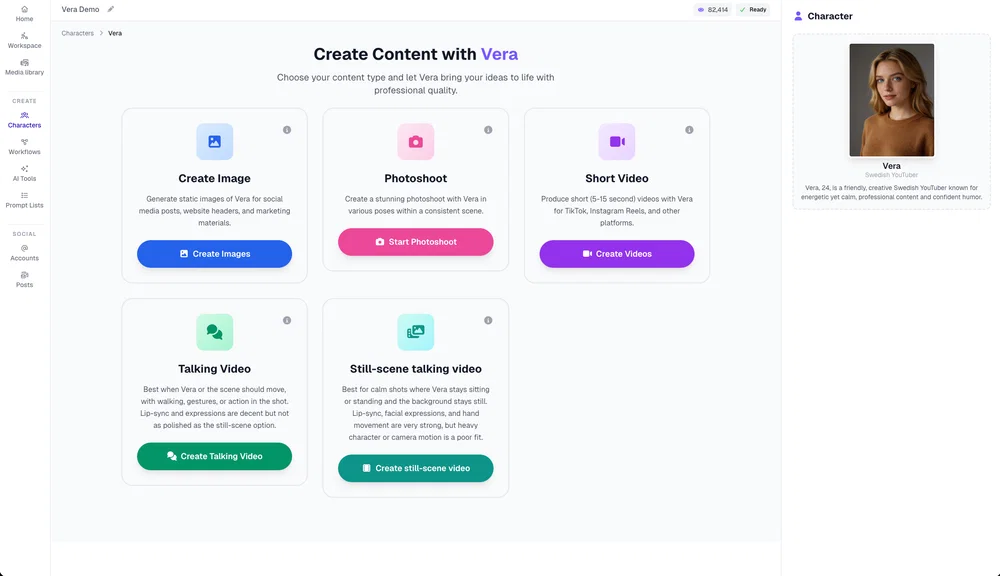
Now the payoff. Open your host, hit Create Content, and you'll see everything this character can produce: images, photoshoots, short videos — and Talking Video, which is what an AI YouTube host is all about.
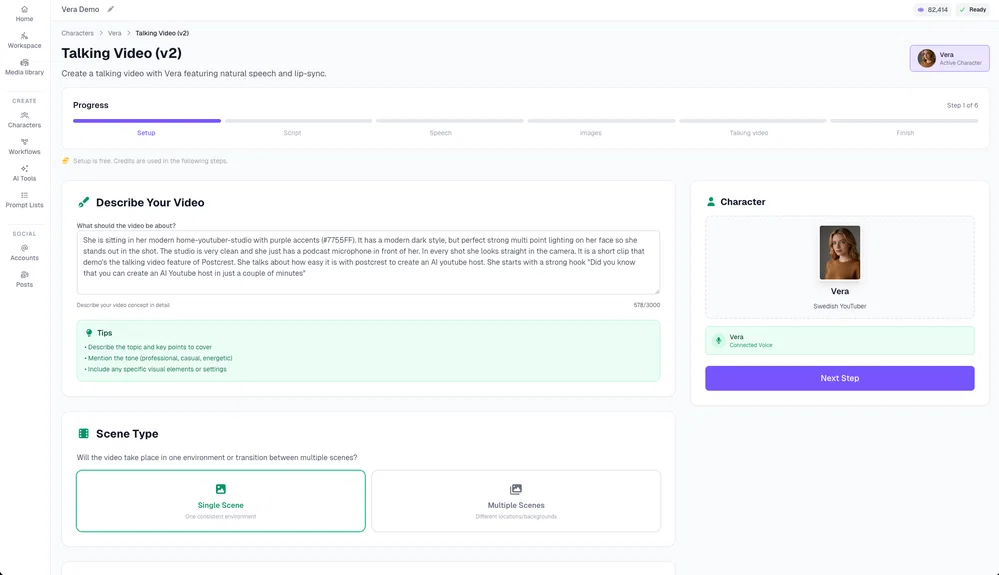
Here's the part that surprises most people: you don't write a script. You describe the video — what it's about, the setting, the tone, key points to cover, even the exact hook you want. For Vera we described a modern home studio with purple accent lighting, a podcast microphone, and a short clip explaining how easy it is to create an AI YouTube host. Choose a single scene or multiple scenes, and move on.
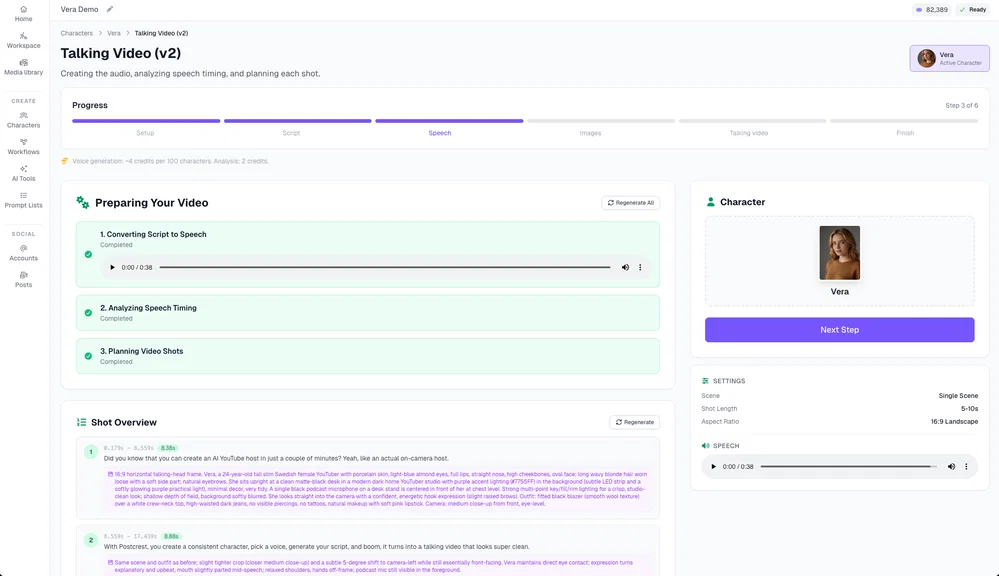
Postcrest's talking-head generator then does the production work for you: it writes the script from your description, converts it to speech in your host's voice, analyzes the speech timing, and plans every shot — framing, camera angle, expression — like a director would. You can review and regenerate any part before the final render.
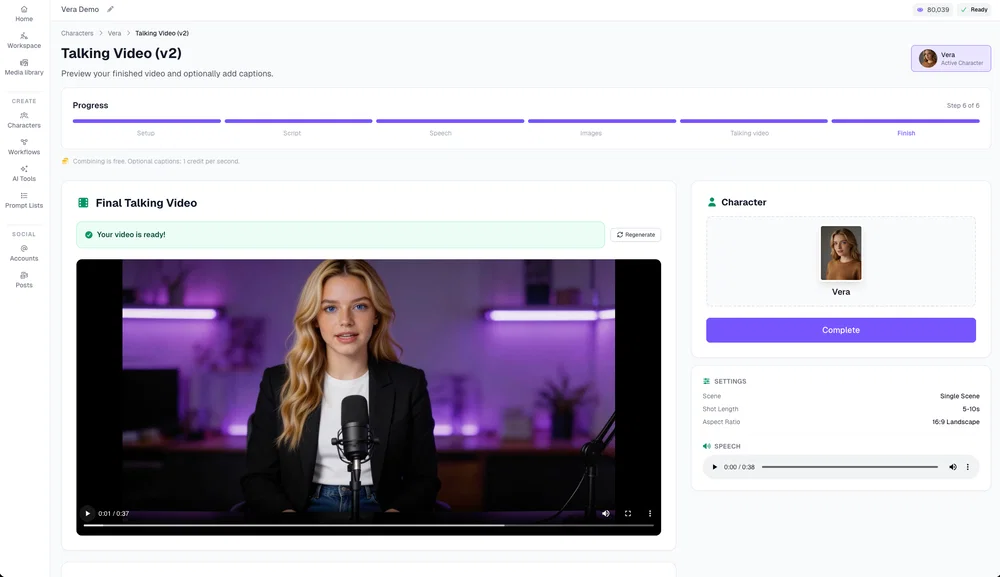
Generate the final video and preview it: your host speaking naturally with accurate AI lip-sync, consistent identity, and clean studio framing. Optionally add captions in one click, then download and upload to YouTube. That's the entire production pipeline — idea to published video, no camera involved.
Pro tips for the final video:
- Put the hook in your description. Spell out the exact opening line you want — the first 5 seconds decide whether viewers stay.
- Go horizontal for long-form, vertical for Shorts. The same host works for both — Shorts are the fastest way to grow a new channel (see our guide to creating viral YouTube Shorts).
- Add captions. A large share of viewers watch muted; captions lift retention and are one click away in the final step.
- Give every video a thumbnail with your host's face. The same character works for thumbnails: see how to make a YouTube thumbnail with AI.
How Much Time (and Money) Does This Actually Save?
A traditional talking-head video needs a camera setup, a presenter who's comfortable on camera, multiple takes, and editing — realistically hours per video, or hundreds of dollars per video if you hire talent. With an AI YouTube host, the marginal cost of a new video is a short description and a few minutes of generation time. That changes what's possible:
- Publish daily instead of weekly, without burning out.
- Run multiple channels with different hosts from one account.
- Test formats cheaply — if a video flops, you lost minutes, not a shoot day.
- Localize winners into other languages with the same host and voice.
Frequently Asked Questions
Q: Can I really make YouTube videos without showing my face? Yes. Your AI host appears on camera instead of you. You describe the video and the platform handles the script, face, voice, and lip-sync — a talking-head channel with zero filming.
Q: Will my AI YouTube host look and sound the same in every video? Yes — that's the point of creating a character rather than a one-off image. Postcrest's AI Characters keep the face consistent, and the voice you attach to the character is used automatically in every talking video.
Q: Can I base the AI host on myself? Yes. Upload up to 10 photos to build the character from a real person, and clone your own voice from an audio recording — your digital twin can host the channel while you never set up a camera.
Q: Is AI-generated content allowed on YouTube? Yes. YouTube allows AI-generated content; for realistic synthetic media you should use YouTube's built-in "altered or synthetic content" disclosure when uploading. Original, valuable AI-assisted videos remain monetizable under current YouTube policies.
Q: Do I need to write scripts or have editing skills? No. You describe what the video should be about and Postcrest writes the script, generates the speech, plans the shots, and renders the video — with optional one-click captions at the end.
Q: How long does it take to create an AI YouTube host video? Creating your host and voice is a one-time setup of a few minutes. After that, each new video takes about as long as describing what you want — the generation itself runs in minutes.
Create Your AI YouTube Host Today
You've seen the whole process: one character, one voice, unlimited videos. The creators winning on YouTube right now aren't the ones with the best cameras — they're the ones who publish consistently. An AI host makes consistency effortless.
Start now and create your AI YouTube host — your welcome discount is applied automatically, and your first video can be live today.