How to Make a Photo Talk with AI (3 Easy Steps)
Turn any still photo into a realistic talking video: upload a picture, give it a voice and a script, and AI generates accurate lip-sync, facial expression, and natural movement — in minutes, no editing skills needed.

Try 7 days for $2.50 · or 25% off your first month · Cancel anytime
Key Takeaways
- A talking photo is a still image animated with AI so the person in it speaks a script with realistic lip-sync, expressions, and head movement.
- You need 3 steps: choose the photo, add a voice and script, and generate the lip-synced video.
- Any clear, front-facing portrait works — a photo of yourself, a generated AI character, or an illustration.
- The voice makes or breaks realism: pick from thousands of AI voices, design a custom one, or clone a real voice.
- Popular uses: talking-head content without filming, bringing old family photos to life, AI presenters, and multilingual versions of the same speaker.
Ever wanted a photo to just say the thing — without filming anyone? Making a photo talk with AI means animating a still image so the person in it speaks your script with realistic lip-sync, facial expressions, and natural head movement. What used to be a Hollywood VFX job is now a three-step generation that takes minutes.
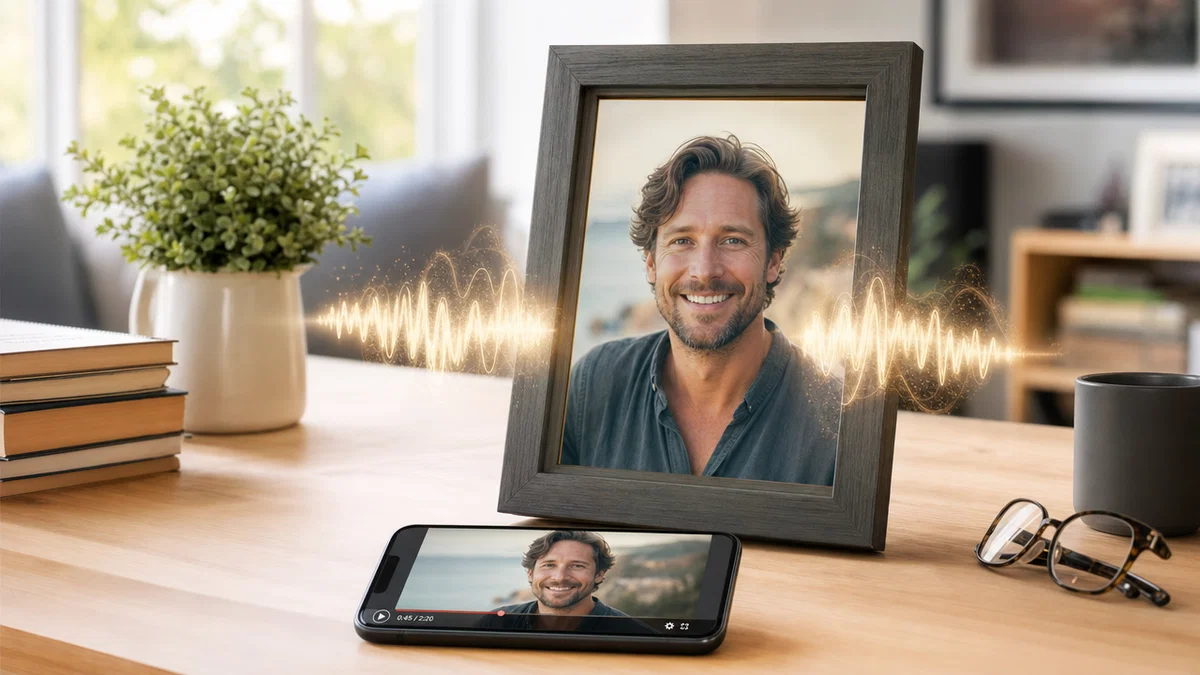
Here's the kind of result you can expect — a still image turned into a speaking presenter:
The whole flow runs in Postcrest's talking head generator. Let's make your photo talk.
What Is a Talking Photo (and What Can You Use It For)?
A talking photo (also called a talking-head video from an image, or photo lip-sync) is a still image animated by AI: the mouth moves in sync with an audio track, the eyes blink, the head moves naturally, and expressions follow the speech. Under the hood it combines text-to-speech with phoneme-accurate AI lip-sync — every mouth shape matches every sound. If you want motion without speech (a turn of the head, a smile, hair in the wind), see our guide on turning a photo into a video with AI instead.
What people make with it:
- Talking-head content without a camera — presenters, spokespeople, and course narrators from a single image. (Taken further, this becomes a full AI YouTube host.)
- AI characters that speak — give a generated persona a voice and a message.
- Old photos brought to life — a beloved family photo saying a birthday message.
- Multilingual versions of one speaker — the same face delivering the same message in 30+ languages.
- Products, mascots, and illustrations — lip-sync isn't limited to human photos.
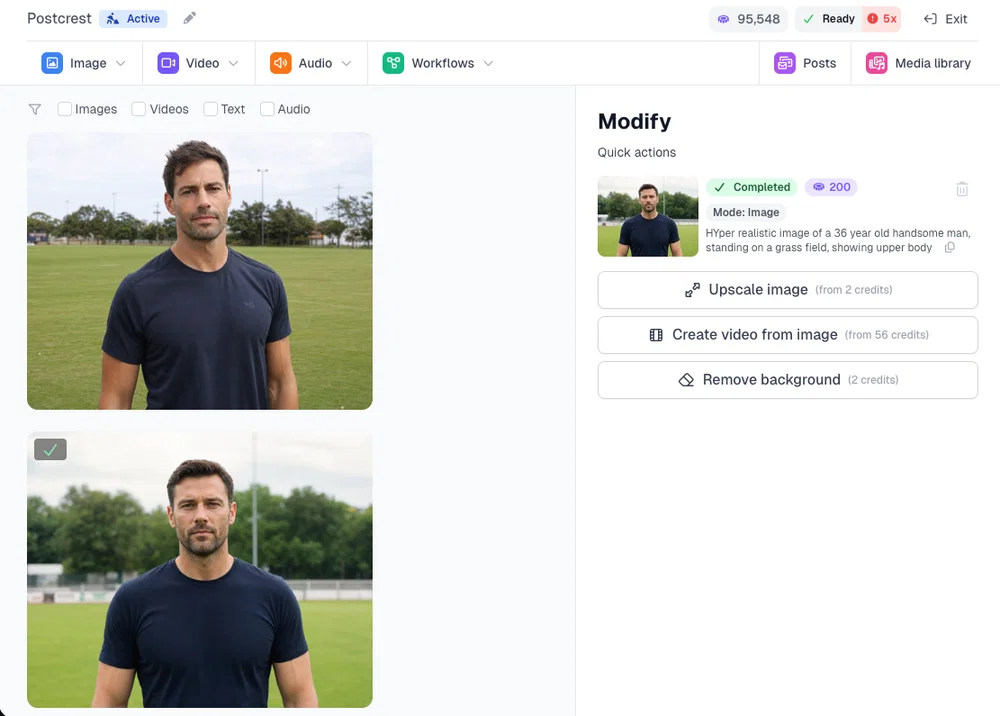
Step 1: Choose the Photo
Any reasonably clear, front-facing portrait works — a photo of yourself, a client, a generated character, even an illustration or mascot. For the most realistic result:
- Face the camera — straight-on or slightly angled portraits animate best.
- Visible mouth — no hands, mics, or mugs covering the lips.
- Good resolution and light — the AI animates what it can see; a sharp, well-lit face gives it more to work with.
- Chest-up framing — leaves room for natural head and shoulder movement.
Don't have the right photo? Generate one. Postcrest's AI image tools can create a photorealistic presenter in any style, or build a reusable AI character if you'll need the same face across many videos.
Step 2: Add the Voice and the Script
Type (or paste) what the photo should say, then choose how it should sound:
- Pick a voice from a library of thousands of studio-quality AI voices across ages, accents, and languages.
- Design a voice by describing it — "warm male voice, early forties, calm and reassuring" — with the AI voice generator.
- Clone a real voice from a clean audio recording with voice cloning — the obvious choice when the photo is of you. (Full walkthrough: how to clone your voice with AI.)
Match the voice to the face — age, energy, and accent congruence is what makes a talking photo feel real rather than dubbed.
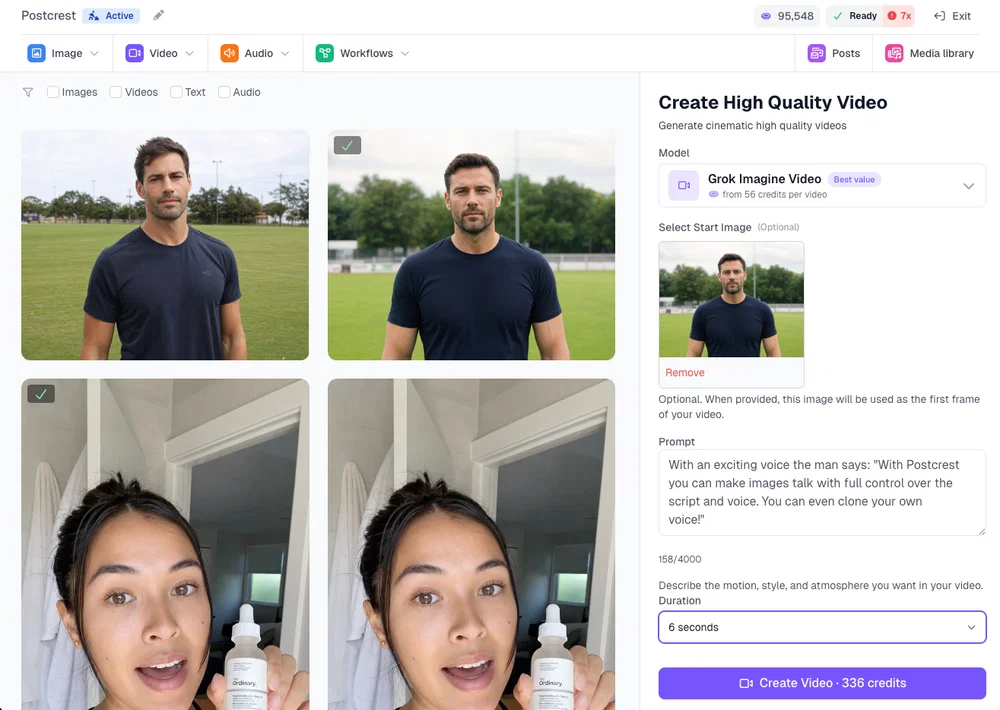
Step 3: Generate the Talking Video
Hit generate. The AI converts your script to speech, maps every phoneme to a mouth shape, adds blinks, micro-expressions, and natural head motion, and renders the video. Preview it, tweak the script or voice if a line lands wrong (regenerating takes minutes), then download in the format you need — 16:9 for YouTube, 9:16 for Shorts/Reels/TikTok, 1:1 for feeds.
The result — a still image speaking with natural lip-sync and movement:
Pro tips for maximum realism:
- Short sentences animate best. Long breathless paragraphs create unnaturally busy mouth motion; write like people speak.
- Still scene, strong lip-sync. If the photo's background should stay calm (a seated portrait, a framed photo), use the still-scene talking mode — lip-sync and expression get the full animation budget.
- Add captions for social. Muted autoplay is the norm; one click adds them.
Frequently Asked Questions
Q: Can I make any photo talk? Almost — the AI needs a visible face with a clear mouth. Front-facing portraits work best, but angled shots, illustrations, and even stylized characters animate well.
Q: Does the photo need to be of a real person? No. Generated AI characters, illustrations, paintings, and mascots all work — which is exactly how AI influencers and AI presenters are made.
Q: Can it speak in my voice? Yes — clone your voice from a clean recording and any photo (including yours) can deliver scripts in your voice, in dozens of languages.
Q: How long can the talking video be? Long enough for real content — presenters, explainers, and course segments, not just novelty clips. For longer pieces, generate in sections and let the consistent face and voice tie them together.
Q: Is it legal to make a photo of someone talk? Use photos you own or have permission to use, and never put words in a real person's mouth to deceive — impersonation and misleading synthetic media violate platform rules and laws in many places. For public content, follow the platform's synthetic-media disclosure.
Q: What's the difference between a talking photo and an AI avatar? A talking photo animates one image; an avatar (a reusable AI character) generates new images and videos of the same person in any scene. Start with a talking photo; graduate to a character when you want a series.
Make Your First Photo Talk Today
One photo, one script, one generate button — that's the entire production. Whether it's a presenter for your business, a character for your channel, or a photo that says happy birthday better than a card ever could:
Start now and make your photo talk — your welcome discount is applied automatically, and your first talking video is minutes away.