How to Make AI Cartoon Videos for YouTube (Step by Step)
A real walkthrough with screenshots: we turned one story idea about a little fox into a 28-second animated short with four shots, a consistent character and sound, using Postcrest's Multi-shot Video workflow.

Try 7 days for $2.50 · or 25% off your first month · Cancel anytime
Key Takeaways
- An AI cartoon starts as a story in a few beats plus one fixed description of your character that is repeated in every shot.
- Postcrest's Multi-shot Video workflow writes the shot list, generates four image candidates per shot, animates the ones you pick and joins them into one video.
- Pick images for character consistency first: the same colors, outfit and proportions in every shot make the episode feel like real animation.
- Video is priced per second, so lock your images before you animate, and only regenerate the clips that need it.
Animated story channels are some of the most watched channels on YouTube, and until recently they needed animators, storyboard artists and weeks per episode. With AI you can go from a story idea to a finished animated short in an afternoon, as long as you keep one thing under control: the character has to look the same in every shot.
In this guide we made a real cartoon, start to finish, and took a screenshot of every step. The idea: Pip, a little fox in a blue scarf, finds a glowing acorn and plants it. Four shots, 28 seconds, 16:9 for YouTube. Here is the finished video:
Everything below happens in Postcrest's Multi-shot Video workflow: it writes the shot list, generates the scene images, animates each shot and joins the clips into one video.
What You Need Before You Start
- A story in three to five beats. Setup, a problem or discovery, a journey, a payoff. "Fox finds acorn, follows fireflies, plants it, a tree sprouts" is a complete story.
- A character bible in one sentence. The exact look you will repeat in every shot: "a small curious orange fox with big green eyes, a white chest and tail tip, and a blue knitted scarf". This sentence is your consistency insurance.
- A style. Pick one and stick to it for the whole channel: Pixar-like 3D, anime, watercolor, claymation, flat 2D.
- A format. 16:9 for regular YouTube videos, 9:16 for YouTube Shorts and TikTok.
Step 1: Describe the Story and Lock the Character
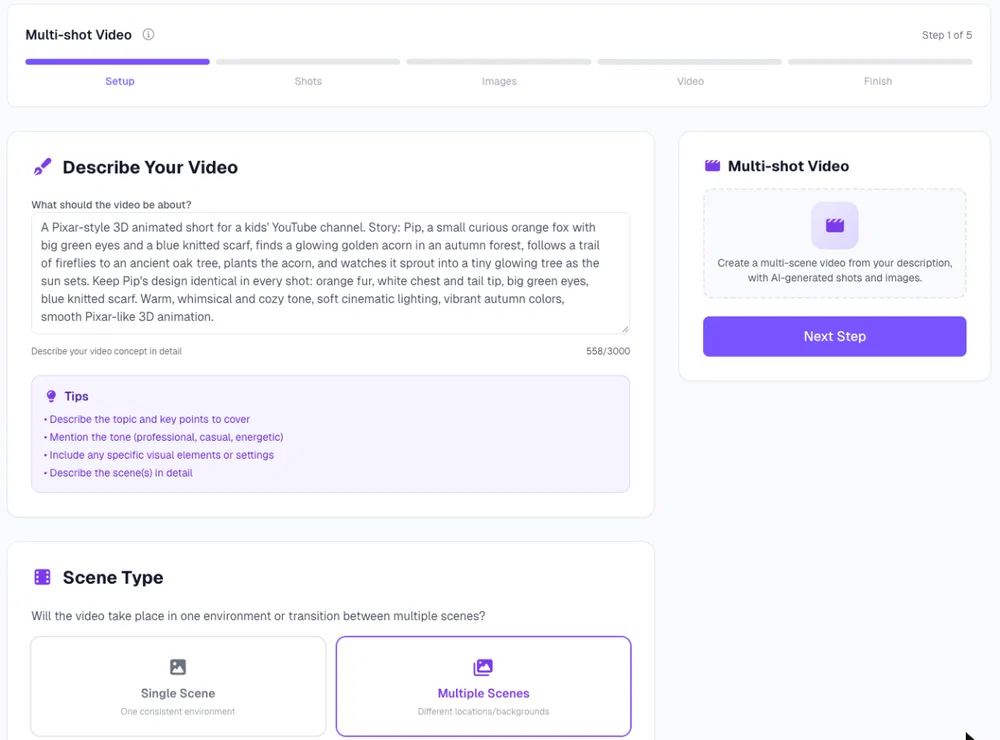
In a workspace, open Workflows → Multi-shot Video. The first field asks what the video should be about. Write the story, the style and the tone, and include your character bible word for word, with an explicit instruction to keep the design identical.
This is the exact description we used:
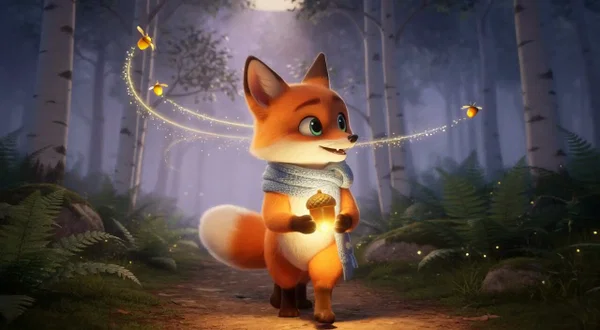
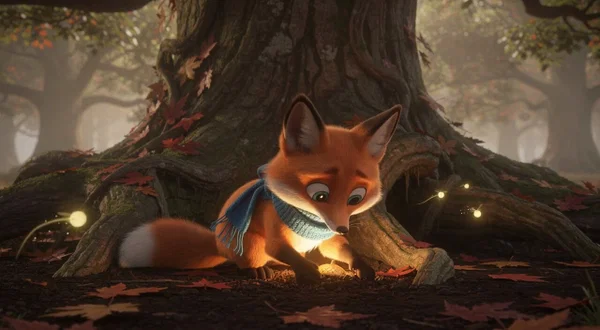
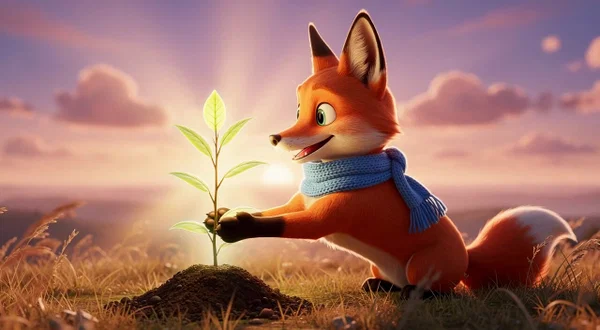
A Pixar-style 3D animated short for a kids' YouTube channel. Story: Pip, a small curious orange fox with big green eyes and a blue knitted scarf, finds a glowing golden acorn in an autumn forest, follows a trail of fireflies to an ancient oak tree, plants the acorn, and watches it sprout into a tiny glowing tree as the sun sets. Keep Pip's design identical in every shot: orange fur, white chest and tail tip, big green eyes, blue knitted scarf. Warm, whimsical and cozy tone, soft cinematic lighting, vibrant autumn colors, smooth Pixar-like 3D animation.
Step 2: Choose Scenes, Shot Count, Length and Format
Below the description you set the structure of the video:
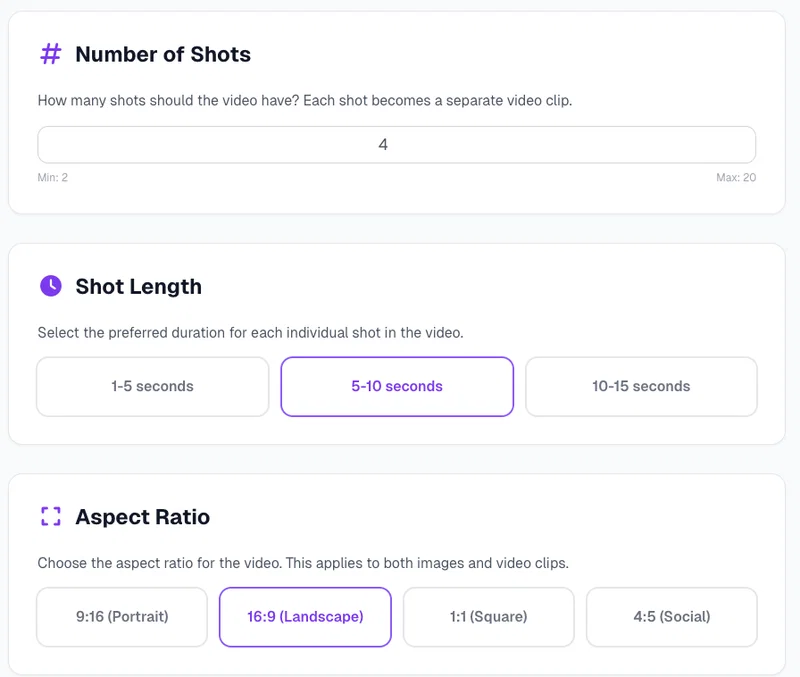
- Scene type: Single Scene keeps one environment. Multiple Scenes lets the story move between locations, which is what most cartoon stories need.
- Number of shots: 2 to 20. Each shot becomes its own clip. Four shots is a good first episode.
- Shot length: 1 to 5, 5 to 10 or 10 to 15 seconds. 5 to 10 seconds gives each beat room without dragging.
- Aspect ratio: 16:9 for YouTube, 9:16 for Shorts, 1:1 or 4:5 for social feeds.
Step 3: Review the Shot Breakdown
Click Next Step and Postcrest writes the episode as a shot list. Every shot gets a duration, a description of what happens and an image prompt for the first frame. Notice how each shot repeats the character bible: that is what keeps Pip on model.
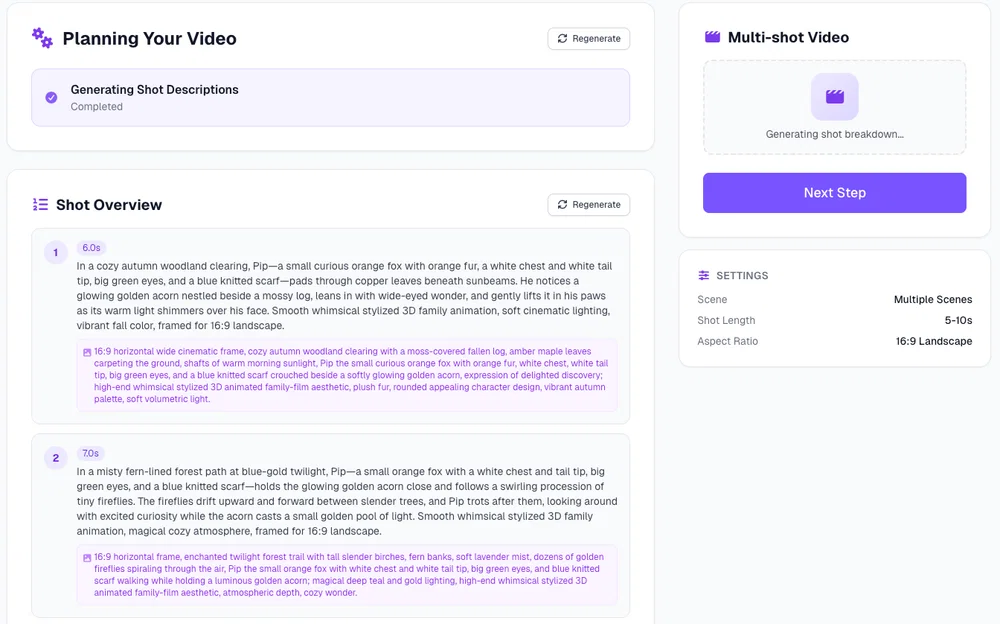
Read it like a storyboard. If a beat is missing or happens in the wrong order, regenerate the breakdown before you continue: changing the story now is cheap, changing it after animation is not.
Step 4: Pick the Best Image for Every Shot
Next, Postcrest generates four image candidates per shot. This is the most important decision in the whole workflow, because the image you pick becomes the first frame of the clip.
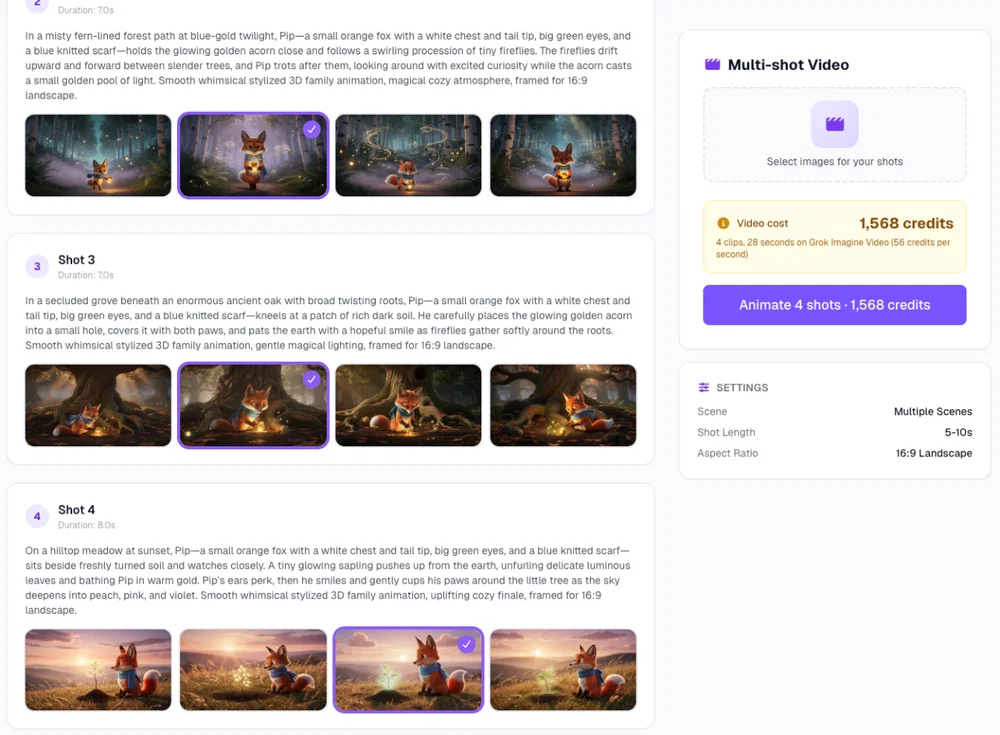
Choose for consistency first and beauty second:
- Same fur color, eye color and scarf in every pick.
- Similar proportions: Pip should not grow or shrink between shots.
- The character clearly visible and large enough in frame.
- Composition that leaves room for the action described in the shot.
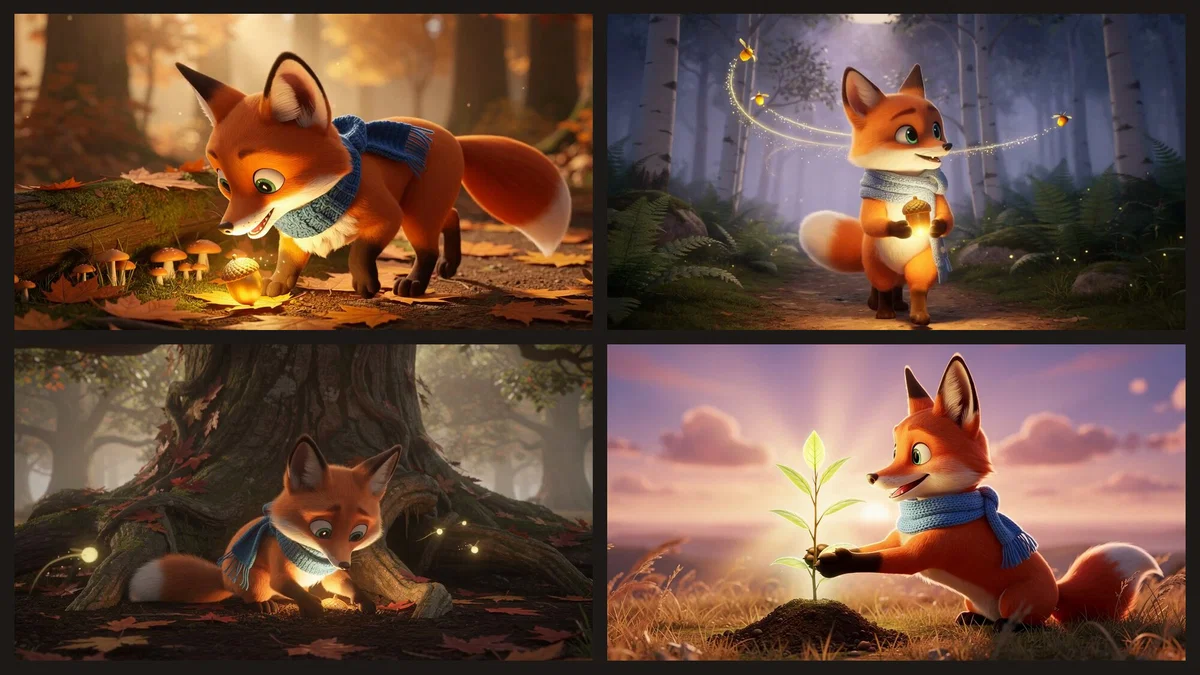
In our run, every shot had at least two candidates where Pip was clearly the same fox. We picked the closest, most readable one each time.
Step 5: Animate the Shots
Once every shot has an image, the sidebar shows what animating them will cost: the number of clips, their total length, the video model and the credits. Click Animate 4 shots and each selected image is turned into a video clip that follows the shot description. Clips appear one by one. If one comes out wrong (a strange motion, the character changing), regenerate just that shot; its button shows the price of the new clip.
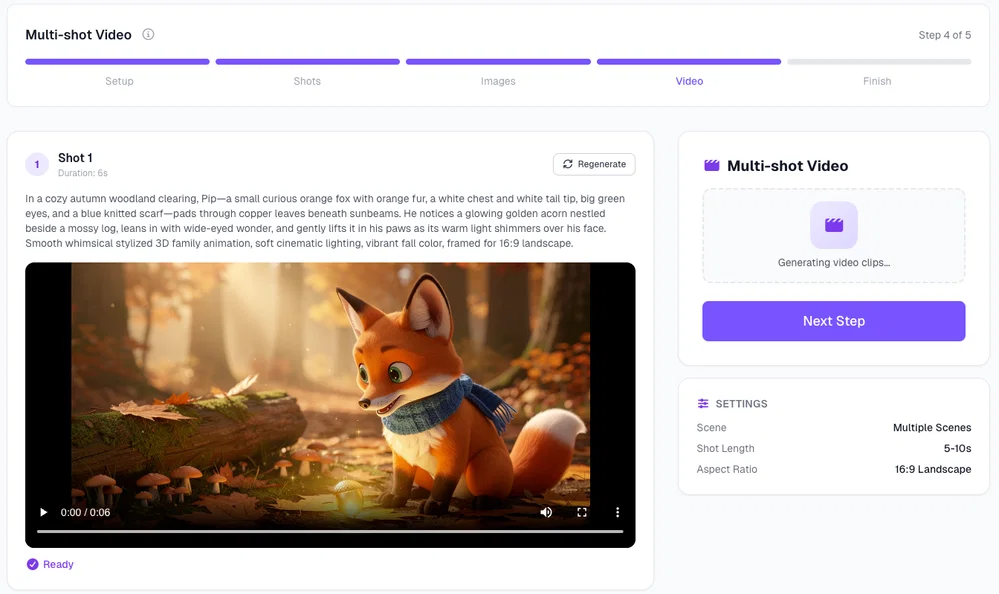
A note on credits: video is priced per second of footage, so this is by far the most expensive step. Scene images cost a fraction of that. Spend your time in Step 4 picking the right images, and you will rarely need to regenerate a clip. Every model's price is on the credit costs page.
Step 6: Finish, Add Captions and Export
In the last step Postcrest joins the clips into one finished video. If your episode has narration or dialogue, you can add automatic captions here; you can also give the caption generator a hint, such as character names. Our short has no dialogue, so we skipped captions.
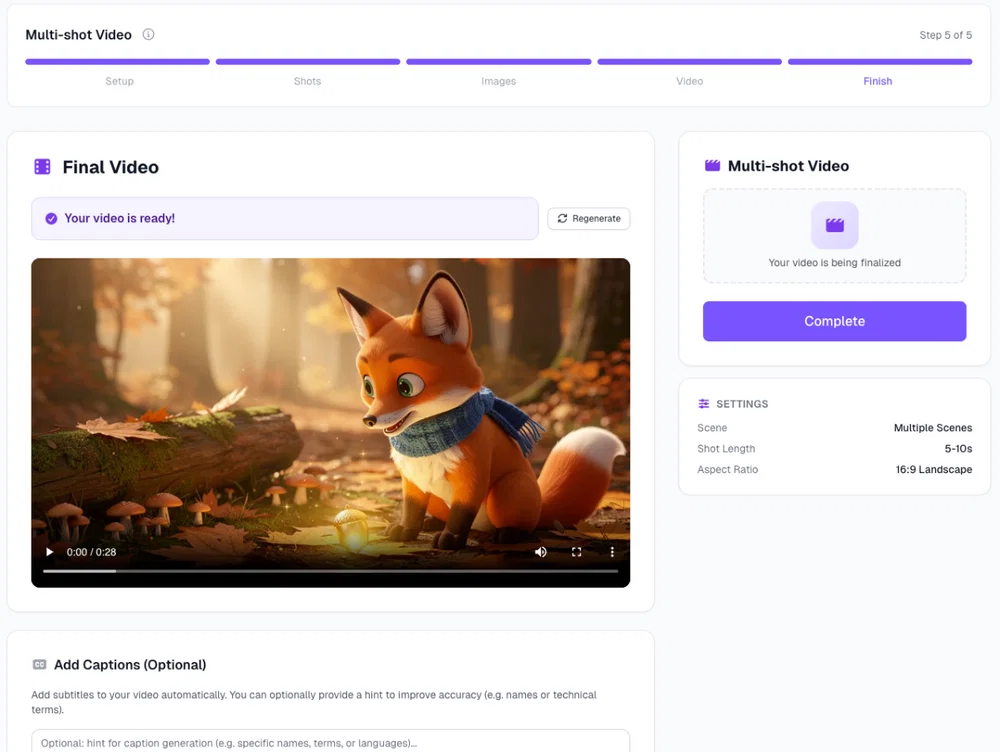
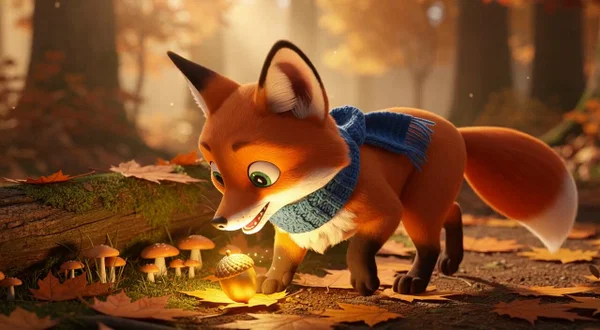
The finished file is ready to download and upload to YouTube. Here is the episode as a storyboard, one frame per shot:
From One Short to a Cartoon Channel
One good short is a test. A channel is a repeatable format. Once the first episode works:
- Keep a character sheet. Save your character bible sentence and reuse it word for word in every episode. For recurring characters, you can also create them as AI characters with a cartoon visual style, so they are stored once and reused everywhere.
- Give them a voice. Design a narrator or character voice with the AI voice generator. A saved character with a voice can star in Character Long Video, where you pick lip-sync or voice-over per shot.
- Build a series format. "Pip's Forest Adventures": same opening shot, same length, a new small adventure each week. Recognizable formats are what get subscribed to.
- Cut Shorts from every episode. Re-run your best shot in 9:16 and post it as a teaser. The faceless Shorts page covers the vertical format.
- Make the thumbnail with the same character. Our guide on making YouTube thumbnails with AI works for cartoon characters too.
For more cartoon formats and examples, see the AI cartoon videos for YouTube page, and the TikTok cartoon version for vertical channels.
YouTube Rules Worth Knowing for AI Cartoons
- Made for kids. If your cartoon is aimed at children, mark it as made for kids in YouTube Studio. It changes comments, ads and some features, and getting it wrong can cause problems with YouTube and child-privacy rules.
- AI disclosure. YouTube asks creators to disclose realistic altered or synthetic content that viewers could mistake for real footage. A clearly animated talking fox is not that, but check YouTube's current policy for your content.
- Original, not mass-produced. YouTube does not monetize repetitive, template-like uploads. A consistent cast, real storytelling and your own voice or script keep your channel on the right side of that line.
Start Your First Episode
You need one story idea and one sentence describing your character. Start now and turn them into your first animated short.
Frequently Asked Questions
Q: Can AI make a full cartoon video from a prompt?
A: Yes. In Postcrest's Multi-shot Video workflow you describe the story once; AI writes the shot list, generates images for every shot, animates them and joins the clips into one video. You pick the best image for each shot along the way.
Q: How do I keep my cartoon character consistent between shots?
A: Write one exact description of the character (colors, clothing, distinctive features), include it in your story prompt with the instruction to keep it identical, and choose the image candidates where the character matches best before animating.
Q: How long can an AI cartoon video be?
A: A Multi-shot Video can have up to 20 shots of up to 15 seconds each. For longer episodes, make several sequences and join them in your video editor.
Q: Which aspect ratio should I use?
A: 16:9 for regular YouTube videos, 9:16 for YouTube Shorts and TikTok. Choose it at the start, because it applies to both the images and the clips.
Q: Can I add a voiceover or dialogue?
A: Yes. Generate narration with Postcrest's voice tools, or create the character with a voice and use Character Long Video, which supports lip-sync or voice-over per shot. Add automatic captions in the final step.
Q: Can I monetize AI cartoon videos on YouTube?
A: AI-made videos can be monetized when they meet YouTube's partner program rules. Original stories, recurring characters and real narration matter more than how the frames were made; mass-produced, repetitive uploads are what YouTube refuses to monetize.