How to Make a YouTube Thumbnail With AI (Using Your Own Face)
A step-by-step walkthrough with real screenshots: create a consistent AI version of yourself, generate 16:9 thumbnails with bold readable text, make A/B variants with a single edit and export them at the size YouTube expects.

Try 7 days for $2.50 · or 25% off your first month · Cancel anytime
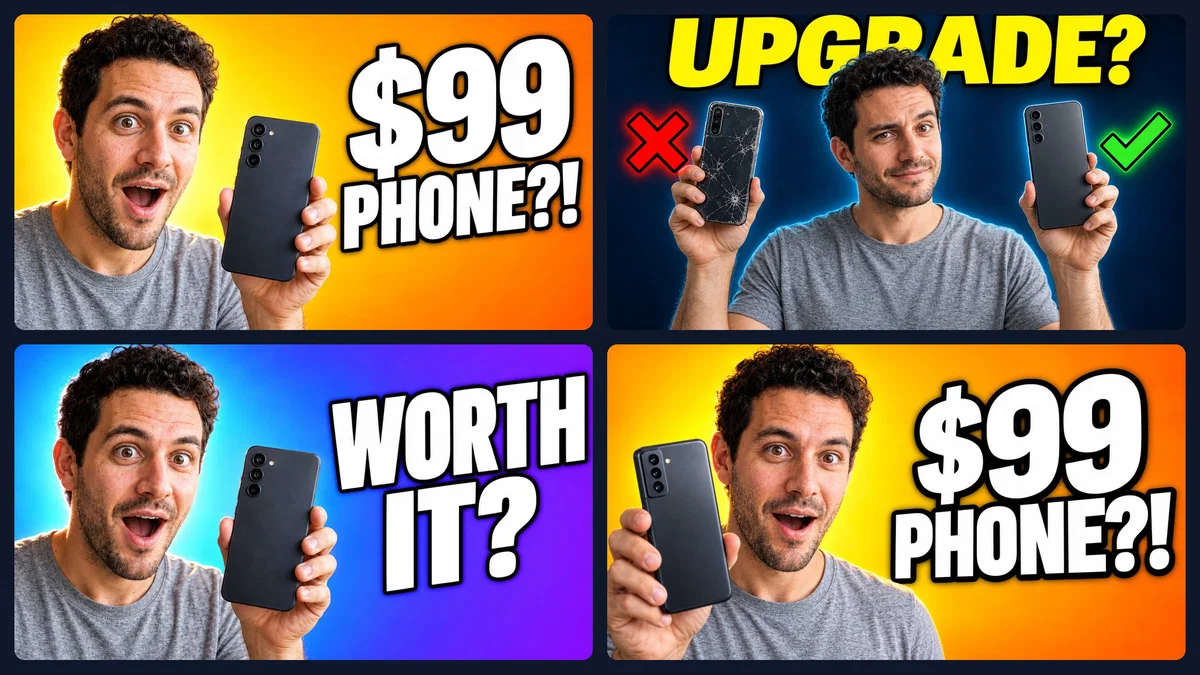
Key Takeaways
- Turn your photos into a character once, and every thumbnail shows the same face in any expression, outfit or setting.
- A good thumbnail prompt names the face, the emotion, one prop, the exact text in quotes, the background colors and the lighting.
- Generate four or more variants per video, then use Edit Image to swap the text or background for a clean A/B test.
- Export at 1280×720 or larger and keep the file under 2 MB before uploading it to YouTube.
A YouTube thumbnail does most of the work before anyone hears a word of your video. It is the one image that decides whether someone in the feed clicks or scrolls past, and most creators still make it the slow way: a photo shoot for the right facial expression, a cutout in Photoshop, a font that is too thin, and one version that never gets tested.
This guide shows a faster way, step by step, with a screenshot of every screen. We made real thumbnails for a tech channel in Postcrest: first an AI version of the creator, then 16:9 thumbnails with bold, readable text, then A/B variants for YouTube's built-in thumbnail test.
Our demo creator is Leo, a tech reviewer. Leo is not a real person: we generated his "selfie" with AI so we could show the full workflow without using anyone's face. With your own photos, every step is identical.
What Makes a YouTube Thumbnail Work
Before you open any tool, know what you are aiming for. The thumbnails that get clicked have the same few things in common:
- One face, one emotion. A face that fills about a third of the frame, with a clear expression (surprise, doubt, excitement). Faces are the first thing people notice in the feed.
- Two to four words of text. The text adds to the title instead of repeating it. "$99 PHONE?!" next to the title "I used the cheapest phone for 30 days" works. A full sentence does not.
- One focal object. The phone, the product, the result. Not five things.
- High contrast. A saturated background that separates clearly from the face and the text.
- Readable at phone size. Most views come from mobile, where a thumbnail is about the size of a stamp.
- A recognizable style. The same face, colors and layout across videos, so subscribers spot you instantly.
AI is good at all of this, as long as it knows who you are and you tell it exactly what to put in the frame. That is what the next steps are about.
Step 1: Turn Your Photos Into a Reusable Character
If you prompt a normal image generator for "a man holding a phone", you get a new face every time. For thumbnails you want your face, every time. In Postcrest you get that by creating a character once.
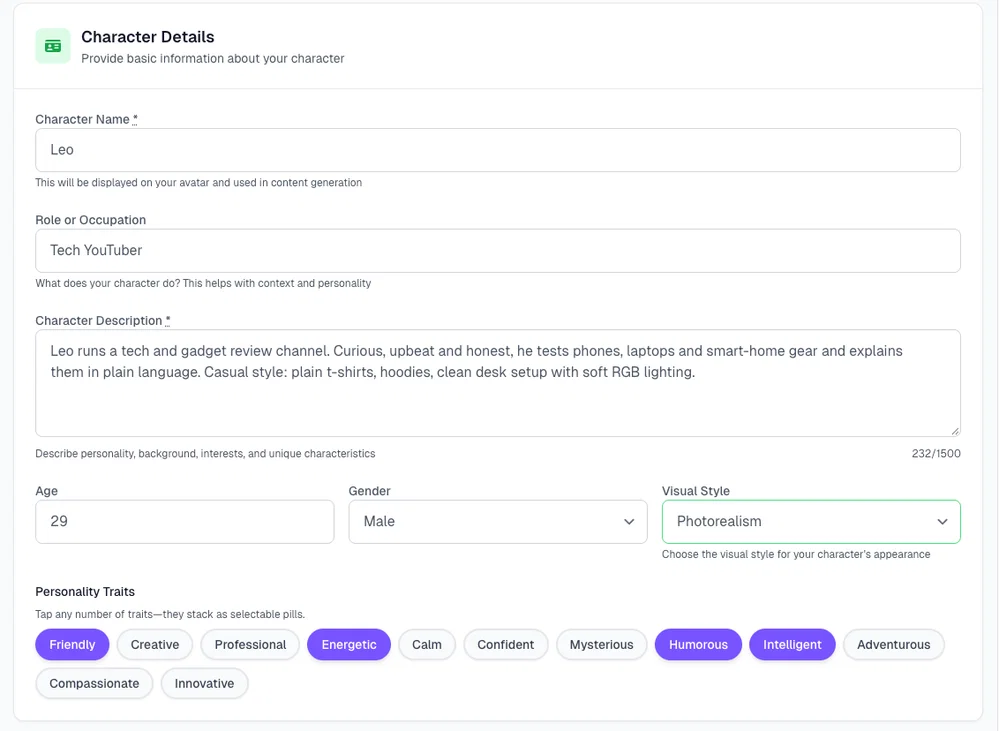
Go to Characters → New Character and fill in the basics: a name, a role, a short description, age, gender, visual style and a few personality traits. The description and traits help later, when Postcrest writes prompts and scripts for this character.
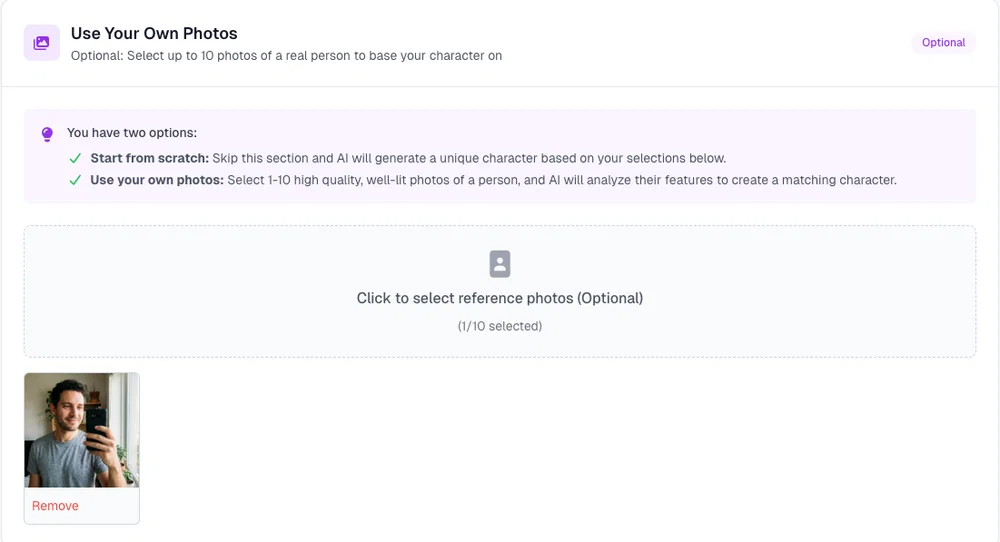
Then scroll to Use Your Own Photos and add 1 to 10 photos of yourself. One clear, well-lit photo is enough to start; three to five from different angles give the most stable likeness. Skip sunglasses, heavy filters and group photos.
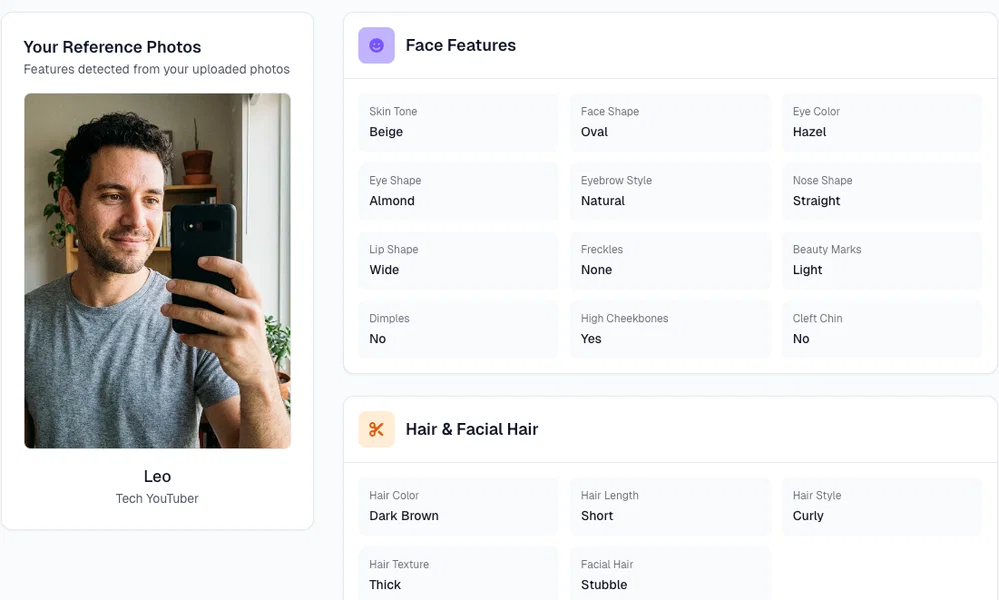
Postcrest analyzes the photos and fills in the physical features it detected: skin tone, face shape, eye color, hair, facial hair and so on. Check them and correct anything that is off before you continue.
Next, Postcrest generates a character sheet: the same person from the front, back and side, plus a face portrait and a bust view. This sheet becomes the reference for every future image and video, so pick the one where the face looks most like you. If none does, generate another sheet.
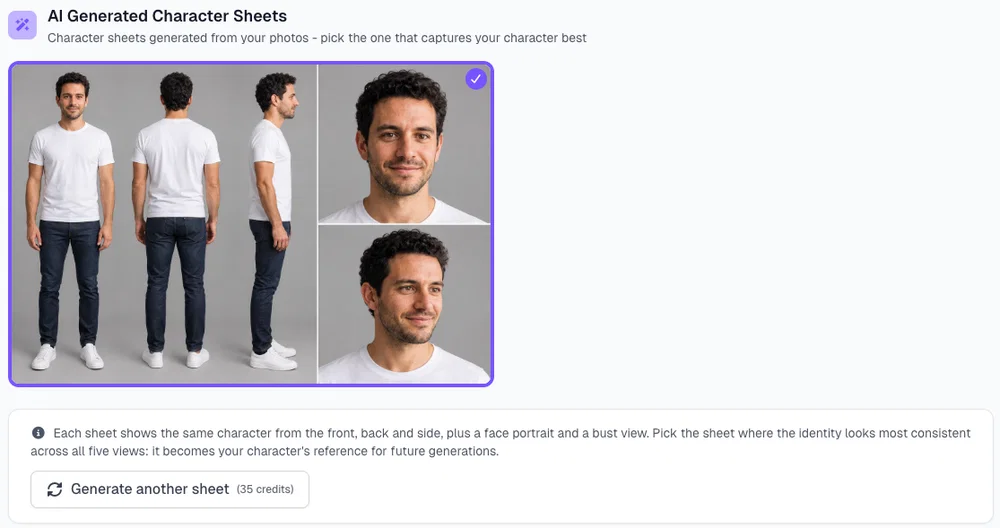
Click Use this Character Sheet and your character is ready. You only do this once per face.
Step 2: Open Create Image With Your Character
Open your character and you will see what you can make with it: images, videos and talking videos. For thumbnails, choose Create Images and pick (or create) a workspace for your channel.
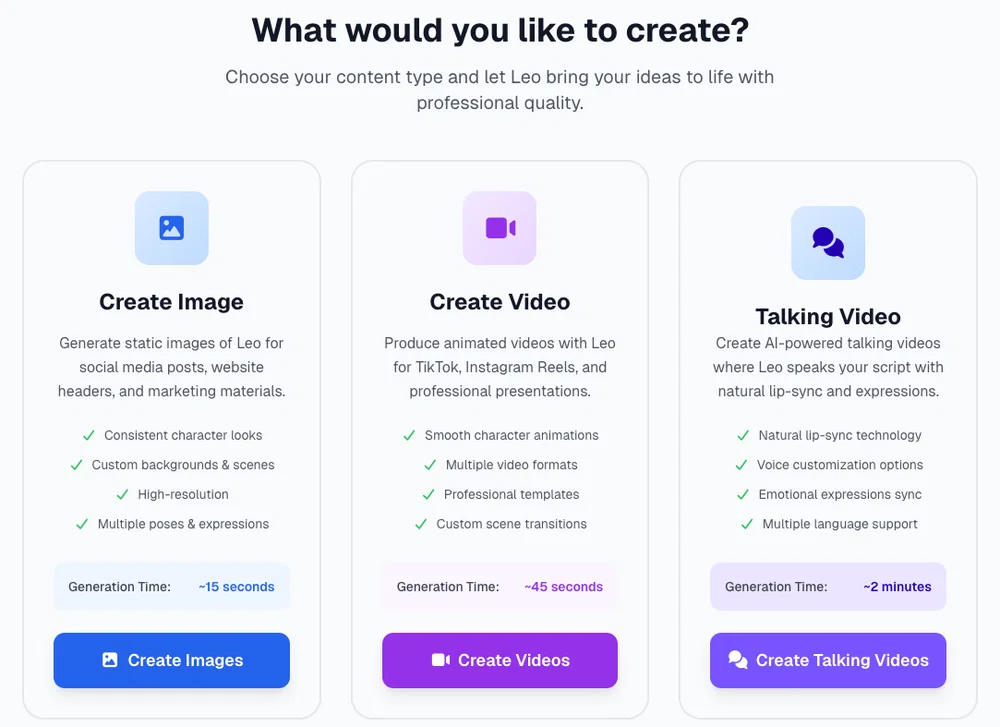
This opens Create Image from Person. You can also find it any time under Workflows → Character Image. Set it up like this:
- Model: GPT Image 2.5. It keeps your face recognizable, follows long prompts closely and renders short text cleanly, which is exactly what thumbnails need.
- Image dimensions: 16:9, labelled "YouTube, landscape".
- Resolution: 1K. In 16:9 that is 1280×720, exactly the size YouTube recommends. 2K costs twice the credits.
- Quality: High. Letters and skin come out noticeably crisper than on Medium.
- Who should the image look like? From character, then pick your character.
Step 3: Write a Thumbnail Prompt That Gets Text Right
The prompt is where most AI thumbnails go wrong. Vague prompts give you vague thumbnails with random words in them. Use this structure instead:
[Character and framing] + [emotion] + [one prop or action] + [exact text in quotes, style and position] + [background colors] + [lighting] + "no other text"
Here is the exact prompt we used for Leo's budget phone video:
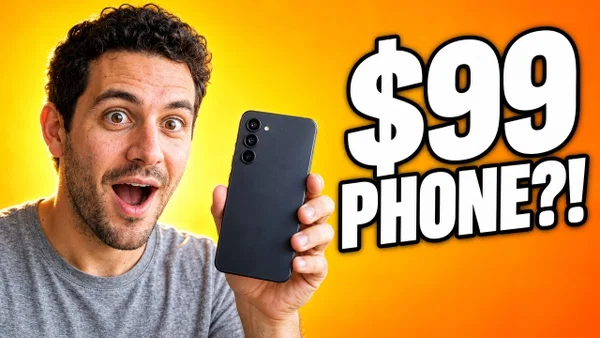
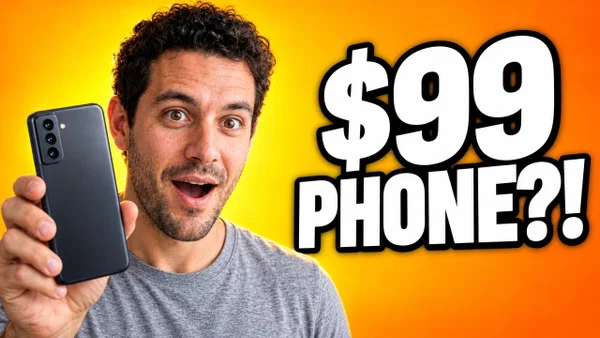
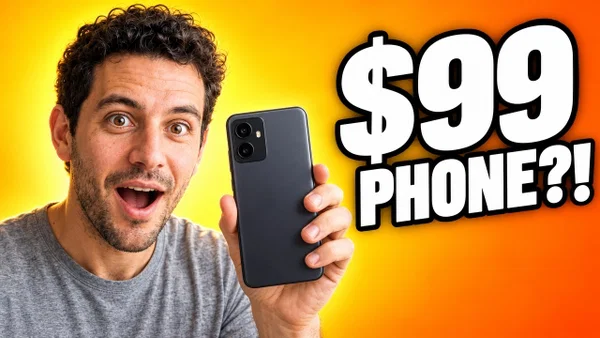
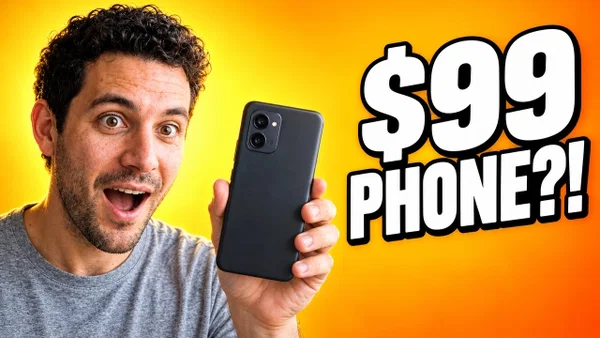
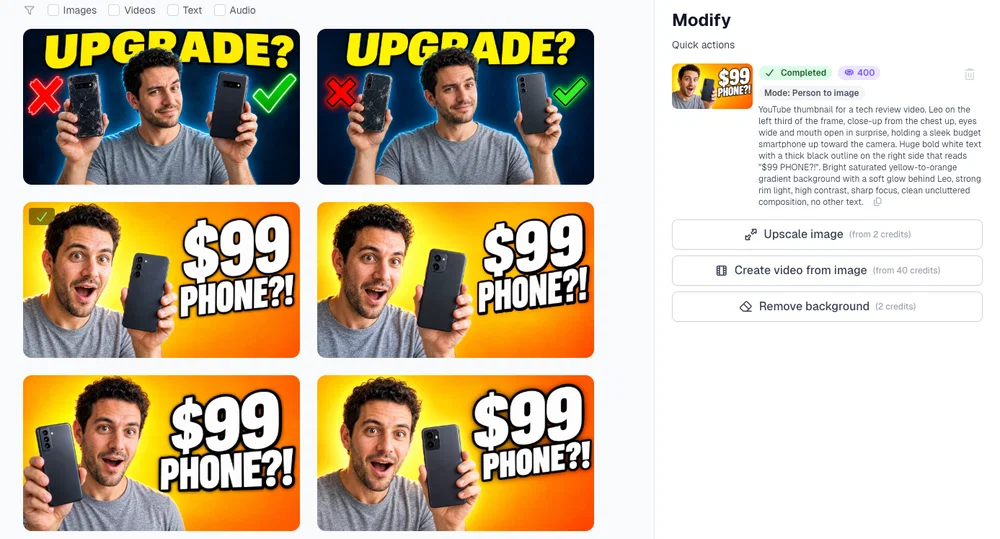
YouTube thumbnail for a tech review video. Leo on the left third of the frame, close-up from the chest up, eyes wide and mouth open in surprise, holding a sleek budget smartphone up toward the camera. Huge bold white text with a thick black outline on the right side that reads "$99 PHONE?!". Bright saturated yellow-to-orange gradient background with a soft glow behind Leo, strong rim light, high contrast, sharp focus, clean uncluttered composition, no other text.
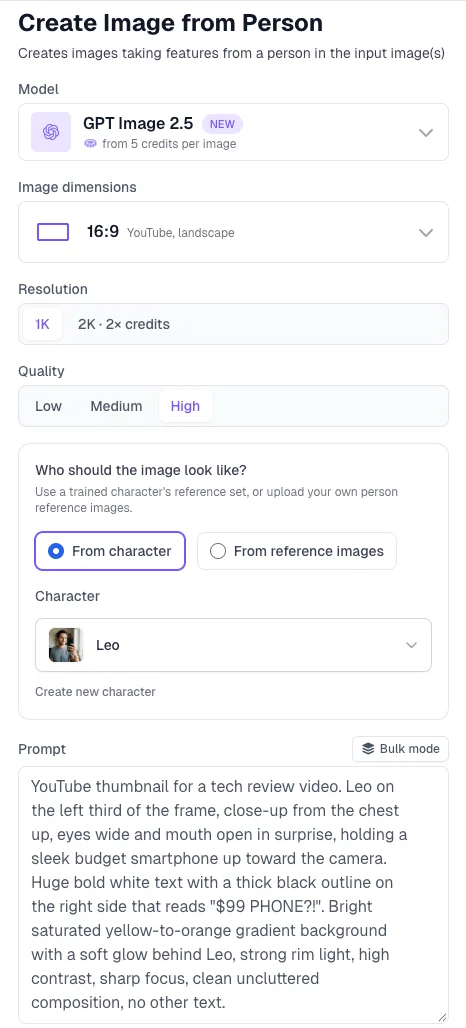
What makes this prompt work:
- The text is in quotes. The model reproduces exactly what is between the quotes. Keep it to two to four short words.
- The text has a style and a position. "Huge bold white text with a thick black outline on the right side" keeps it readable and away from the face.
- The face and text sit on opposite sides. Left third for the face, right side for the text, so neither covers the other.
- "No other text" is at the end. It stops the model from adding fake logos or extra words.
Want more starting points? Browse our YouTube thumbnail prompts and swap in your character's name.
Step 4: Generate Four Variants and Pick a Winner
Set Number of images to 4 (you can go up to 8) and click Create. The button always shows the credit price before you generate. About a minute later you have four versions of the same idea, each with your face.
We also ran a second concept, an "UPGRADE?" comparison thumbnail with a cracked old phone and a new one, to see which direction reads better. It took us three tries, and both fixes are worth stealing:
- Say "unbranded, no logos" for products. Our first run put a real phone maker's logo on the new phone. You do not want someone else's trademark in your thumbnail.
- Give the hands one job. We asked for crossed arms and two phones, and got a Leo with four hands. Holding one phone in each hand fixed it.
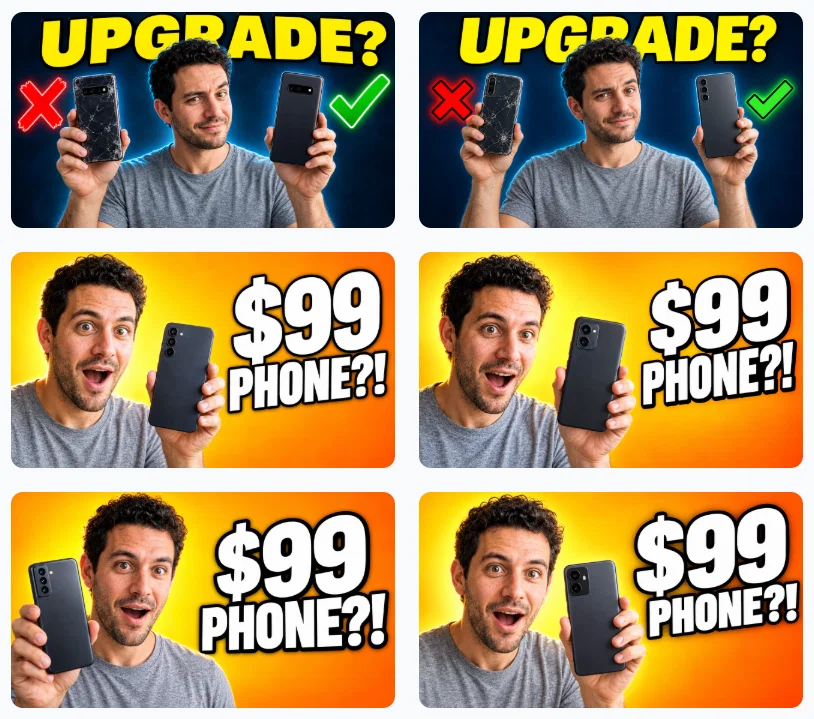
Here are the four "$99 PHONE?!" variants side by side. Same face, same idea, different framing and expression:
How to pick the winner:
- Shrink it. Zoom your browser out until the thumbnails are stamp-sized. The one you can still read wins.
- Check the face. Eyes visible, expression obvious, nothing covering the face.
- Check the text letter by letter. AI spelling is very good with short text, but not perfect. If a letter is off, regenerate or fix it in the next step.
- Check hands and props. Fingers and the object should look natural at full size too.
Step 5: Make A/B Versions With Edit Image
One thumbnail is a guess. Two or three are a test. YouTube Studio's Test & compare lets you upload up to three thumbnails for one video and shows you which one wins on watch time.
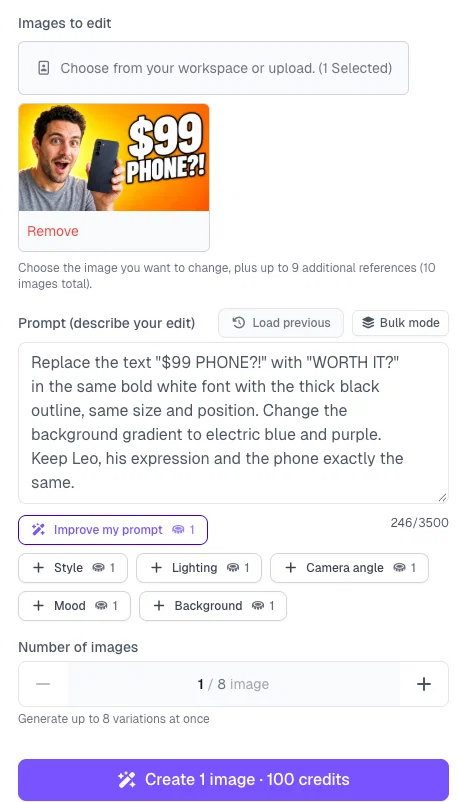
You do not need to start over for that. Open Image → Edit Image, keep the model on GPT Image 2.5, choose the thumbnail you like, and describe only what should change. We kept Leo, his expression and the phone, and swapped the text and the background color:
Replace the text "$99 PHONE?!" with "WORTH IT?" in the same bold white font with the thick black outline, same size and position. Change the background gradient to electric blue and purple. Keep Leo, his expression and the phone exactly the same.
The result is a clean A/B pair: one variable changed, everything else identical, so the test tells you something.
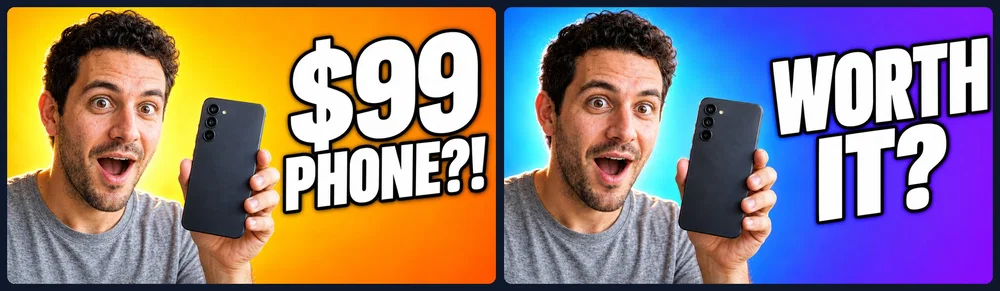
Good things to test, one at a time: the text, the background color, the expression, and close-up versus wide framing.
Step 6: Download and Upload to YouTube
Click Add to library on the thumbnail you want. Saved images can be upscaled, turned into a video or cut out with Remove background (handy if you finish thumbnails in Canva or Photoshop). Download them from your Media library, one by one or several at once as a ZIP.
Before uploading, check YouTube's thumbnail requirements: a 16:9 image, ideally 1280×720 pixels (at least 640 pixels wide), as JPG, PNG or GIF, and under 2 MB. A 1K image from GPT Image 2.5 is exactly 1280×720, and our PNGs came out around 1.2 to 1.4 MB, so they upload as they are. If you generated at 2K or a file ends up over 2 MB, convert it with our PNG to JPG converter or shrink it with the image resizer.
Thumbnail Prompt Templates You Can Copy
Replace the parts in brackets. Keep the text short and in quotes.
- Reaction: "YouTube thumbnail. [Name] close-up on the left, [shocked / laughing / skeptical] expression, looking at [object] in their hand. Huge bold white text with a black outline on the right that reads "[2 TO 4 WORDS]". [Color] gradient background, rim light, high contrast, no other text."
- Versus: "YouTube thumbnail, split composition. [Name] in the center with arms crossed. [Thing A] on the left with a big red X, [thing B] on the right with a big green check mark. Bold yellow text across the top that reads "[WORD]?". Dark background with neon rim light, no other text."
- Before and after: "YouTube thumbnail split in two halves. Left half desaturated and gloomy showing [before], right half bright and colorful showing [after], [Name] pointing at the right half and grinning. Bold text "[BEFORE] → [AFTER]", no other text."
- Tutorial result: "YouTube thumbnail. [Name] on the right giving a thumbs up, on the left a large crisp close-up of [the finished result]. Bold white text "[RESULT IN 3 WORDS]" with a dark outline at the top left. Clean bright background, no other text."
- Mystery: "YouTube thumbnail. [Name] peeking at a [box / door / screen] with a dramatic glow coming out of it, eyebrows raised. Bold red text "[DON'T OPEN THIS]" in the top right. Dark moody background, strong contrast, no other text."
Common AI Thumbnail Mistakes
- Too much text. If you need more than four words, the idea is not clear enough yet.
- Text that repeats the title. The thumbnail and the title should tell the story together, not twice.
- A tiny face. Frame from the chest up, not full body.
- Low contrast. Grey text on a grey background disappears in dark mode.
- A different face every week. Generate from your character, never from a plain text prompt, so your channel stays recognizable.
- Not testing. Make at least two versions of every important thumbnail.
If you run a channel without showing your real face, the same workflow works with a character you design from scratch. Our guide on starting a faceless YouTube channel with AI covers that side, and AI YouTube Shorts covers the vertical format.
Ready to Make Your Next Thumbnail?
Create your character once, and every future thumbnail takes a prompt and about a minute. Start now and make your first thumbnail with your own face today.
Frequently Asked Questions
Q: Can AI make a YouTube thumbnail with my face?
A: Yes. Create a character in Postcrest from 1 to 10 photos of yourself, then generate thumbnails "From character". Every thumbnail shows the same face in whatever expression, outfit and setting you describe.
Q: Which AI model is best for YouTube thumbnails?
A: For thumbnails with text and a real face, use GPT Image 2.5 on High quality: it keeps your face recognizable, follows detailed prompts closely and renders short text cleanly. Use Low or Medium quality for quick drafts, then switch to High for the final versions.
Q: What size should a YouTube thumbnail be?
A: 16:9, ideally 1280×720 pixels and at least 640 pixels wide, saved as JPG, PNG or GIF and under 2 MB. Choose 16:9 in Postcrest and convert the download to JPG if the file is too large.
Q: How do I stop AI from misspelling the text?
A: Put the exact words in quotes, keep them to two to four words, describe the font style and position, and end the prompt with "no other text". If one letter is still wrong, fix it with Edit Image instead of regenerating everything.
Q: Are AI-generated thumbnails allowed on YouTube?
A: Yes, as long as they follow YouTube's thumbnail policies and represent the video honestly. A thumbnail that promises something the video does not deliver hurts retention and can break YouTube's rules.
Q: How many thumbnail variants should I make?
A: Generate four to eight to find the best direction, then test two or three finalists with YouTube Studio's Test & compare.