How to Change Clothes in a Photo With AI (Outfit Swap, Colour Change and Virtual Try-On)
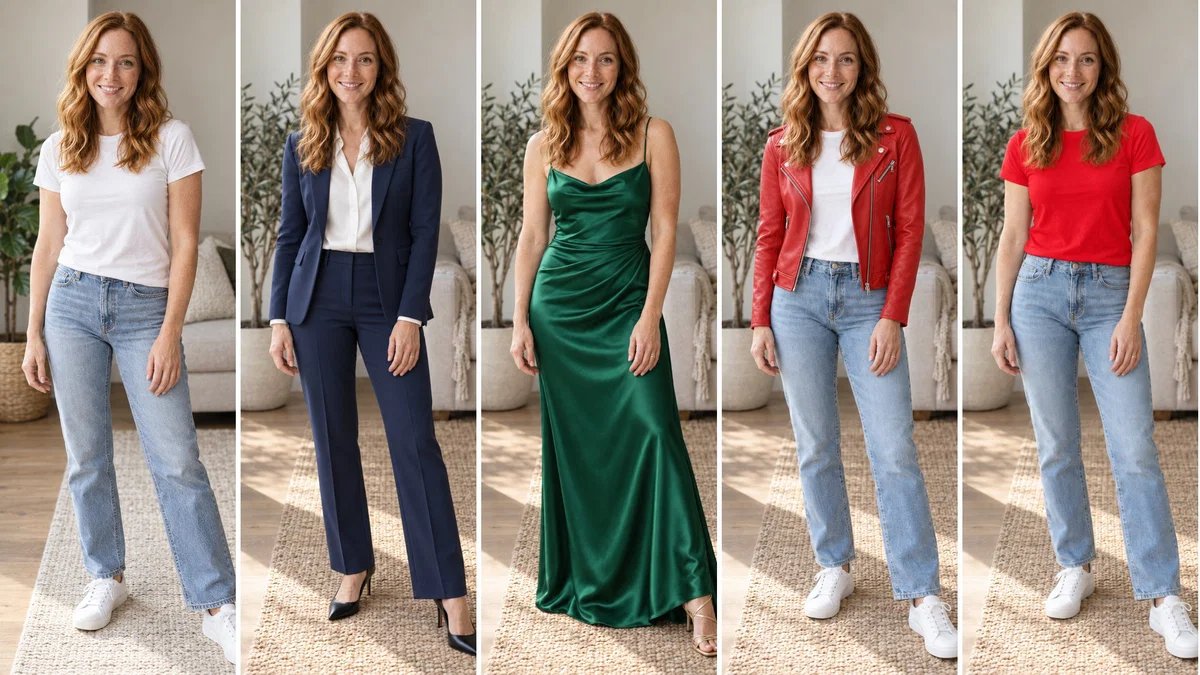
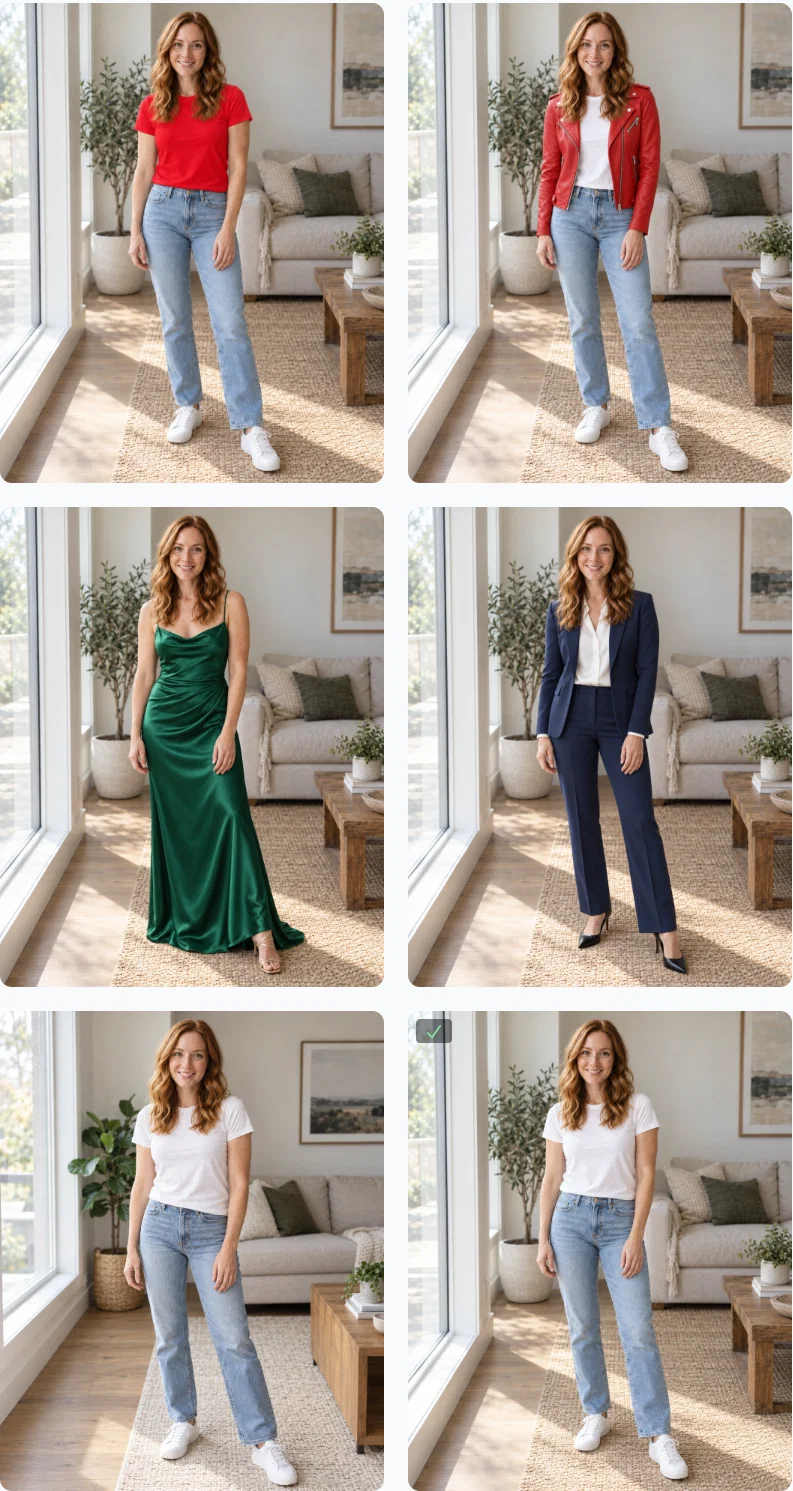
A step-by-step guide with real screenshots: one casual photo becomes a navy pantsuit, an emerald evening gown, a red t-shirt and a leather jacket taken from a product photo, all with the same face, pose and room.

Try 7 days for $2.50 · or 25% off your first month · Cancel anytime
Key Takeaways
- Edit Image with GPT Image 2.5 changes the clothes in a photo from a text prompt and keeps the face, pose, lighting and background.
- Tell the model what must stay the same. One sentence like 'keep her face, hair, pose, the lighting and the room exactly as they are' is the difference between an outfit swap and a new picture.
- Add a product photo as a second image to put a specific garment on someone: the AI matches its colour, cut and details.
- Every edit costs 100 credits at 1K and High quality and takes about a minute. Start with a sharp, full-length photo in good light.
You have a photo you like, and the clothes are wrong for where you want to use it. The casual shot would be perfect for the team page if it were a blazer. The holiday photo needs a dress. The product photo of a jacket would sell better on a person. Changing clothes in a photo used to be an afternoon in Photoshop. With an AI image editor it is one sentence and about a minute.
Tools for this are usually sold as an AI clothes changer, an outfit changer or a dress changer. In Postcrest it is one tool, Edit Image with GPT Image 2.5, and it does all three jobs.
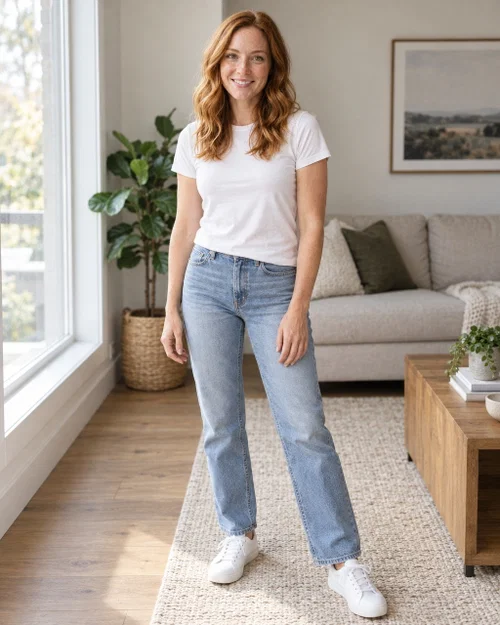
This guide walks through the whole process with screenshots from Postcrest. We started from one casual photo, white t-shirt and jeans in a living room, and changed the outfit four times: a navy pantsuit, an emerald satin evening gown, a red t-shirt (a colour change only) and a red leather biker jacket taken from a product photo. The face, pose, light and room stayed the same every time.
Our model is Maya, a demo persona. Her "photo" was itself generated with AI so we could show the full workflow without editing a real person's picture. With your own photo, the steps are exactly the same.
What Makes a Photo Easy to Edit
The AI redraws the clothes and keeps everything else. The more it can see, the better the result:
- A sharp photo in even light. Window light or soft daylight works best. Harsh flash and heavy filters confuse fabric and skin.
- The whole outfit in the frame. A full-length or three-quarter photo lets you change the top, the bottom and the shoes. A tight headshot only lets you change the collar.
- A simple pose. Standing or sitting naturally, arms visible. Crossed arms and hands in pockets can hide parts of the garment.
- Clothes that are not too similar to what you want. Going from a t-shirt to a gown is easy. Going from a black suit to a slightly different black suit is harder to judge.
This is the photo we started from:
Step 1: Save the Photo to Your Media Library
Upload your photo in a workspace, or hover any image you generated in Postcrest and click Save to library. Edit Image works from the media library, so the photo has to be there first.
Step 2: Open Edit Image and Select the Photo
Go to Image → Edit Image and set it up:
- Model: GPT Image 2.5. It understands instructions like "change only the t-shirt" and renders fabric, folds and shadows realistically.
- Image dimensions: match the photo you are editing. Ours is 4:5.
- Resolution and quality: 1K and High. That gives a 1024×1280 image for a 4:5 photo. Choose 2K for print; it costs twice the credits.
- Images to edit: click the picker and select your photo. The first image is the one that gets changed; you can add up to nine more as references (we use that in Step 5).
Then describe the edit. For the pantsuit we wrote:
Change her outfit to a tailored navy blue pantsuit with a white silk blouse and black pointed heels. Keep her face, hair, expression, pose, body shape, the lighting and the room exactly as they are.
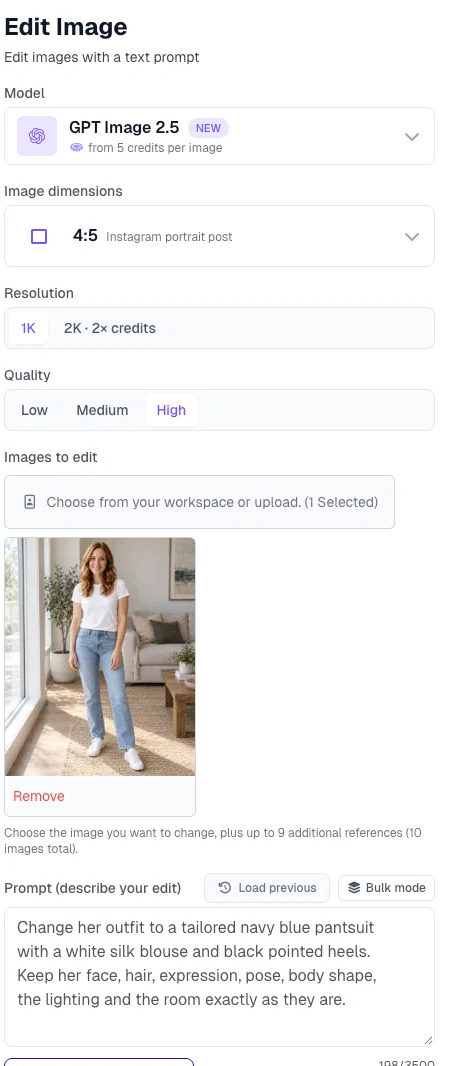
The second sentence is the important one. Without an explicit "keep" list, image models tend to improve things you did not ask about: a new pose, a different window, a slightly different face. Spell out what must stay.
Click Create. The button shows the price before you start: 100 credits for one edit at 1K and High.
Step 3: Check the Result
About a minute later the pantsuit version appeared next to the original. Same face, same hair, same stance, same room and the same afternoon light. Only the clothes changed, down to the heels on the rug.
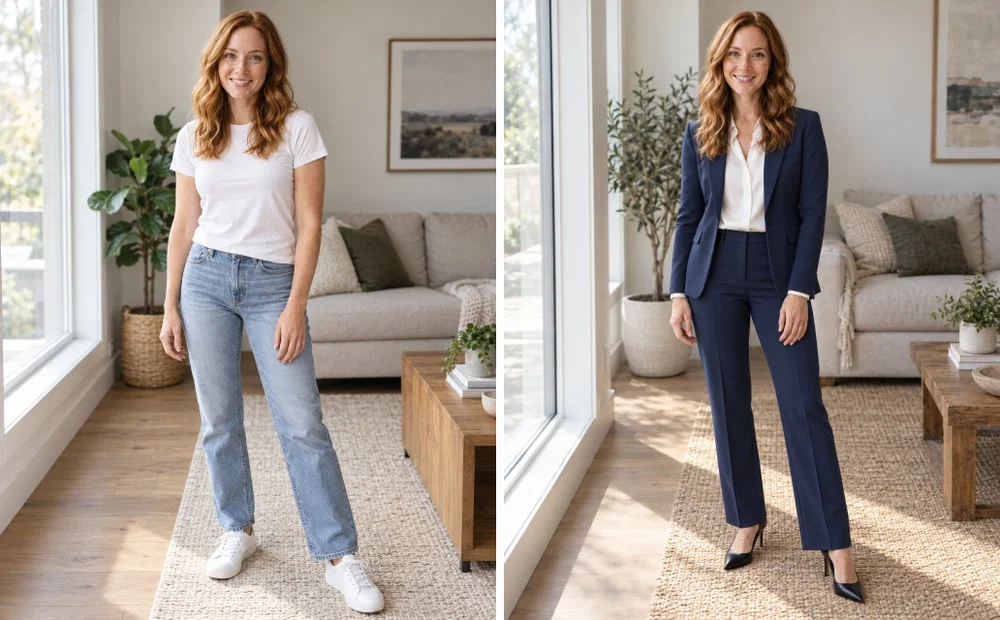
Zoom in and check the places where outfit edits usually go wrong: hands and wrists where sleeves end, the neckline, the shoes and where the feet touch the floor. If something is off, click Load previous to bring back your prompt, change one phrase and generate again.
Step 4: Change the Whole Outfit, or Just One Thing
The same tool handles very different jobs depending on how much you ask for.
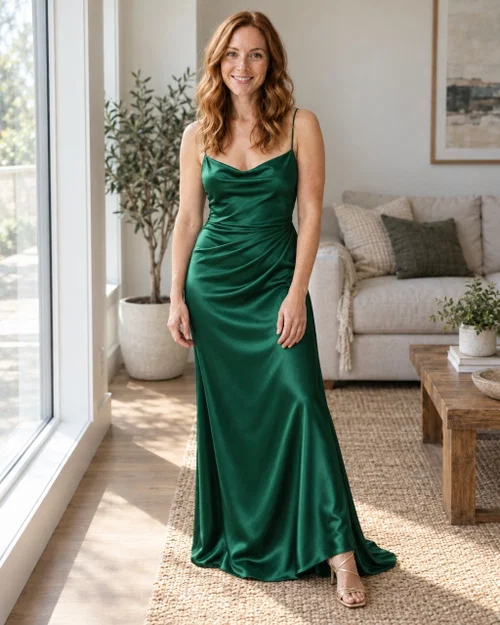
A completely different outfit. This is the AI dress changer job: we asked for "a floor-length emerald green satin evening gown with thin straps and gold strappy heels", with the same keep sentence:
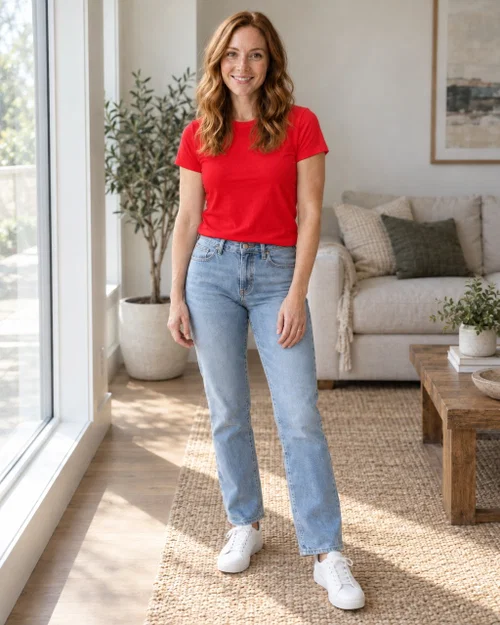
A colour change only. The prompt was "Change only the white t-shirt into a bright red t-shirt. Keep the jeans, the sneakers, her face, hair, pose, the lighting and the room exactly the same." The word "only" does a lot of work here:
Other edits that work the same way: "make the jeans black", "add a camel wool coat over the outfit", "replace the sneakers with brown leather boots", "turn the blouse into a turtleneck", "make the dress knee-length".
Step 5: Try On a Garment From a Product Photo
Describing clothes gets you close. If you need an exact garment, give the model a picture of it. In the image picker, select your photo first and then the product photo. The first image is edited; the second is the reference.
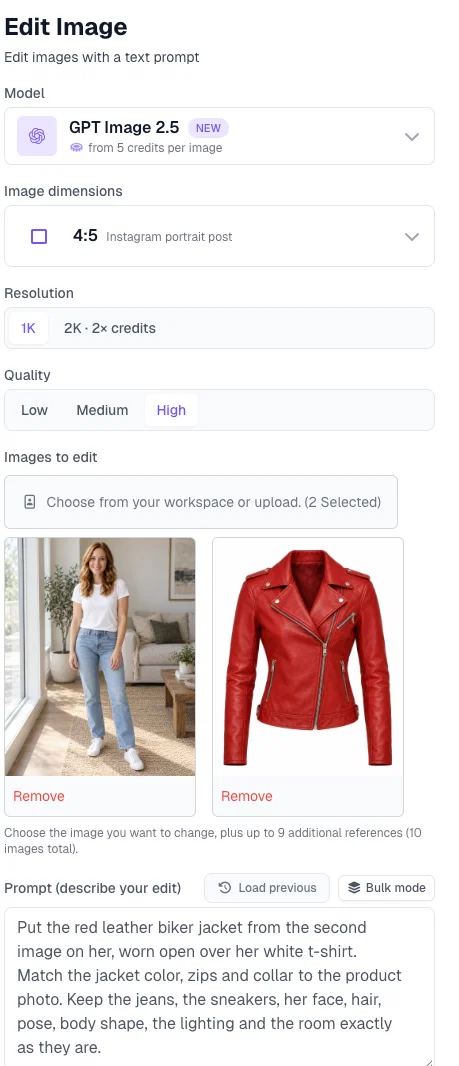
We uploaded a product shot of a red leather biker jacket on a white background and wrote:
Put the red leather biker jacket from the second image on her, worn open over her white t-shirt. Match the jacket color, zips and collar to the product photo. Keep the jeans, the sneakers, her face, hair, pose, body shape, the lighting and the room exactly as they are.
The result picks up the asymmetric zip, the collar and the silver hardware from the product photo, and the lighting on the leather matches the window light in the room:
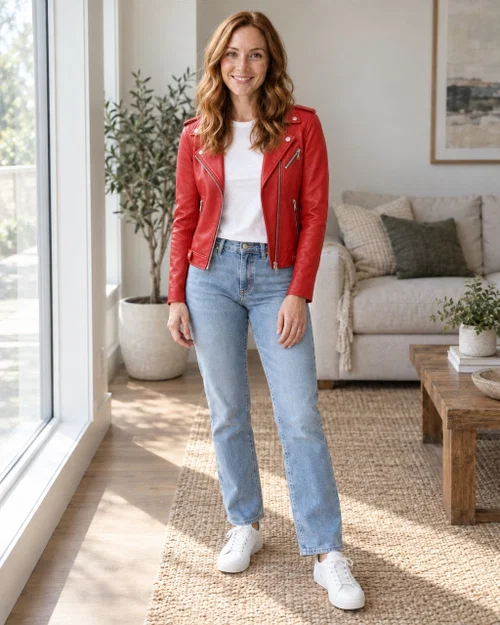
This is the workflow for virtual try-on: a shop photo of a suit, a dress or a jacket, your own photo, and one prompt. Keep the product photo clean (one garment, plain background) and name the details you care about, such as the colour, the collar, the length and the buttons.
Step 6: Save and Download
All four versions sit next to the original in the workspace. Hover the one you want and click Save to library, then download it from your Media library. Saved images can also be upscaled to 2K or 4K, cut out with Remove background or turned into a short clip with Create video from image.
Outfit Prompt Templates You Can Copy
Replace the parts in brackets. Always keep the last sentence.
- Business: "Change [her / his] outfit to a tailored [navy / charcoal / black] suit with a [white shirt / white blouse] and [black leather shoes / black heels]. Keep the face, hair, expression, pose, body shape, the lighting and the background exactly as they are."
- Evening: "Replace the outfit with a [floor-length emerald satin gown / black tuxedo with a bow tie] and [gold heels / black oxford shoes]. Keep the face, hair, pose, body shape, the lighting and the background exactly as they are."
- Colour only: "Change only the [t-shirt / dress / jacket] to [colour]. Keep everything else in the photo exactly the same."
- Add a layer: "Add a [camel wool coat / denim jacket / grey cardigan] worn open over the current outfit. Keep everything else exactly the same."
- Try-on from a product photo: "Put the [garment] from the second image on [her / him], matching its colour, cut and details. Keep the rest of the outfit, the face, hair, pose, body shape, the lighting and the background exactly as they are."
- Traditional or themed: "Change the outfit to a [traditional embroidered dress / 1920s suit / Christmas sweater and scarf] appropriate for [occasion]. Keep the face, hair, pose, the lighting and the background exactly as they are."
Common Mistakes When Changing Clothes With AI
- No keep list. Ask only for the new outfit and the model may also move the person, change the room or retouch the face.
- A low-resolution or cropped photo. The model cannot invent the lower half of an outfit it cannot see.
- Vague garment names. "A nice dress" produces a random dress. "A knee-length navy wrap dress with short sleeves" produces that dress.
- Brand names and logos. Describe the garment instead; the model may draw a logo you did not want, and you cannot use someone else's logo anyway.
- Too many changes in one prompt. Outfit, hairstyle, background and pose in one go rarely all land. Change the clothes first, then run a second edit for the rest.
- Not checking the hands and feet. Sleeve ends, cuffs, rings and shoes are where edits slip. Look at them at full size.
Where This Is Useful
- Headshots and team pages: turn a casual photo into a blazer, or give a whole team the same dress code. See our guide on making an AI headshot from a selfie.
- Online shops and lookbooks: show a garment on a person without a photoshoot.
- Social media: one photo, five outfits, five posts. Our AI profile picture guide covers the portrait side.
- Occasions: holiday cards, invitations, costume ideas. The AI Christmas photos tutorial shows a seasonal example.
- Trying before buying: a jacket from a shop photo on your own picture.
Ready to Change an Outfit?
Upload a photo, describe the clothes and keep everything else. Start now and try your first outfit swap today.
Frequently Asked Questions
Q: Can AI change the clothes in a photo without changing the face?
A: Yes. In Postcrest's Edit Image with GPT Image 2.5, describe the new outfit and add a sentence that says what must stay the same (face, hair, pose, lighting, background). The model only redraws the clothes.
Q: How much does it cost to change an outfit with AI?
A: Each edit costs 100 credits at 1K resolution and High quality, and takes about a minute. 2K doubles the price per image.
Q: Can I put a specific jacket or dress from a shop photo on myself?
A: Yes. Select your photo first and the product photo second in Edit Image, then write "put the jacket from the second image on me". The model matches the colour, cut and details. Keep the product photo clean, with one garment on a plain background.
Q: Can I change only the colour of a shirt or dress?
A: Yes. Write "change only the t-shirt to red, keep everything else exactly the same". The word "only" keeps the rest of the outfit and the photo untouched.
Q: What kind of photo works best?
A: A sharp, evenly lit, full-length or three-quarter photo with a simple pose. The model can only change clothing it can see, so a tight headshot limits you to the collar area.
Q: Does the edited photo keep the original resolution?
A: The edit is generated at the resolution you choose: 1K (1024×1280 for a 4:5 photo) or 2K. If you need more, upscale the saved result to 4K from the media library.