How to Make AI Christmas Photos of Yourself (and a Christmas Card)
A step-by-step guide with real screenshots: one selfie becomes a consistent character, a six-photo Christmas photoshoot by the tree, and a Christmas card with Merry Christmas lettering, all made in Postcrest.

Try 7 days for $2.50 · or 25% off your first month · Cancel anytime
Key Takeaways
- Turn your selfie into a character once, and every Christmas photo shows the same face in any festive scene.
- The Photoshoot workflow generates a backdrop first, then a full set of different poses in that same scene, so the photos look like one real shoot.
- For a Christmas card, generate the photo and the greeting together: put the exact words in quotes and name the lettering style.
- Start in November: you have time to try several scenes, and your photos are ready before everyone else posts theirs.
A Christmas photoshoot usually means a booked studio, matching sweaters, a photographer and one afternoon to get it right. AI Christmas photos skip all of that: you pick the scene, the outfit and the mood, and get a full set of festive photos that look like you, plus a Christmas card with your own greeting.
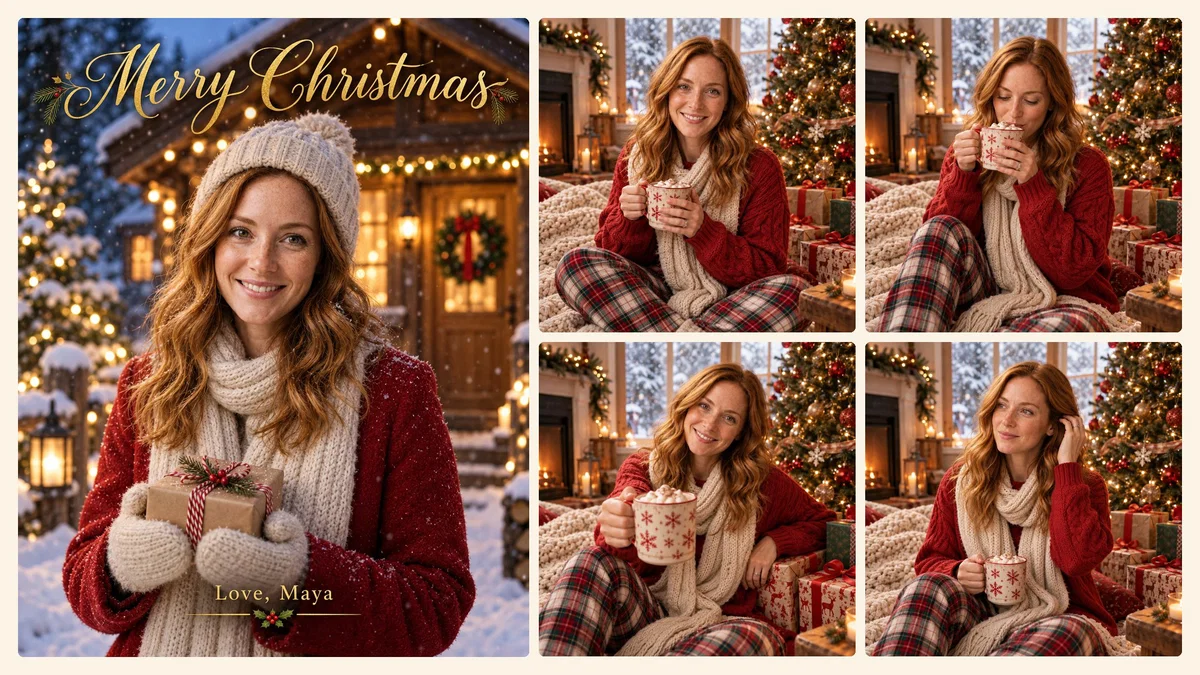
This guide shows the full process in Postcrest with screenshots of every step. We made a cozy Christmas-morning photoshoot with six different poses, and two versions of a Christmas card with "Merry Christmas" lettering.
Our model is Maya, a demo persona whose "selfie" we generated with AI, so we could walk through everything without using a real person's photo. With your own selfie, the steps are identical.
What You Can Make
- A Christmas photo set for Instagram or Facebook. Six or more photos in one scene, with different poses, like a real shoot.
- A Christmas card. Your photo and your greeting in one image, ready to send or print.
- A festive profile picture for December.
- Holiday content for a creator account: Christmas markets, snowy streets, ugly sweater parties, New Year's Eve.
Step 1: Turn Your Selfie Into a Character
To get the same face in every photo, Postcrest needs to know who you are. Create a character once: go to Characters → New Character, fill in a name and a short description, and add 1 to 10 photos under Use Your Own Photos. One clear, well-lit selfie is enough to start.
Postcrest detects your features and generates a character sheet, the multi-view reference it uses for every future image. Here is Maya's selfie and the sheet created from it:
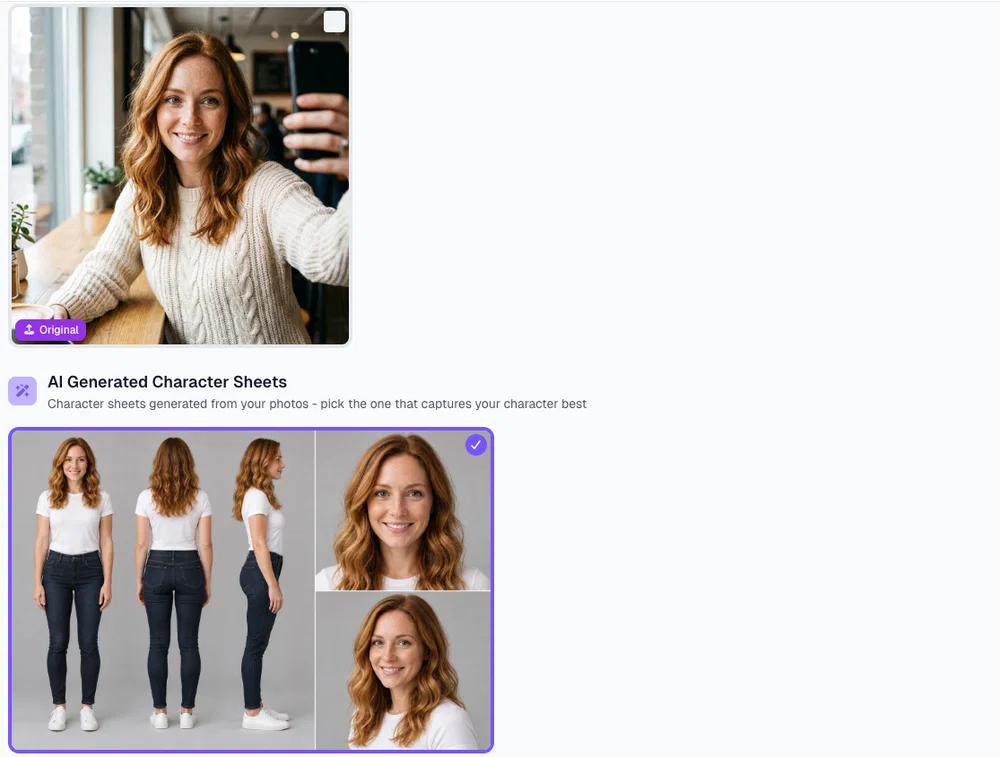
Pick the sheet that looks most like you and click Use this Character Sheet. Our YouTube thumbnail guide shows every screen of the character wizard if you want the details.
Step 2: Start a Photoshoot
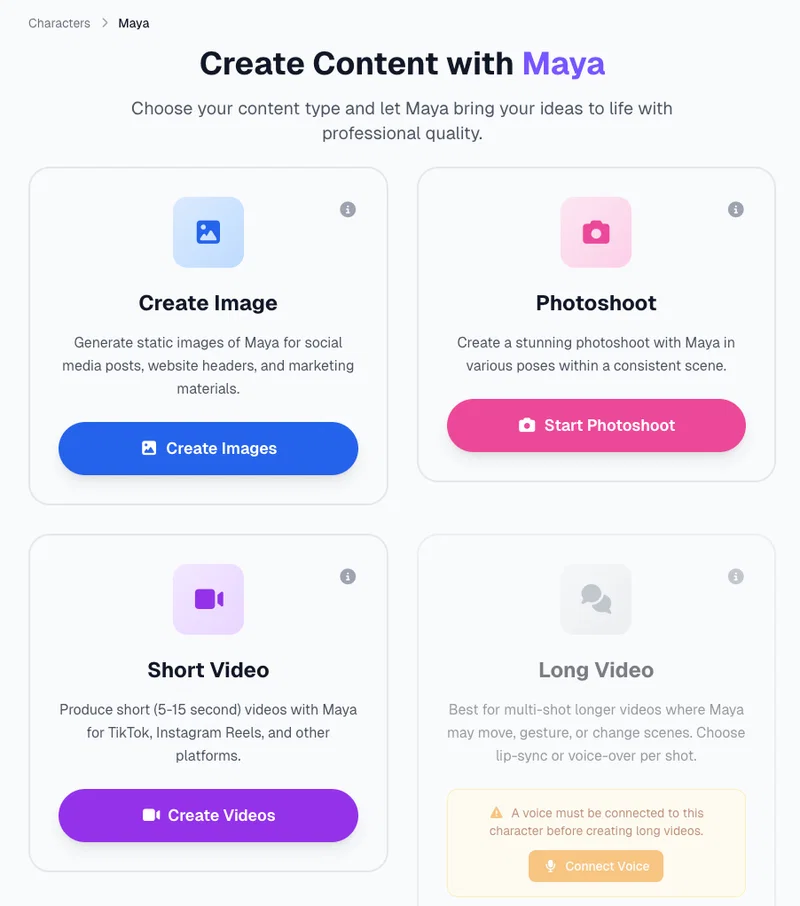
Open your character inside a workspace and you will see what you can create with it: images, a photoshoot, short videos and long videos. Choose Start Photoshoot. (You can also reach it from Workflows → Character Photoshoot and pick your character there.)
Step 3: Describe Your Christmas Scene
The scene description is everything. Describe the location, the decorations, the outfit, what you are doing, the light and the mood. This is what we wrote:
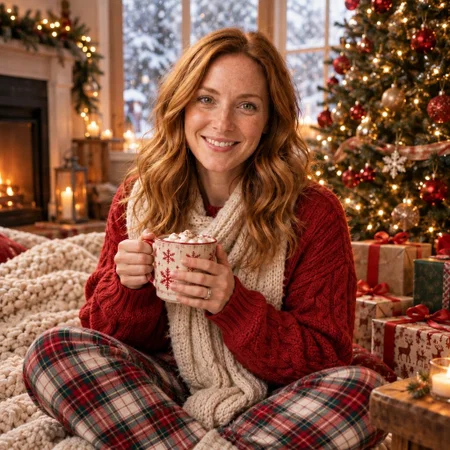
Cozy Christmas morning in a warm, softly lit living room. Maya sits on a chunky knit blanket on the floor next to a tall decorated Christmas tree with warm golden fairy lights and red and gold ornaments, wrapped presents around her. She wears a red cable-knit sweater and a cream scarf and holds a mug of hot cocoa with marshmallows. Snow falling outside the window behind her, warm window light and soft bokeh from the tree lights. Festive, relaxed and joyful mood, natural candid lifestyle photography.
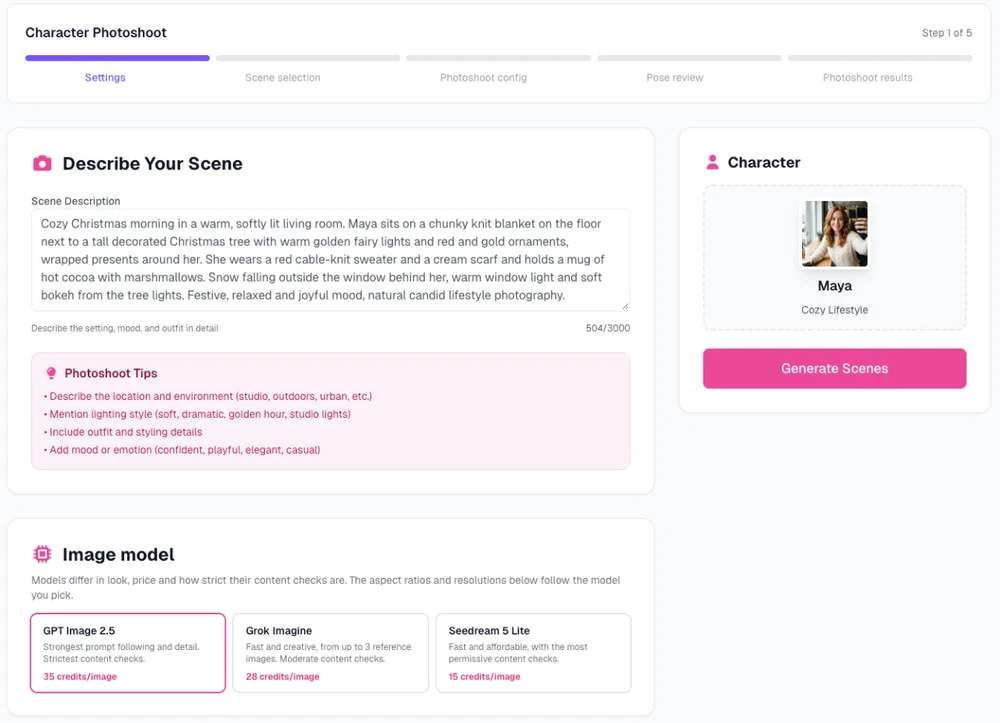
Then choose the image model (GPT Image 2.5 follows detailed prompts best, Seedream 5 Lite is the most affordable), the aspect ratio (1:1 or 4:5 for Instagram, 2:3 or 4:5 for printed cards), the resolution, and how many scene variations to generate (up to 8).
Step 4: Pick Your Backdrop
Postcrest generates your scene variations. Each one is a candidate backdrop for the whole shoot: the room, the tree, the light and the outfit. Pick the one you like best.
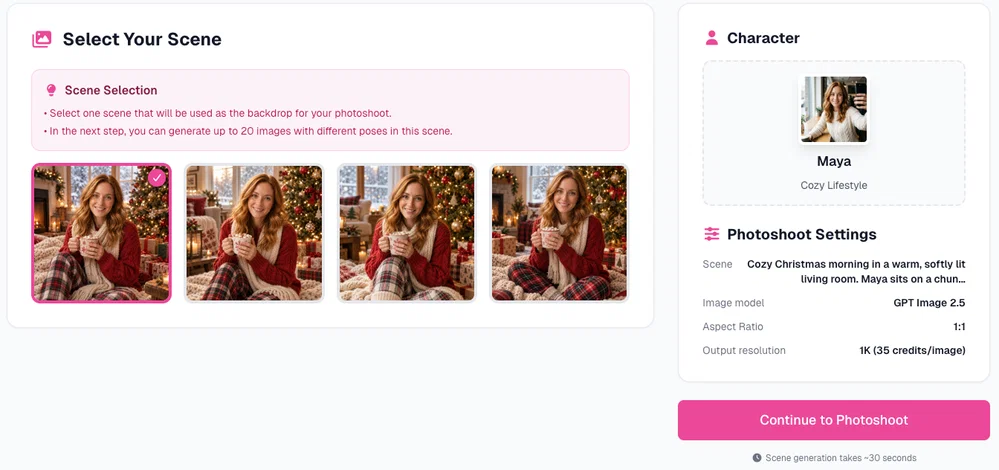
Step 5: Choose How Many Photos You Want
Set the number of photos for the shoot, up to 20. Every photo shows the same person in the same scene, in a different natural pose. The total credit cost is shown before you start. We went with six.
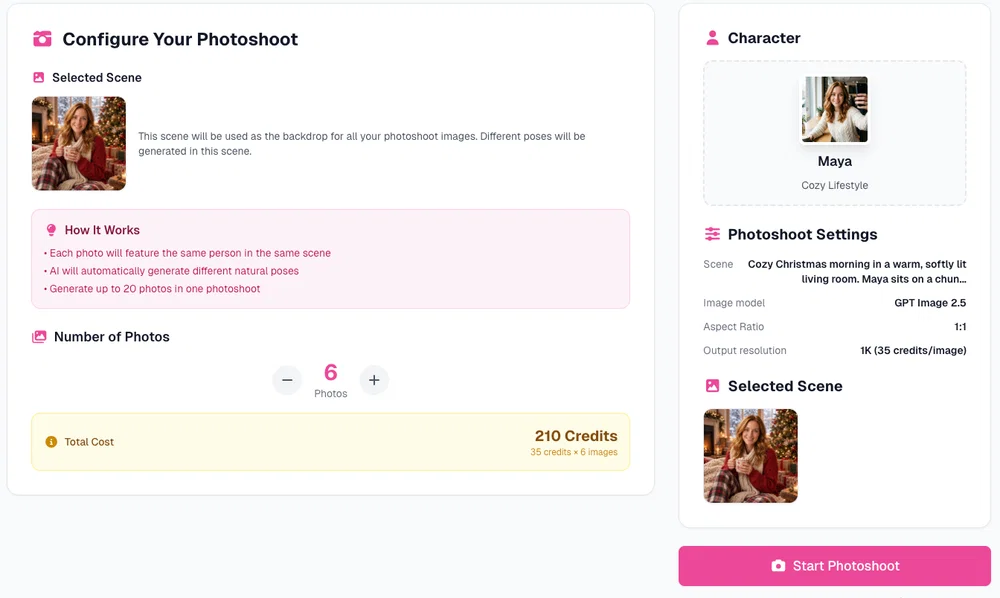
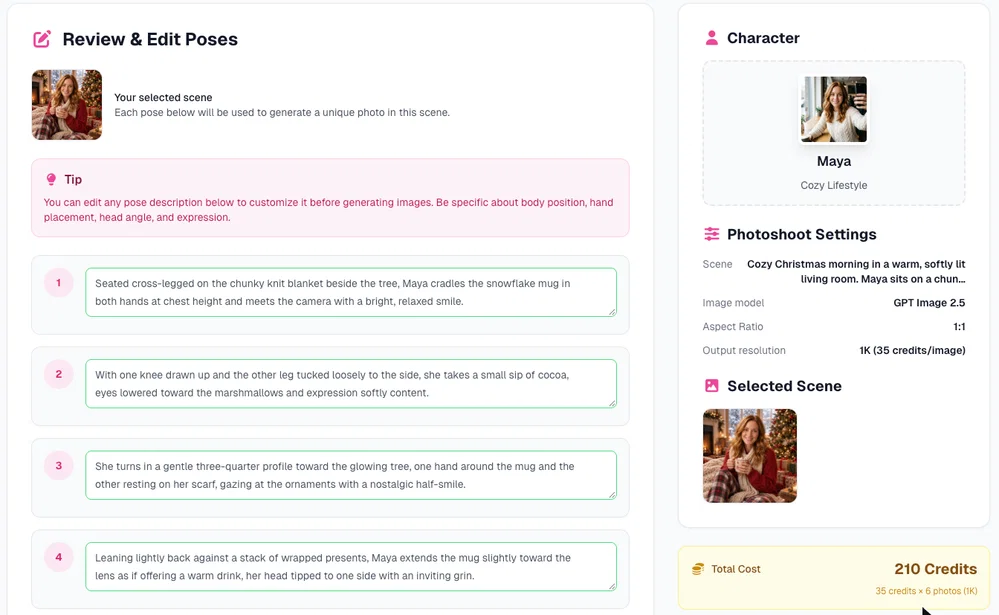
Step 6: Review the Poses
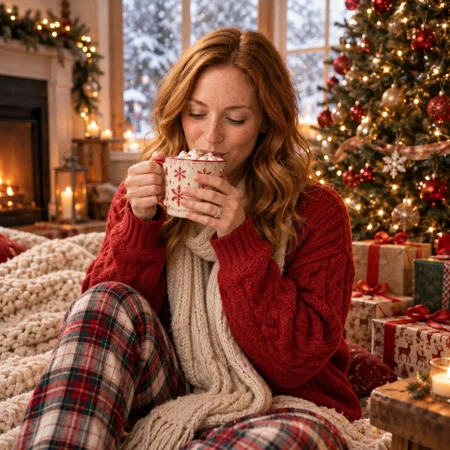
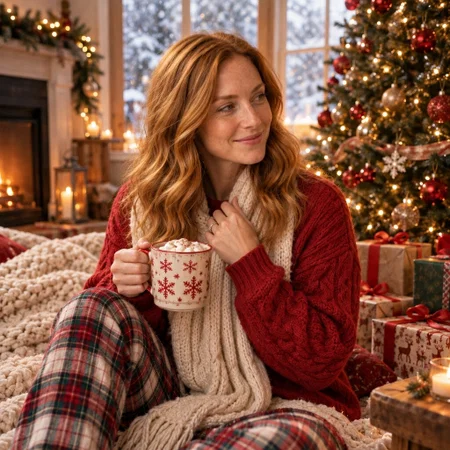
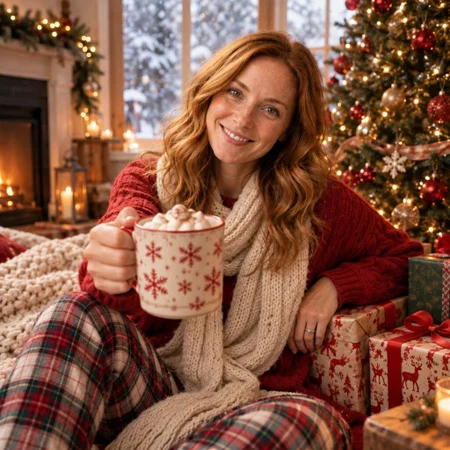
Before generating, Postcrest writes one pose per photo: seated cross-legged with the mug, a sip of cocoa, a glance at the tree, offering the mug to the camera. You can edit any of them. Be specific about body position, hands, head angle and expression.
Step 7: Get Your Christmas Photoshoot
Click Generate Images. A couple of minutes later, the full set is ready: same face, same sweater, same room, six different moments.
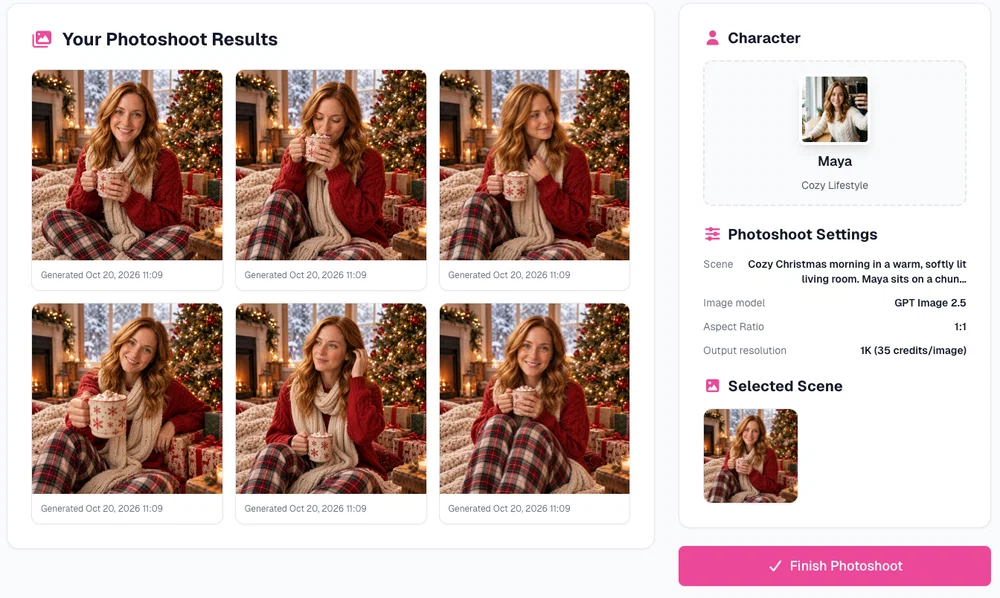
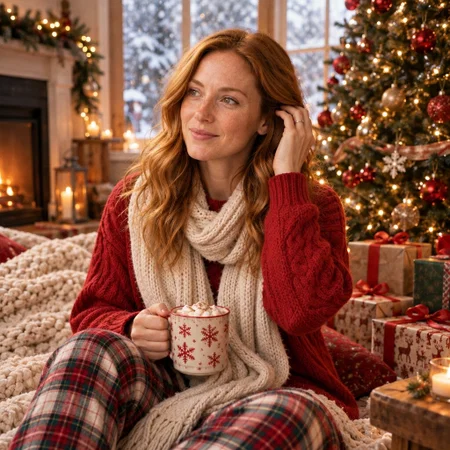
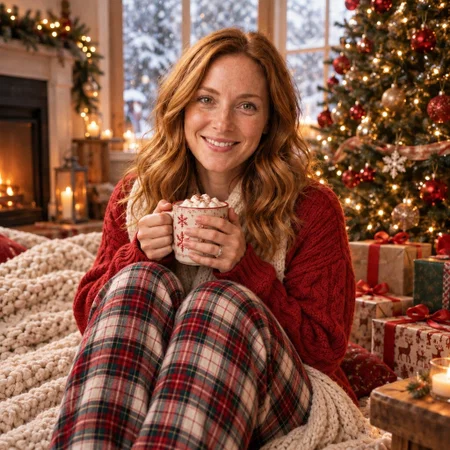
Click Finish Photoshoot and the images are in your workspace, ready to save to your media library and download.
Step 8: Turn It Into a Christmas Card
For a card, you want the photo and the greeting in one image. Go back to your character and choose Create Images. This opens Create Image from Person with your character already selected. Choose a portrait format like 4:5 and describe the scene and the text. Put the exact words in quotes and say what the lettering should look like:
A festive Christmas greeting card photo. Maya stands in the snow in front of a cozy wooden cabin with glowing windows and a wreath on the door, wearing a red wool coat, a cream knit beanie and scarf, smiling warmly at the camera while holding a small wrapped present. Soft falling snowflakes, warm string lights, evening blue hour. Elegant gold script lettering across the top reads "Merry Christmas" and smaller gold text at the bottom reads "Love, Maya". Classic, warm and premium holiday card design, sharp focus, no other text.
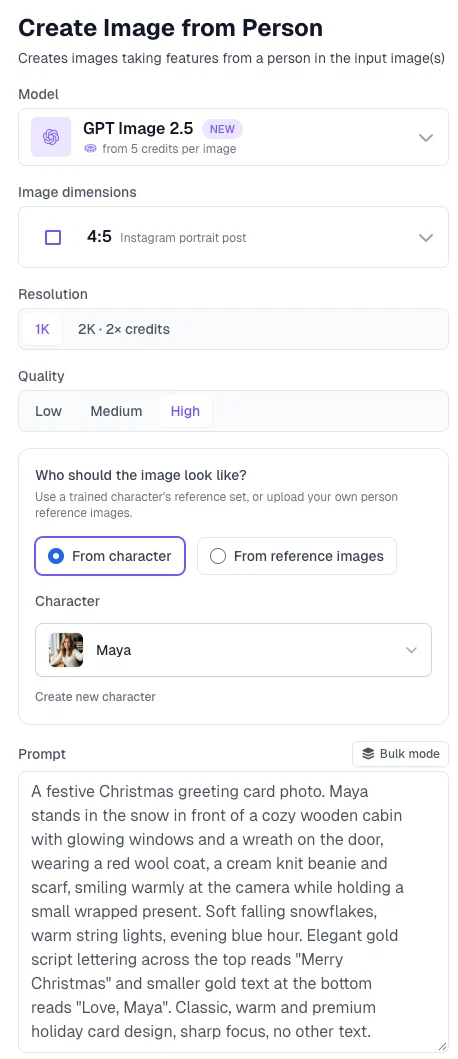
We used GPT Image 2.5 on High quality, which renders lettering cleanly, and generated two versions at 1K for sharing online (choose 2K if you plan to print the card):
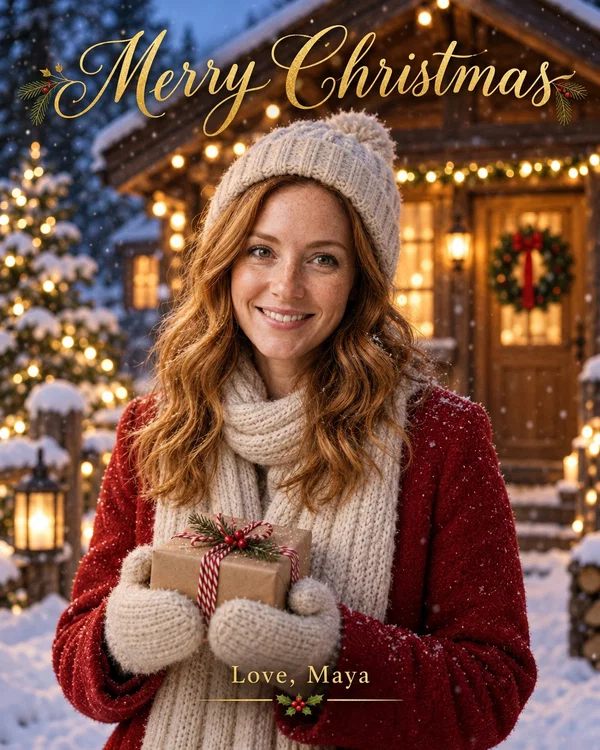
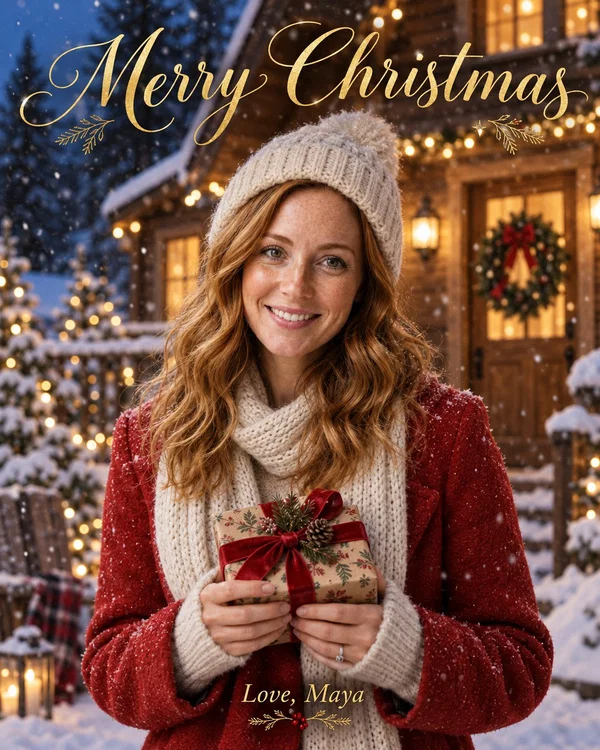
Swap "Love, Maya" for your own name, your family name or "Happy Holidays from all of us". Keep the greeting short so it stays readable.
10 Christmas Photo Ideas to Try
Use these as scene descriptions for a photoshoot, or as prompts for single images:
- Christmas morning by the tree: pajamas, hot cocoa, wrapped presents, fairy lights.
- Snowy cabin at blue hour: wool coat, beanie, warm windows, falling snow.
- Christmas market at night: glowing stalls, mulled wine, string lights, festive crowd bokeh.
- Ugly sweater party: loud knit sweater, tinsel, candy canes, playful laughing poses.
- Baking cookies: flour on the counter, gingerbread, a cozy kitchen with warm light.
- Classic studio portrait: deep red backdrop, elegant velvet outfit, soft key light.
- Winter walk in a snowy forest: scarf, gloves, golden late-afternoon light.
- Decorating the tree: reaching for the star, ornaments in hand, candid smile.
- Festive city street: decorated shop windows, snow, a shopping bag full of gifts.
- New Year's Eve: sequin outfit, champagne glass, golden confetti, sparklers.
More inspiration: our AI Christmas photography collection and Christmas card designs.
Tips for Better AI Christmas Photos
- Describe the outfit precisely. "Red cable-knit sweater and cream scarf" gives consistent results across the whole shoot; "festive outfit" does not.
- Name the light. Fairy lights, fireplace glow, window light with snow, blue hour. Light sells the mood.
- Keep text short on cards. Two short lines, in quotes, with a lettering style ("elegant gold script").
- Pick the format for the use. 1:1 or 4:5 for Instagram, 4:5 or 2:3 for printing. Choose 4K if you want to print larger than a standard card.
- Start early. Christmas content goes up from late November. Making your photos in November leaves time to try several scenes.
Want the same face for the rest of the year too? See how to make an AI profile picture or AI portraits of yourself from the same character.
Start now and have your Christmas photos and card ready before December.
Frequently Asked Questions
Q: Can I make AI Christmas photos of myself?
A: Yes. Create a character from 1 to 10 of your photos, then use the Photoshoot workflow to generate a Christmas scene and a full set of poses. Every photo keeps your face.
Q: Can I make a Christmas card with my own text?
A: Yes. Use Create Image from Person with your character, choose a portrait format, and include the greeting in quotes in your prompt, for example "Merry Christmas" and "Love, the Johnsons". GPT Image 2.5 renders short lettering cleanly.
Q: How many photos can one Christmas photoshoot have?
A: Up to 20 photos per photoshoot, all in the same scene with different poses. You can review and edit every pose before generating.
Q: Can I print AI Christmas photos?
A: Yes. Choose 2K when you plan to print: with GPT Image 2.5 a 4:5 image at 2K is 2048×2560 pixels, sharp enough for a 5×7 inch card. Use a portrait format like 4:5 or 2:3 so less of the image is cropped by the printer.
Q: Can I put my whole family in one AI Christmas photo?
A: A Postcrest character is one person, so the photoshoot workflow creates photos of one person at a time. Create a character for each family member to give everyone their own festive set.
Q: How long does it take?
A: Creating the character takes a few minutes once. After that, scene variations take about half a minute and a six-photo shoot a couple of minutes.