How to Make an AI Headshot From a Selfie (for LinkedIn, Your Website and Your Team)
A step-by-step guide with real screenshots: one casual selfie becomes a corporate headshot, a tech-company headshot, an outdoor headshot and a white-background headshot for a company website.

Try 7 days for $2.50 · or 25% off your first month · Cancel anytime
Key Takeaways
- One sharp, well-lit selfie is enough. The AI keeps your face and changes the outfit, background and lighting.
- Generate several styles in one run with bulk mode: corporate, tech, outdoor and white background cost 400 credits together and take about a minute.
- Use 4:5 at 1K (1024×1280) for headshots. That is more than LinkedIn, Slack or a website needs, and you can crop it square later.
- A good AI headshot still looks like you on a video call. Change the clothes and the light, not your face.
A professional headshot used to mean booking a photographer, picking an outfit and waiting a week for the edited files. An AI headshot takes one phone selfie and about a minute. The face stays yours, and the AI handles what a photographer would: the suit, the studio background, the soft key light.
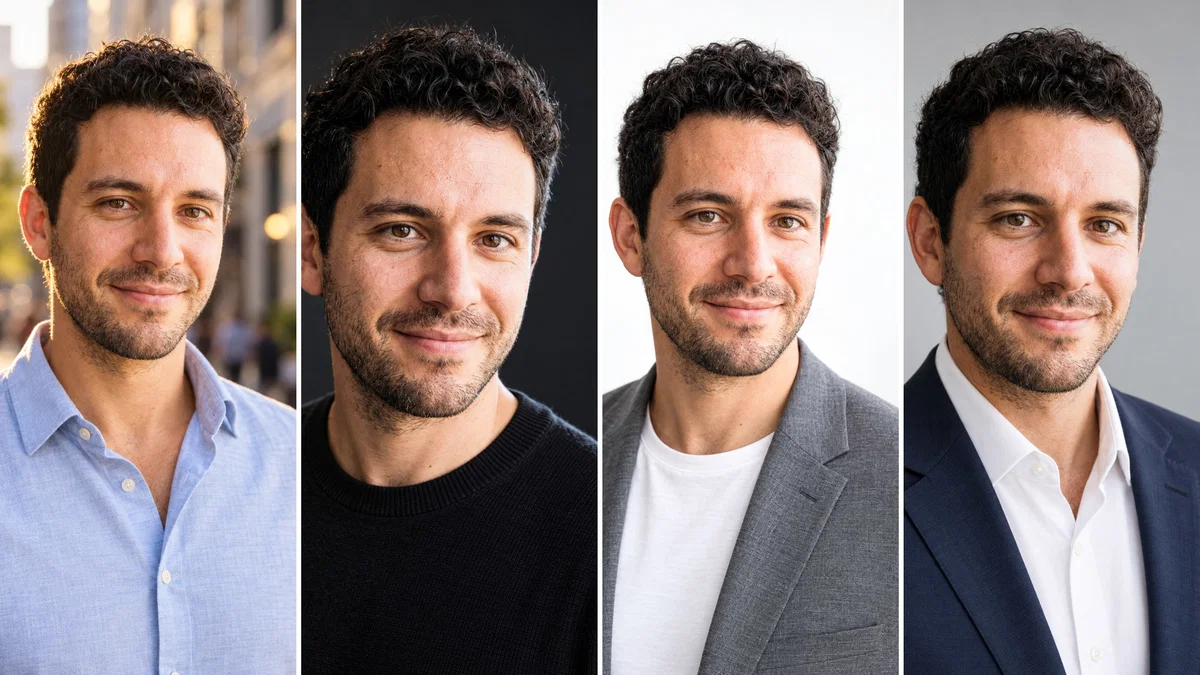
This guide walks through the whole process with screenshots from Postcrest. We started from one casual mirror selfie and generated four headshots from it: a classic corporate headshot in a navy suit, a modern tech-company headshot on charcoal, a friendly outdoor headshot on a city street and a clean white-background headshot for a company website.
Our model is Leo, a demo persona. His "selfie" was generated with AI so we could show the full workflow without using a real person's photo. With your own selfie, the steps are exactly the same.
What Makes a Good Headshot
Before generating anything, it helps to know what you are aiming for. Headshots that work on LinkedIn, on a team page or in an email signature share a few things:
- Head and shoulders, face centered. Most places crop to a square or a circle, so the face has to sit in the middle with a little room around it.
- Soft, even light on the face. One main light from slightly above and to the side, a gentle fill, no harsh shadows under the nose.
- A background that does not compete. Plain studio grey or white, a dark seamless backdrop, or a softly blurred street or office.
- An outfit that matches where it will be used. Suit and shirt for corporate roles, a plain sweater or button-down for startups and creative work.
- A natural, confident expression. A small smile with the eyes engaged reads as approachable. A big grin or a blank stare does not.
- A likeness people recognize. The person who shows up to the meeting should look like the headshot. That is the line between a good AI headshot and a fake one.
Step 1: Choose the Right Selfie
The AI can change your clothes, your background and the light. It cannot invent details it never saw. Pick a photo where:
- your face is sharp, evenly lit and roughly facing the camera,
- nothing covers it (no sunglasses, hat, hand or hair across the eyes),
- you are the only person in the frame,
- the photo is recent and shows your current hairstyle and facial hair.
This is the mirror selfie we started from: window light, a grey t-shirt, a phone in hand. Nothing special, and that is the point.
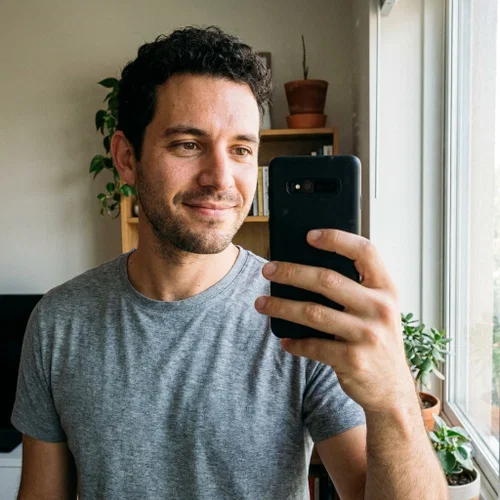
Two or three photos from slightly different angles make the likeness even more stable. You can add up to ten.
Step 2: Set Up Create Image From Person
You do not need to train anything for a headshot. Postcrest's AI headshot generator is the Create Image from Person tool: open a workspace, go to Workflows → Character Image and set it up:
- Model: GPT Image 2.5. It keeps the face recognizable, renders fabric and skin realistically and follows detailed style prompts closely.
- Image dimensions: 4:5, labelled "Instagram portrait post". That is the classic headshot crop with room to cut a square for LinkedIn later.
- Resolution and quality: 1K and High. A 4:5 image at 1K is 1024×1280 pixels, more than any profile or website needs. Choose 2K for print; it costs twice the credits.
- Who should the image look like? Choose From reference images and upload your selfie, or pick it from your media library.
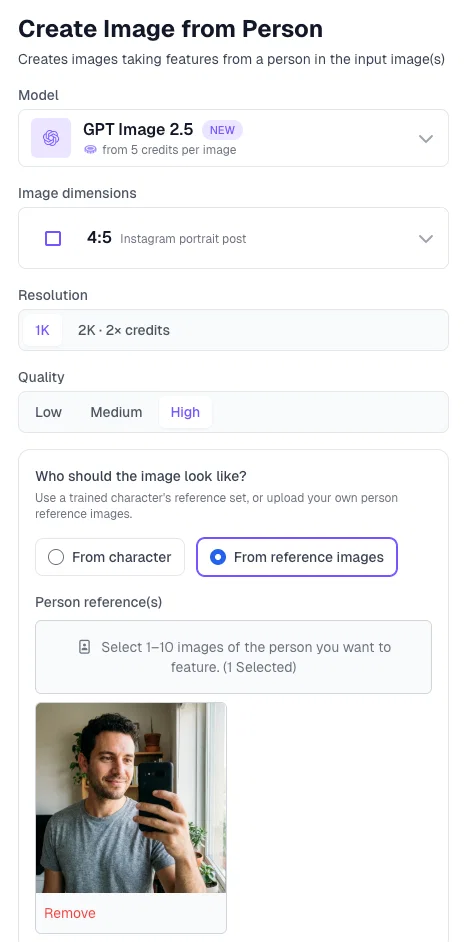
If you will need the same face again for posts, thumbnails or videos, create a character from your photos instead and choose From character. Our YouTube thumbnail guide shows that route step by step.
Step 3: Describe the Headshots You Need (Bulk Mode)
You could write one prompt and generate one headshot at a time. It is faster to use Bulk mode: describe every style you want in one sentence, set the number of prompts, and click Generate prompts. Postcrest writes one detailed prompt per style for 1 credit, and you can read and adjust them before generating anything.
This is what we asked for:
Professional headshots of the man in the reference photo, one style each: a classic corporate headshot in a navy suit and white shirt on a plain light grey studio background; a modern tech-company headshot in a black crew-neck sweater against a dark charcoal background with soft rim light; a friendly outdoor headshot in a light blue button-down shirt with a blurred city street behind him in warm late-afternoon light; a clean white-background headshot in a grey blazer over a white t-shirt for a company website. Head-and-shoulders framing, shoulders angled slightly, face centered, looking at the camera with a confident natural smile, sharp focus on the eyes, professional photography lighting.
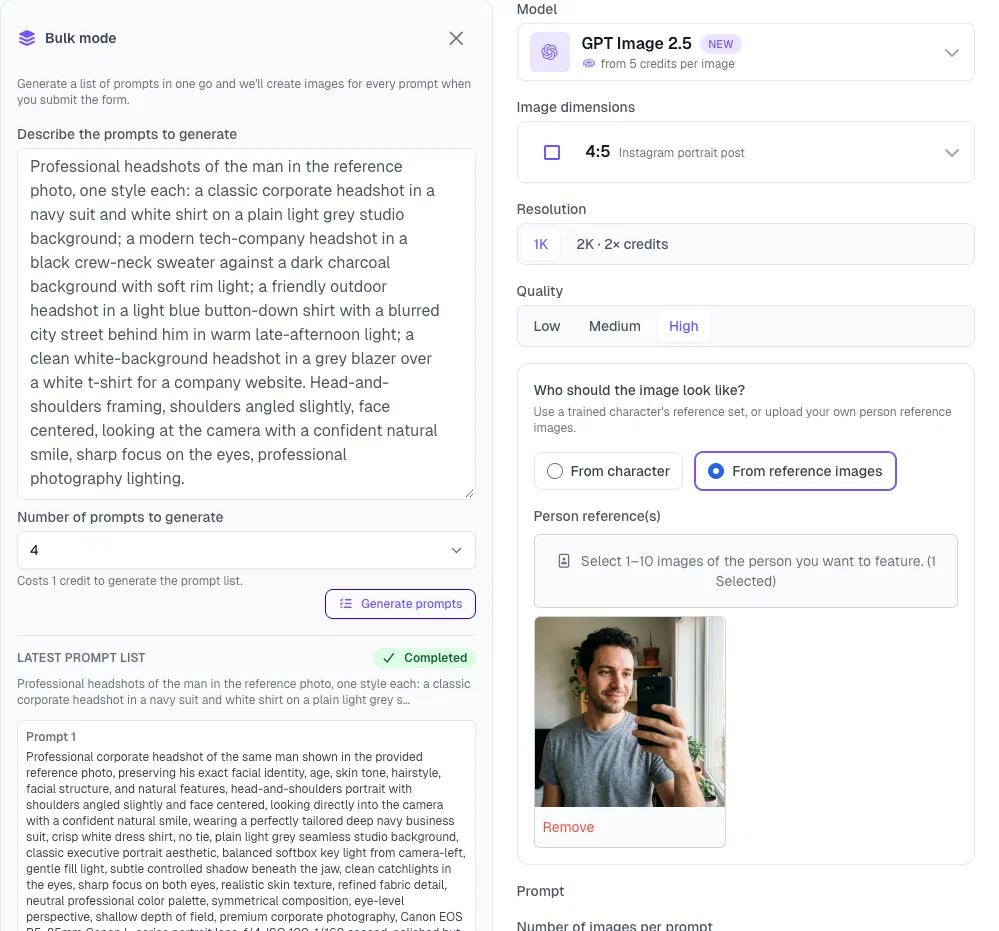
Read what the generated prompts add on their own: "preserving his exact facial identity", a softbox key light from camera-left, catchlights in the eyes, an 85mm portrait lens at f/4. That is the vocabulary of a real headshot session, and it is why the bulk prompts tend to beat a quick one-liner.
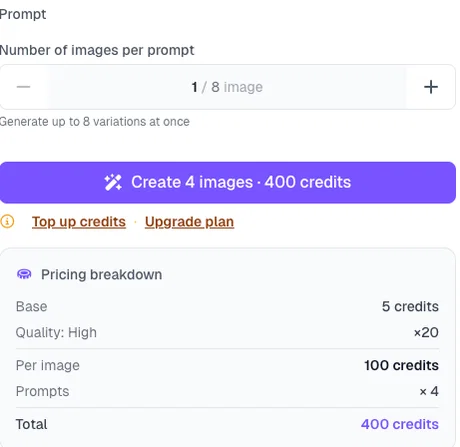
Leave Number of images per prompt at 1 for a first pass. The button shows the total price before you commit: four headshots at High quality cost 400 credits.
Step 4: Compare the Four Headshots
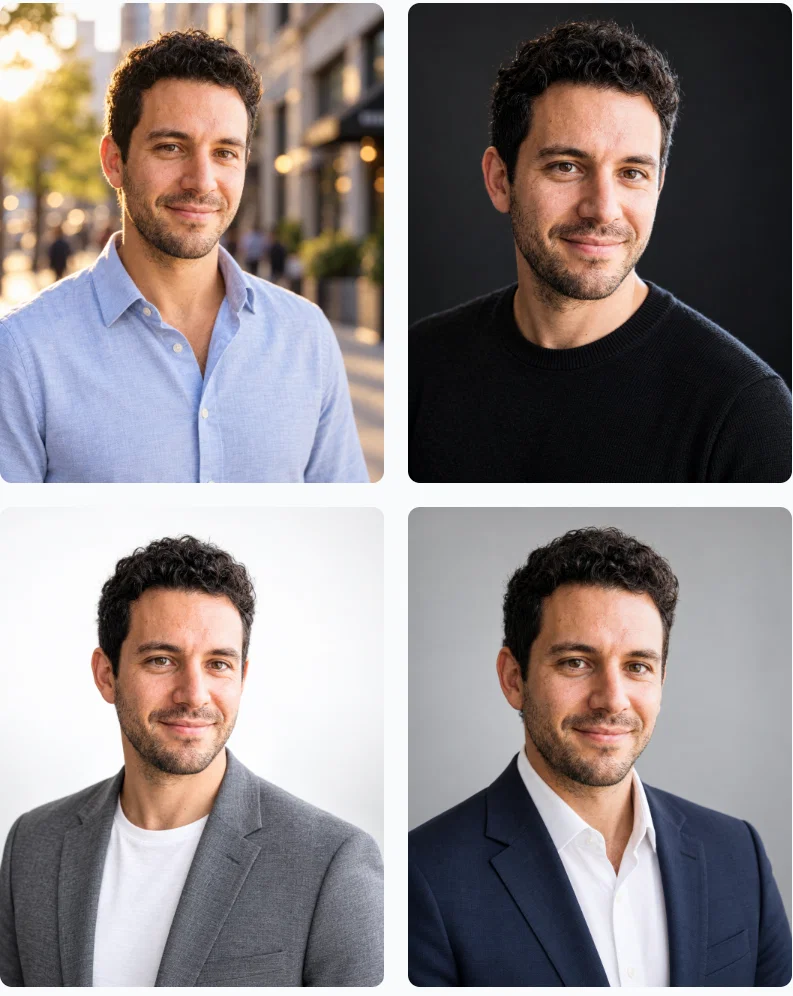
About a minute later the four headshots appeared in the workspace. Same face, same curls, same stubble, in four completely different settings:
Here they are one by one, with what each is good for.
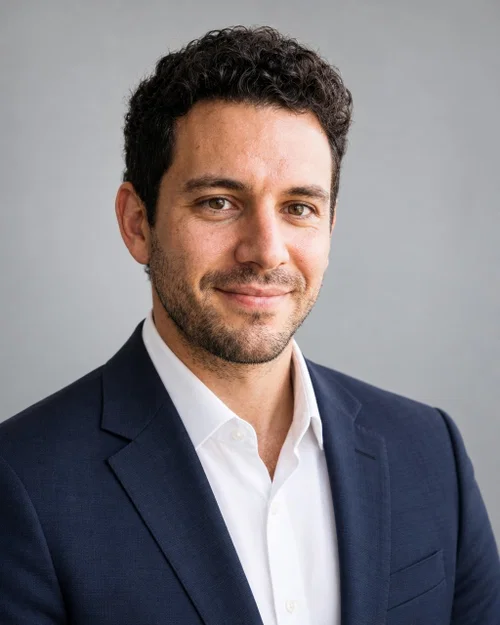
Corporate: navy suit on light grey. The safe choice for finance, law, consulting and any company directory.
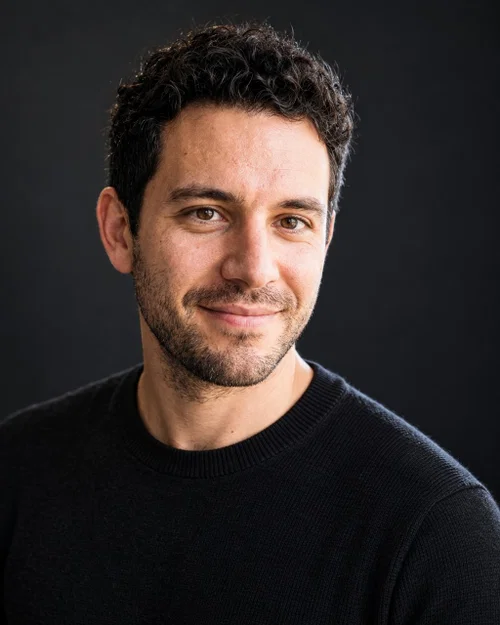
Tech: black sweater on charcoal. Startup founders, engineers and product people. The rim light separates the hair from the dark background.
Outdoor: blue shirt on a blurred street. Real estate, sales, coaching, anyone whose work is about being approachable.
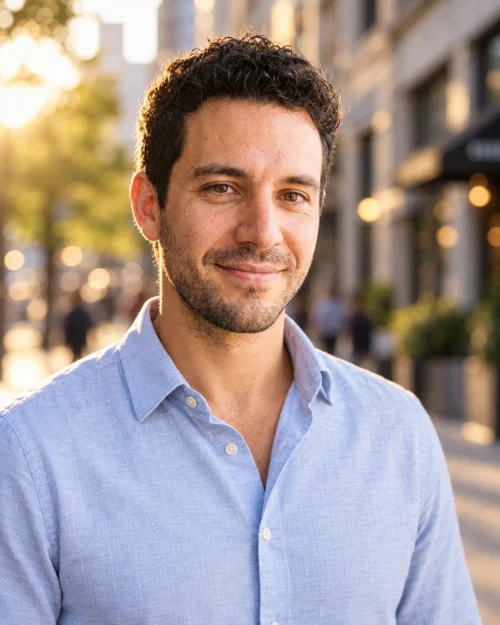
Website: grey blazer on white. Team pages and press kits, where every headshot should share one clean background.
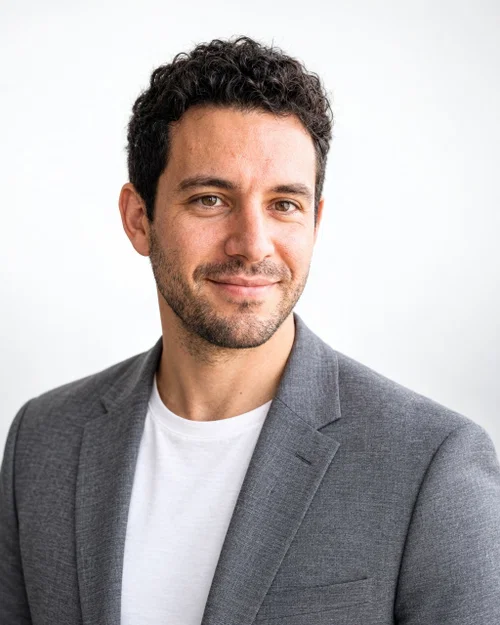
Before you pick one, zoom in and check the details people notice: both ears the same size, teeth, the collar and lapels, the hairline. If one headshot is off, click the prompt to edit it and generate that style again; you only pay for the images you create.
Step 5: Save, Upscale and Download
Hover a result and click Save to library, or open Actions to see what else you can do with it:
- Upscale image (from 2 credits) for a 2K or 4K version for print, banners or a conference booklet.
- Create video from image (from 40 credits) if you want a short animated intro from the headshot. Our guide on turning a photo into a video with AI shows that.
- Remove background (2 credits) for a transparent PNG you can place on any team-page color.
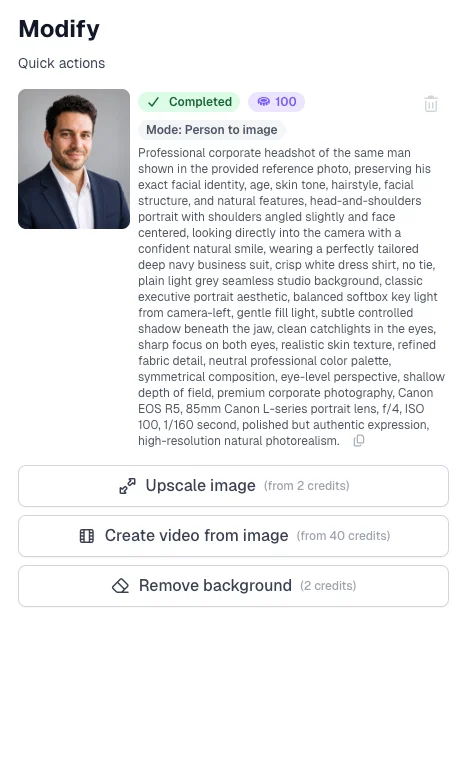
Download the files from your Media library, one by one or several at once as a ZIP.
Headshot Sizes for Each Platform
A 1K headshot in 4:5 is 1024×1280 pixels. That covers all of these:
- LinkedIn headshot: displayed as a circle; upload at least 400×400, ideally 800×800 or larger. Crop the 4:5 image to a square with our image cropper, keeping the face in the center.
- Company website and team pages: usually 600 to 1200 pixels on the long side. Use the same background for everyone.
- Email signature: 100 to 200 pixels wide. Shrink it with the image resizer so the signature stays light.
- Slack, Zoom, Teams: square, cropped to a circle. The circle crop tool gives you a transparent round PNG.
- Conference and press use: request 2K or upscale to 4K.
Headshots for a Whole Team
The same workflow scales to a team. Keep one prompt per style and swap the reference photo for each person, so everyone gets the same background, light and framing. Two tips:
- Decide on the background and outfit palette first (for example "medium grey studio, dark blazer, no tie") and keep that sentence identical in every prompt.
- Ask each person for the same kind of selfie: window light, phone at eye level, no hat.
People who will appear in your content again and again (founders, hosts, spokespeople) are worth saving as a character. Our guide on making an AI clone of yourself covers that, and you can then generate headshots, posts and videos from the same face.
Headshot Prompt Templates You Can Copy
Replace the parts in brackets. Keep the last sentence, which tells the model what not to change.
- Corporate: "Professional corporate headshot of the person in the reference photo, wearing a [navy / charcoal] suit and a white shirt, plain [light grey / white] studio background, soft key light from the left with gentle fill, head-and-shoulders framing, face centered, confident natural smile, sharp focus on the eyes. Keep the face, hair and features exactly as in the reference."
- Startup and tech: "Modern headshot of the person in the reference photo, wearing a plain black crew-neck sweater, dark charcoal seamless background with a subtle rim light, head-and-shoulders framing, relaxed confident expression, shallow depth of field. Keep the face, hair and features exactly as in the reference."
- Outdoor and approachable: "Friendly outdoor headshot of the person in the reference photo, wearing a [light blue button-down / white blouse], blurred [city street / park] background in warm late-afternoon light, head-and-shoulders framing, natural smile. Keep the face, hair and features exactly as in the reference."
- Creative: "Editorial headshot of the person in the reference photo, wearing a [color] turtleneck, soft window light from one side, muted [sage / terracotta] studio background, slight head tilt, calm expression. Keep the face, hair and features exactly as in the reference."
- Team page: "Clean company-website headshot of the person in the reference photo, wearing a [grey blazer over a white t-shirt], bright seamless white background, even high-key studio lighting, head-and-shoulders framing, face centered, warm professional smile. Keep the face, hair and features exactly as in the reference."
Common AI Headshot Mistakes
- A bad reference photo. Sunglasses, a cap, a group photo or a heavy filter gives the model nothing to work with.
- Asking for a different face. "Younger", "slimmer" and "perfect skin" produce a stranger. Change the clothes and the light instead.
- Logos and brand names. Ask for an "unbranded" outfit; the model may otherwise draw a logo on the chest.
- A background that is too busy. A real office with screens and people pulls attention from the face.
- Mixing styles across a team. One background, one light, one crop. Consistency is what makes a team page look professional.
- Skipping the check. Look at the ears, teeth, collar and hairline at full size before you upload.
Is It Fine to Use an AI Headshot?
Yes, if it still looks like you. Think of it as a retouched studio photo: a nicer outfit, better light and a clean background, with your real face. Keep your age, features, hairstyle and skin as they are, and avoid adding glasses or facial hair you do not have. Some employers have rules about AI images, so check before you put one in a company directory.
If you want a more casual avatar for Instagram, YouTube or Discord rather than a business headshot, our guide on making an AI profile picture covers lifestyle and illustrated styles from the same kind of selfie. And if you already have a headshot you like but want a different outfit in it, see how to change clothes in a photo with AI.
Ready to Make Your Headshot?
Upload one selfie, describe the styles you need and download four professional headshots a minute later. Start now and make yours today.
Frequently Asked Questions
Q: Can AI make a professional headshot from one selfie?
A: Yes. One sharp, well-lit selfie is enough for GPT Image 2.5 to keep your face while changing the outfit, background and lighting. Two or three photos from different angles make the likeness even more reliable.
Q: How much does an AI headshot cost in Postcrest?
A: With GPT Image 2.5 at 1K and High quality, each headshot costs 100 credits, so a set of four styles is 400 credits. Generating the bulk prompts costs 1 credit. 2K doubles the price per image.
Q: What size should an AI headshot be for LinkedIn?
A: LinkedIn shows your photo as a circle and recommends at least 400×400 pixels. A 1K image from Postcrest is 1024×1280; crop it to a square around the face and you have plenty of resolution.
Q: Will the headshot look like me?
A: It should, if your reference photo is clear and your prompt only changes clothes, background and light. Avoid prompts that ask for a different age, face shape or skin, and compare the result with your real photo before using it.
Q: Can I make headshots for my whole team?
A: Yes. Use the same prompt for every person and swap the reference selfie, so everyone shares the same background, light and crop. For people you will feature often, create a character so you can reuse their face for posts and videos.
Q: Can I change the outfit afterwards without regenerating the face?
A: Yes. Open the headshot in Edit Image, keep GPT Image 2.5 and describe only the change, for example "swap the sweater for a navy blazer and keep everything else". The face, pose and background stay the same.