How to Make a YouTube Banner With AI (Exact 2560×1440 Size, Safe Area Explained)
A step-by-step guide with real screenshots: a tech channel banner with the host's face and the channel name, generated at YouTube's exact size, checked against the safe area and edited with one prompt.

Try 7 days for $2.50 · or 25% off your first month · Cancel anytime

Key Takeaways
- GPT Image 2.5 at 16:9 and 2K outputs exactly 2560×1440 pixels, YouTube's recommended banner size, so there is nothing to resize.
- Phones only show the central 1546×423 pixels. Put the channel name, tagline and face in that band and keep the edges decorative.
- Write the channel name in quotes and describe the layout as one strip across the middle, with the host no taller than the text. "Centered" alone is not enough.
- A banner costs 200 credits at 2K. Generate two variants, pick one, and fix small things like the tagline with Edit Image instead of starting over.
A YouTube banner is the first thing a new visitor sees on your channel page, and it has to work on a phone, a laptop and a TV at the same time. That is why most banners are either a blurry logo or a template a thousand other channels use. With an AI image generator you can make one that is actually yours, at the exact size YouTube asks for, in a few minutes.
This guide walks through the whole process with screenshots from Postcrest. We made a banner for a fictional tech review channel called LEO TECH, with the host's face, the channel name and a tagline, generated at 2560×1440 and checked against the safe area. Then we changed the tagline with one edit.
Our host is Leo, a demo persona whose photos were generated with AI. With your own photo, the steps are exactly the same.
YouTube Banner Size and Safe Area
Before you generate anything, know the numbers. YouTube shows one image three different ways:
- TV: the full image, 2560×1440 pixels.
- Desktop: a wide strip across the middle, 2560×423.
- Phone and tablet: only the center, 1546×423. This is the "safe area".
So the file should be 2560×1440 (YouTube's recommended size; the minimum is 2048×1152) and under 6 MB, and everything that matters (channel name, tagline, your face) has to sit inside the central 1546×423 band. Everything outside it is decoration that only TV viewers see.
That is the whole trick of a good banner: a big image with a small, important middle.
Step 1: Decide What Goes in the Middle
Keep it to three things: the channel name, one line that says what the channel is about, and either your face or a single object that stands for the channel. "LEO TECH", "Honest gadget reviews, every week", the host with a phone. If you cannot fit it in one sentence, the banner will not fit it either.
If you want your own face on the banner, have a clear photo ready. A headshot works well as a reference; our guide on making an AI headshot from a selfie shows how to get one from a phone photo.
Step 2: Set Up Create Image at YouTube's Size
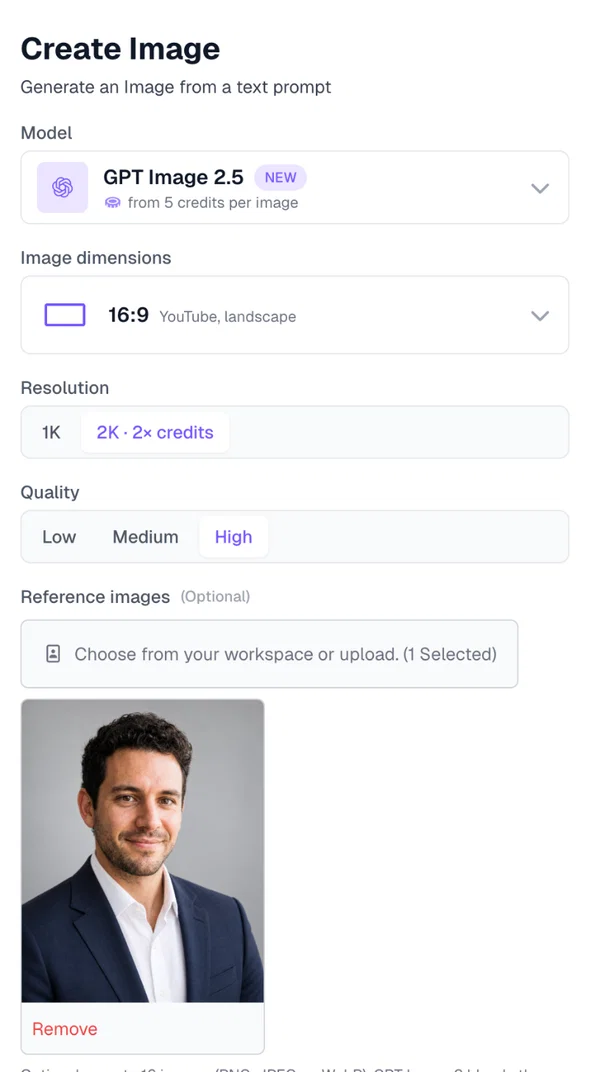
In a workspace, go to Image → Create Image and set it up:
- Model: GPT Image 2.5. It renders real, readable text, which is the one thing most image models get wrong on banners.
- Image dimensions: 16:9, labelled "YouTube, landscape".
- Resolution: 2K. At 16:9 that is exactly 2560×1440 pixels. 1K would give 1280×720, which YouTube rejects.
- Quality: High.
- Reference images: optional. We added Leo's headshot so the host on the banner is the real host.
Step 3: Write the Banner Prompt
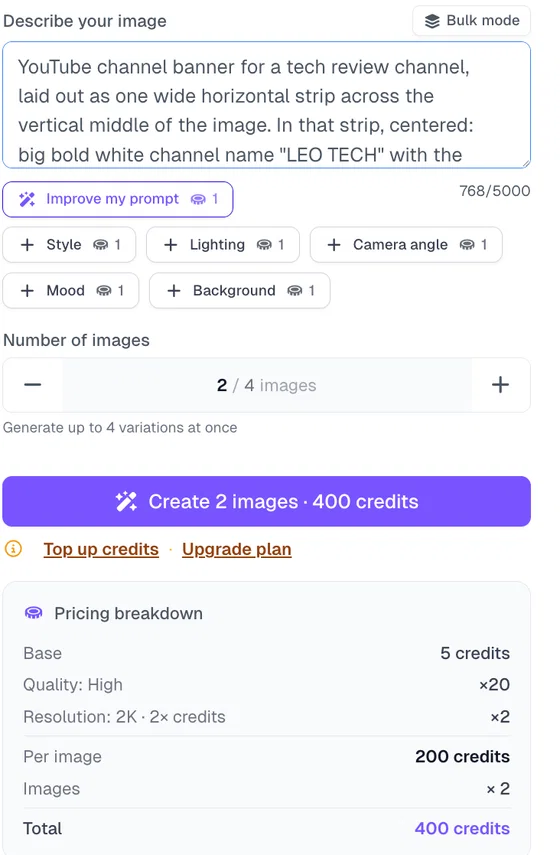
The prompt has to do three jobs: name the exact text, describe the layout as a strip across the middle, and describe the look. This is what we wrote:
YouTube channel banner for a tech review channel, laid out as one wide horizontal strip across the vertical middle of the image. In that strip, centered: big bold white channel name "LEO TECH" with the tagline "Honest gadget reviews, every week" in smaller text underneath. Directly to the right of the text, a small head-and-shoulders portrait of the man from the reference photo, smiling, holding a smartphone, unbranded clothes and phone, no logos; his whole head sits level with the channel name and is no taller than the text block. The top third and the bottom third of the image are background only: dark navy with a subtle glowing circuit-line pattern and purple and cyan neon accents, clean modern design. Nothing important near the top, bottom or side edges.
Notice the quotes around the text, the layout described as "one wide horizontal strip across the vertical middle", the host as a "small head-and-shoulders portrait" no taller than the text, and the top and bottom thirds declared background only. Our first attempt only said "centered in the middle" and "keep the person inside the central area", and the model put the host's head well above the phone crop. Describing the strip fixed it.
Set Number of images to 2 so you have a choice. The button shows the price before you start: 200 credits per 2K image, 400 for two.
Step 4: Compare the Variants
About a minute later both banners appeared. Same channel name, same tagline, same host, and both laid out as a strip across the middle; one adds gadgets on a desk at the edges, the other keeps the circuit pattern alone:

We picked the second one. Here it is at full size, 2560×1440:

Read the text letter by letter before you pick one. GPT Image 2.5 gets quoted text right almost every time, but "almost" is not good enough for a channel name.
Step 5: Check the Safe Area
This is the step everyone skips. Here is our pick with YouTube's crops drawn on it: the yellow band is what desktop viewers see, the green box is what phones see, and the full image is what TV viewers see:
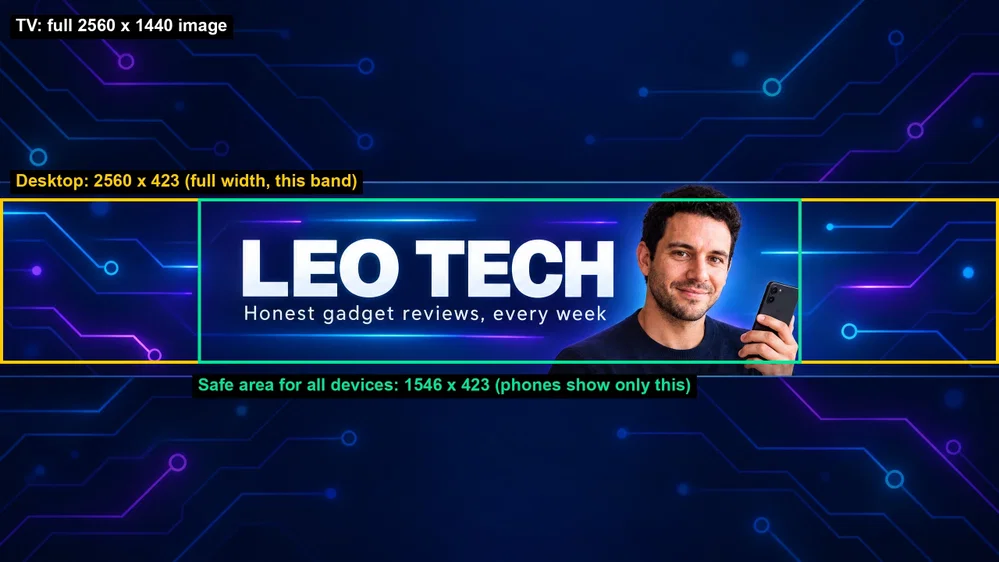
The channel name, the tagline and the host's face all sit inside the green box, so they survive every device. Only the top of his hair and the circuit lines at the edges fall outside, and those are decoration. The TV view still looks full, the desktop band reads as a complete banner, and the phone crop shows everything that matters.
If something important falls outside the safe area, do not crop or resize. Generate again with a more specific layout (that is exactly what happened to our first attempt), or move it with Edit Image.
Step 6: Fix Details With Edit Image
We liked the banner but wanted a different tagline. Instead of regenerating, open Image → Edit Image, select the saved banner, set the dimensions to 16:9 and the resolution to 2K so it keeps its size, and describe only the change:
Change only the tagline text under the channel name to "New reviews every Tuesday". Keep the channel name, the man, the background and everything else exactly the same.

The host, the circuit pattern and the channel name did not move; only the tagline changed. The same edit works for a new color scheme, a different object in the host's hand or a seasonal version of the banner.
Step 7: Download and Upload to YouTube
Hover the banner you want, click Save to library and download it from your Media library. The file is a 2560×1440 PNG; ours came out at just over 3 MB. YouTube accepts JPG, PNG, GIF and BMP up to 6 MB; if your PNG is larger, convert it with our PNG to JPG converter, and you can confirm the size with the image dimensions checker.
Then in YouTube Studio go to Customization → Branding → Banner image, upload the file, and use the preview to check the TV, desktop and mobile crops before you publish.
Banner Prompt Templates You Can Copy
Replace the parts in brackets. Keep the quotes around the text and the strip layout.
- Creator with face: "YouTube channel banner for a [topic] channel, laid out as one wide horizontal strip across the vertical middle of the image. In that strip, centered: bold [color] channel name "[NAME]" with the tagline "[TAGLINE]" underneath. Directly to the right of the text, a small head-and-shoulders portrait of the person from the reference photo, [expression], holding [object], unbranded, no logos, no taller than the text block. The top third and the bottom third are background only: [background description], clean modern design. Nothing important near the edges."
- Faceless channel: "YouTube channel banner for a [topic] channel, laid out as one wide horizontal strip across the vertical middle. In that strip: bold channel name "[NAME]" and the tagline "[TAGLINE]" centered, with [one symbolic object or scene] beside the text, [style], no other text. The top and bottom thirds are background only, nothing important near the edges."
- Minimal: "Minimal YouTube channel banner. Channel name "[NAME]" in a clean [sans-serif / serif] font centered on a [solid color / soft gradient] background, a small tagline "[TAGLINE]" beneath it, both inside a narrow strip across the vertical middle, lots of empty space, no other elements, nothing near the edges."
- Gaming: "YouTube channel banner for a gaming channel, laid out as one wide horizontal strip across the vertical middle. Channel name "[NAME]" in bold [neon / metallic] letters centered, tagline "[TAGLINE]" below, a small head-and-shoulders portrait of the person from the reference photo wearing headphones to the right of the text, [dark background with energy effects] filling the top and bottom thirds, nothing important near the edges."
- Education: "YouTube channel banner for a [subject] education channel, laid out as one wide horizontal strip across the vertical middle. Channel name "[NAME]" centered with the tagline "[TAGLINE]" below and a few [subject] icons beside the text, [chalkboard / notebook / clean studio] background filling the top and bottom thirds, friendly and clear, nothing important near the edges."
Common YouTube Banner Mistakes
- Text near the edges. It disappears on phones and desktop. Everything important goes in the central 1546×423.
- Wrong size. A 1920×1080 image is upscaled and looks soft; a 1K image is rejected. Generate at 2K and 16:9.
- Too many words. Channel name, one tagline, done. Upload schedules and social handles get cut off and nobody reads them anyway.
- Unreadable text. Thin fonts on a busy background. Ask for "bold" text and a "clean" background behind it.
- A face that is too small. If you include yourself, make it a clear head-and-shoulders view, not a tiny full-body figure.
- A face that is too big. A full-height portrait puts the head above the phone crop. Ask for a head-and-shoulders portrait no taller than the text block, inside the middle strip.
- Logos you do not own. Ask for "unbranded" devices and clothes; the model may otherwise draw a brand on the phone.
- Not checking the preview. YouTube Studio shows all three crops before you save. Look at all three.
Match the Rest of the Channel
A banner sets the style; the thumbnails carry it. Use the same colors, the same font feel and the same host photo across both. Our guide on making a YouTube thumbnail with AI uses the same tools, and if your channel has no face at all, starting a faceless YouTube channel with AI covers the rest of the channel.
Ready to Make Your Banner?
Pick the three things that go in the middle, write the prompt and generate at 2K. Start now and have a banner on your channel today.
Frequently Asked Questions
Q: What size should a YouTube banner be?
A: 2560×1440 pixels, under 6 MB, as JPG, PNG, GIF or BMP. The minimum is 2048×1152. Only the central 1546×423 pixels show on every device, so keep the channel name and tagline inside that area.
Q: Can AI generate a YouTube banner at the right size?
A: Yes. In Postcrest, GPT Image 2.5 at 16:9 and 2K outputs exactly 2560×1440, so the file uploads to YouTube without resizing.
Q: How much does an AI YouTube banner cost?
A: 200 credits per banner at 2K and High quality in Postcrest. Two variants cost 400 credits, and changing text with Edit Image at 2K costs 200 credits per edit.
Q: Can I put my own face on the banner?
A: Yes. Add a photo of yourself as a reference image and describe where you sit in the layout: a small head-and-shoulders portrait next to the channel name, inside the middle strip. A clean headshot gives the best likeness.
Q: Will the AI spell my channel name correctly?
A: Put the exact text in quotes in the prompt and GPT Image 2.5 renders it correctly almost every time. Always read the result letter by letter before uploading, and fix a typo with Edit Image instead of regenerating.
Q: How do I change the text on a banner later?
A: Open the banner in Edit Image, keep 16:9 and 2K, and write "change only the tagline to ..., keep everything else exactly the same". The rest of the banner stays as it was.