How to Turn a Photo Into a Video With AI (Image to Video, Step by Step)
A step-by-step guide with real screenshots: a still portrait becomes a five-second 1080p clip with Kling 3.0, with the model picker, the prompt, the price and the finished video.

Try 7 days for $2.50 · or 25% off your first month · Cancel anytime
Key Takeaways
- Image-to-video keeps your photo as the first frame and animates it. The subject, framing and light come from the picture, the motion comes from your prompt.
- Describe movement, not the scene: what the person does, what moves in the background and how the camera moves. The model already sees the photo.
- A five-second 1080p clip with Kling 3.0 costs 225 credits in Postcrest. Cheaper models start at 40 credits per clip, and you see the price before you click.
- Save the clip to your media library to download it, add captions or turn it into a post for Instagram, TikTok or YouTube.
A photo is a moment. A video of that moment, with the hair moving, the light flickering and the person turning toward you, stops people scrolling. AI image-to-video, often searched for as photo to video AI, does exactly that: it takes a still picture as the first frame and animates the next few seconds from a description.
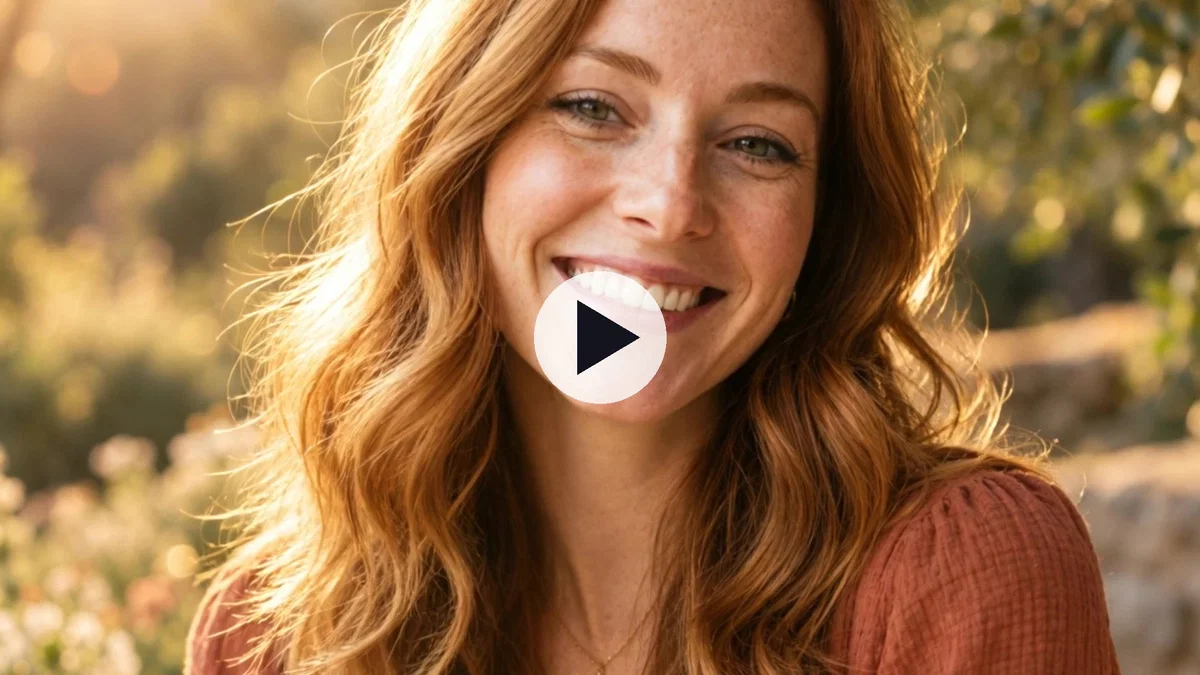
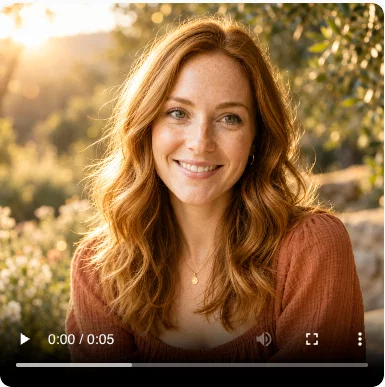
This guide walks through the whole process with screenshots from Postcrest. We started from one portrait and turned it into a five-second 1080p clip with Kling 3.0. Here is the finished video:
Our model is Maya, a demo persona. Her portrait was generated with AI, so we could show the workflow without using a real person's photo. With your own photo, the steps are exactly the same.
What Image-to-Video Can and Cannot Do
Image-to-video models animate what is in the picture. They are very good at:
- Subtle, natural motion: breathing, blinking, a turn of the head, a smile, hair and fabric in the wind, water, clouds, flickering light.
- Camera moves: a slow push-in, a pan, a gentle orbit.
- Short clips: 3 to 15 seconds, which is exactly the length of a Reel, a Short or a product loop.
They struggle with big changes: a person walking out of frame and back, complex hand movements, text staying readable, or a scene that should become a different scene. Keep the motion close to what the photo already shows and the result looks real.
Step 1: Pick the Right Photo
The photo becomes the first frame, so everything about it carries over: the crop, the light, the expression. Choose one where:
- the subject is sharp and well lit,
- there is something that can plausibly move (hair, clothes, plants, water, traffic, clouds),
- the aspect ratio matches where the video will go (9:16 for Reels and Shorts, 16:9 for YouTube, 1:1 for a feed post).
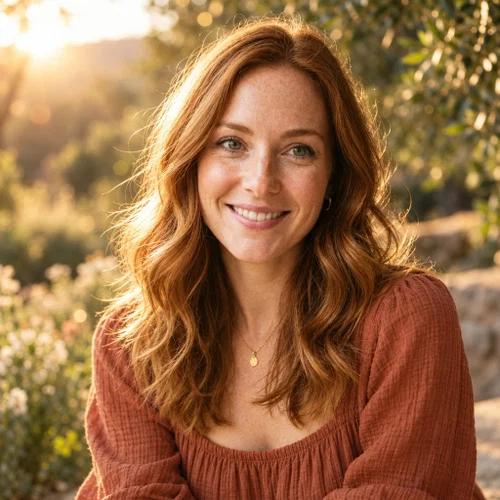
The output follows the image. Our portrait is square, so the clip came out square at 1440×1440. If you need vertical, start from a vertical photo or crop it first with the image cropper.
This is the photo we animated, a golden-hour portrait generated in Postcrest:
Step 2: Open Create High Quality Video and Choose a Model
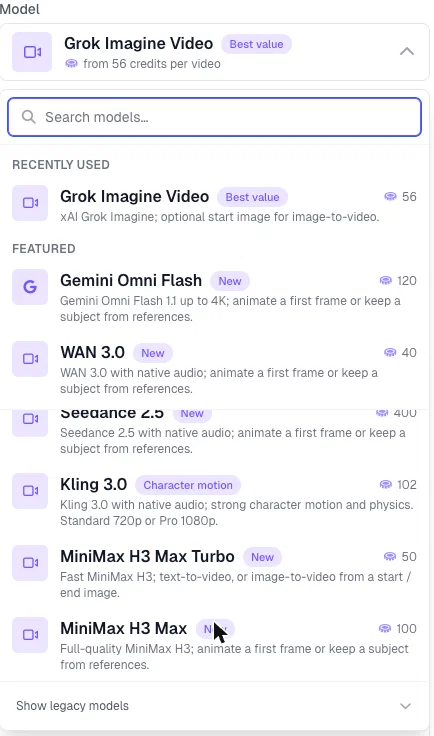
In a workspace, go to Video → Create High Quality Video. The first field is the model. Click it to see every image-to-video model with its price per clip:
A quick guide to choosing:
- Kling 3.0 for people: strong character motion and physics, 720p or 1080p, optional sound. We used it for this guide.
- Seedance 2.5 for the most faithful image-to-video and lip-synced speech. It is the most expensive per clip.
- WAN 3.0 for long scenes with a consistent subject, at a low price.
- Gemini Omni Flash for cinematic realism, native audio and up to 4K.
- Grok Imagine Video when you want the cheapest decent clip fast.
- MiniMax H3 Max for prompt adherence, with a Turbo variant for speed.
You can search the list by name. We typed "Kling" and picked Kling 3.0.
Step 3: Upload the Photo, Describe the Motion, Set the Length
With Kling 3.0 selected, the form shows its options:
- Quality: 720p Standard or 1080p Pro. We chose 1080p.
- Generate audio: adds ambient sound and voices. We left it off for a silent portrait clip.
- Select Start Image: click it and upload your photo (or pick one from your media library). This is the first frame.
- Select End Image: optional. If you add a second image, the model animates from the first to the second, which is handy for before-and-after reveals.
- Prompt: describe the motion.
- Duration: 3 to 15 seconds. Five seconds is plenty for a portrait.
This is the prompt we used:
She slowly turns her head toward the camera and smiles, her hair moves gently in the breeze, the tall grass sways, warm golden sunlight flickers through the trees, slow cinematic push-in, natural movement, no camera shake.
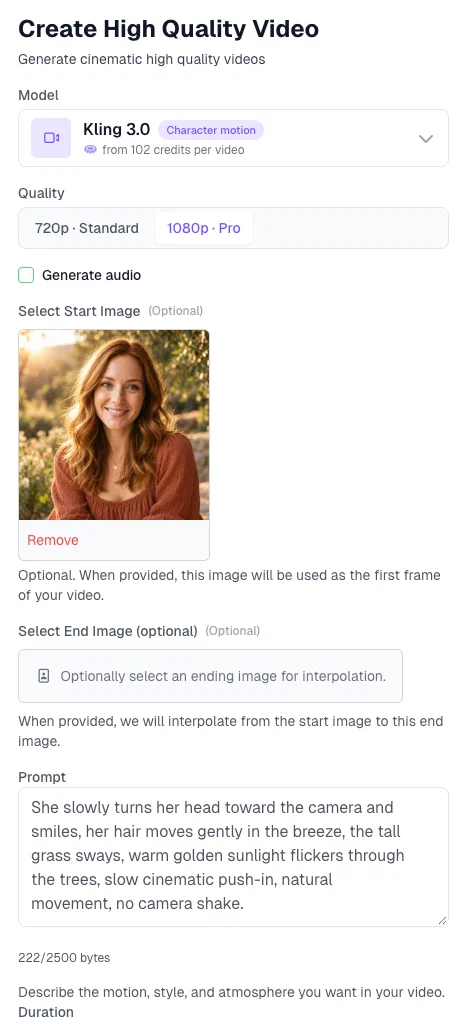
Notice what the prompt does not do: it does not describe the woman, the field or the light. The model sees all of that in the photo. Every word goes to movement: the subject's action, the background motion and the camera.
The button shows the price before you start: 1080p Pro at 45 credits per second, five seconds, 225 credits for the clip.
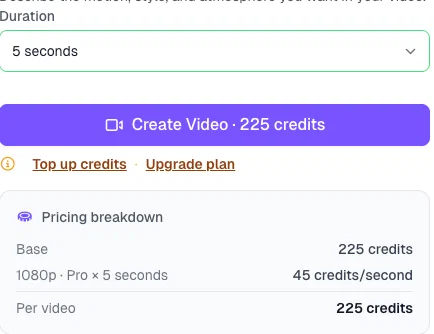
Click Create Video. Video takes longer than images: ours was ready in a few minutes.
Step 4: Watch the Result
The clip appears in the workspace with a player. Ours starts exactly on the photo, then she turns and smiles, the hair and the grass move and the light shifts through the trees, in 1440×1440 at 24 frames per second:
Four frames from the five seconds, left to right:
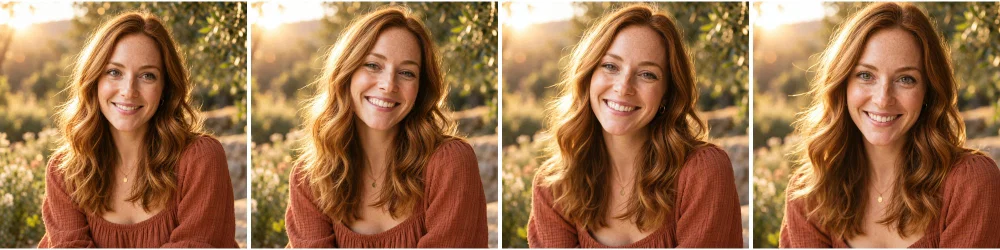
Check the result at full size before you use it: hands, teeth and anything with text are where image-to-video models slip. If the motion is too strong or too weak, change one phrase ("subtle" or "slowly" for less, "turns and laughs" for more) and generate again.
Step 5: Save, Download and Post
Hover the clip and click Save to library. From the Media library you can download the MP4, add captions, or create a post for Instagram, TikTok, YouTube or X and schedule it from Postcrest.
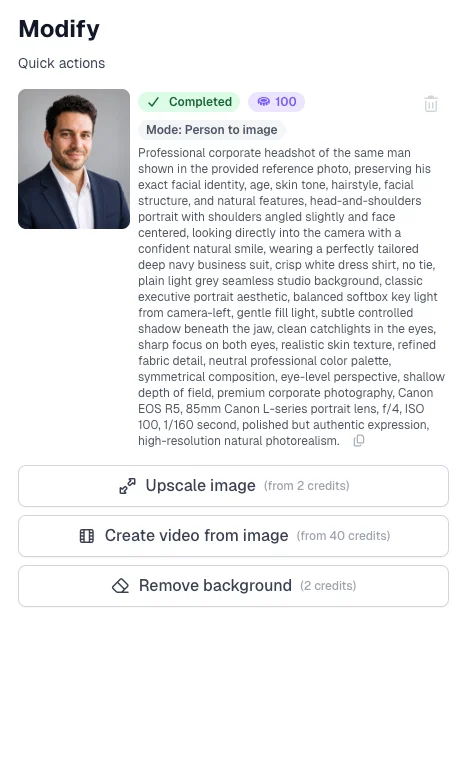
There is also a shortcut for photos you generated in Postcrest: open any saved image and choose Create video from image. It opens this same form with the picture already set as the start image.
Motion Prompt Templates You Can Copy
Replace the parts in brackets. Keep the camera instruction, or the model will invent one.
- Portrait: "[She / He] slowly turns toward the camera and smiles, hair moving gently in the breeze, [background element] sways, soft light flickers, slow push-in, natural movement, no camera shake."
- Product: "The [product] sits still on the surface while the camera slowly orbits a quarter turn around it, soft reflections move across the [material], steady and smooth."
- Landscape: "Clouds drift slowly across the sky, the water ripples, grass and leaves move in a light wind, slow pan from left to right."
- Food and drink: "Steam rises gently from the [dish], a hand enters from the right and [action], camera holds steady, warm light."
- Old photo: "The people in the photo blink and breathe naturally, slight head movements, hair moves gently, very subtle, camera static."
- Fashion: "[She / He] shifts weight from one foot to the other and looks over the shoulder at the camera, fabric swaying, slow push-in."
Common Image-to-Video Mistakes
- Describing the picture instead of the motion. The model sees the photo; tell it what changes.
- Asking for too much. A dance, a walk and a camera orbit in five seconds turns into mush. One action, one camera move.
- No camera instruction. Add "camera static" or "slow push-in" so the model does not improvise.
- A blurry or busy photo. Soft input gives soft motion and warped details.
- Wrong aspect ratio. Crop the photo to the format of the platform before animating; cropping a square video to vertical later throws away most of it.
- Text in the frame. Signs, labels and captions tend to drift. Add text in your editor afterwards.
Where This Fits in Your Content
A clip made from a photo is a complete post on its own, and it is also the building block for longer videos. Our guide on making AI cartoon videos for YouTube strings several animated shots into one episode, and the guide on making a photo talk with AI covers lip-synced speech from a portrait. For a consistent face across photos and clips, start with an AI clone of yourself.
Ready to Animate a Photo?
Upload a picture, describe the motion and get a 1080p clip a few minutes later. Start now and turn your first photo into a video today.
Frequently Asked Questions
Q: How do I turn a photo into a video with AI?
A: In Postcrest, open Video → Create High Quality Video, choose a model such as Kling 3.0, upload your photo as the start image, describe the motion and set the duration. The clip is ready in a few minutes and starts exactly on your photo.
Q: How much does it cost to animate a photo?
A: It depends on the model, the resolution and the length. A five-second 1080p clip with Kling 3.0 costs 225 credits; WAN 3.0 clips start at 40 credits and Grok Imagine Video at 56. The price is shown on the button before you generate.
Q: How long can the video be?
A: Kling 3.0 generates 3 to 15 seconds per clip. For longer videos, generate several clips and join them, as in our cartoon video guide.
Q: Will the video keep the person's face?
A: Yes. The photo is the first frame, so the face, outfit and setting carry over. Keep the motion natural (a turn, a smile, hair in the wind) and the likeness holds for the whole clip.
Q: Can I make a vertical video for Reels or TikTok?
A: Yes. The output follows the start image, so crop your photo to 9:16 before uploading it and the clip comes out vertical.
Q: Can the video have sound?
A: Kling 3.0, Seedance 2.5, WAN 3.0 and Gemini Omni Flash can generate audio with the picture. Tick "Generate audio" before creating; it raises the price per second.