How to Make an AI Portrait of Yourself (Cinematic, Studio and Painted)
A hands-on walkthrough with real screenshots: from a single selfie to a moody cinematic portrait session with six poses, plus black-and-white studio, golden-hour and oil-painting portraits of the same face.

Try 7 days for $2.50 · or 25% off your first month · Cancel anytime
Key Takeaways
- Realistic AI portraits come from three things: a reference of your real face, a precise description of the light, and a believable pose.
- Create a character from your photos once, then run a portrait photoshoot to get a whole set of poses in one consistent look.
- Use photographer language in your prompt: key light, rim light, Rembrandt lighting, 85mm lens, shallow depth of field, film grain.
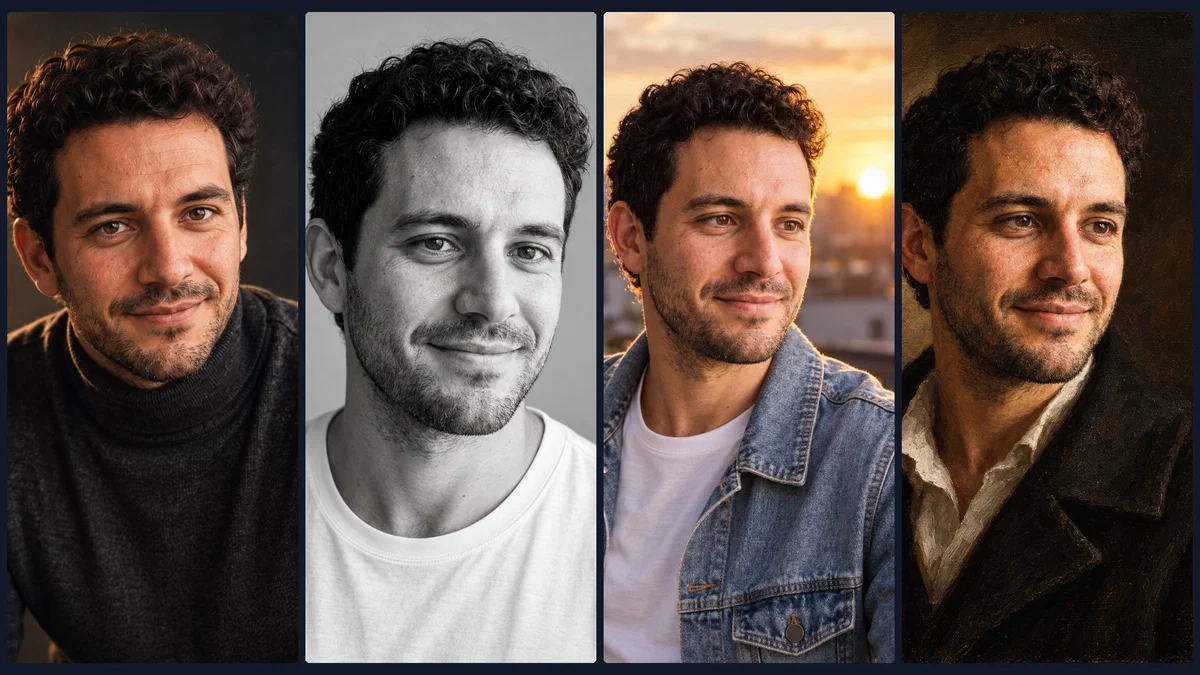
- The same character works in any style: black-and-white studio, golden hour outdoors or a classical oil painting.
A great portrait used to need a photographer who knows light, a studio and a lot of patience in front of the camera. AI can now produce portraits of you that look like they came from that session, in styles you would never book: a moody cinematic close-up, a timeless black-and-white studio shot, a golden-hour portrait on a rooftop, even a classical oil painting.
The difference between an AI portrait that looks like you and one that looks like a stranger is the workflow, not the model. This guide shows the workflow step by step, with screenshots from Postcrest.
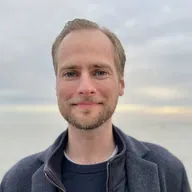
Our subject is Leo, a demo character. His starting "selfie" was generated with AI so we could show every step without using a real person's face. With your own photos, it works the same way.
What Makes an AI Portrait Look Real
- Your actual face as the reference. Generating from a description gives you a lookalike at best. Generating from your photos keeps your features.
- Light with a direction. Real portraits have a key light coming from somewhere: a window, a softbox, the low sun. "Good lighting" is not a direction.
- A lens and a depth of field. "85mm, f/1.8, shallow depth of field" makes the background fall off the way a portrait lens does.
- Texture. Skin pores, fabric, film grain. Perfectly smooth skin is the fastest way to look fake.
- A believable pose. Hands, posture and gaze that a photographer would actually direct.
Step 1: Create a Character From Your Photos
Go to Characters → New Character, add a name and short description, and upload 1 to 10 photos of yourself under Use Your Own Photos. Postcrest detects your features and builds a character sheet: front, back and side views plus a face portrait and a bust shot. It becomes the reference for every portrait you make.
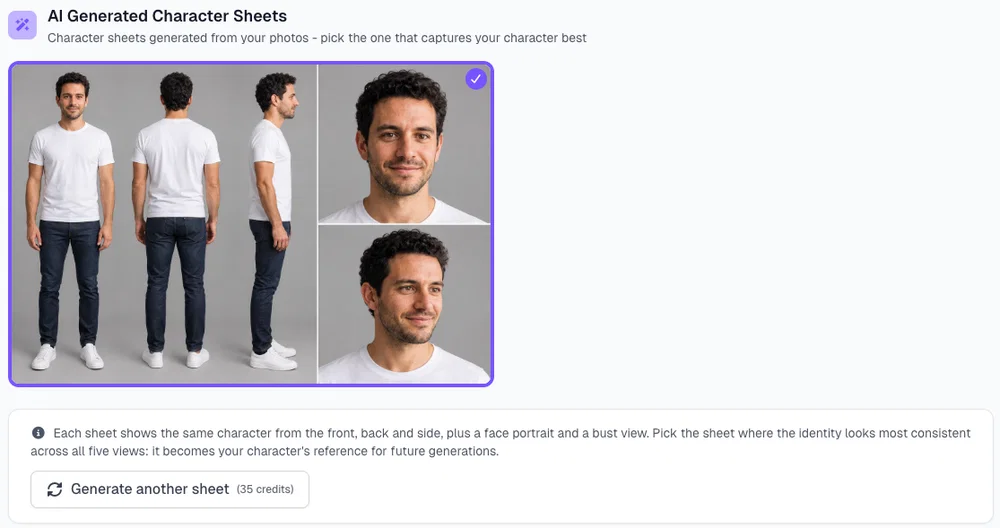
Pick the sheet that looks most like you; if none does, generate another. Our YouTube thumbnail guide shows every screen of the character wizard, including the photo tips.
Step 2: Describe Your Portrait Session
Open your character in a workspace and choose Start Photoshoot (or Workflows → Character Photoshoot). The scene description is your brief to the photographer. Describe the set, the outfit, the light, the expression and the camera. This is the cinematic session we wrote for Leo:
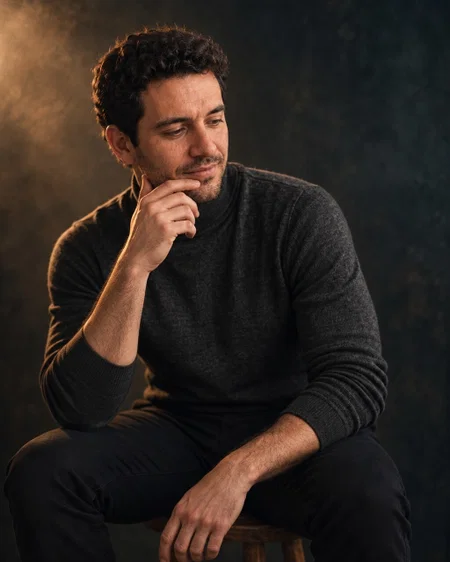
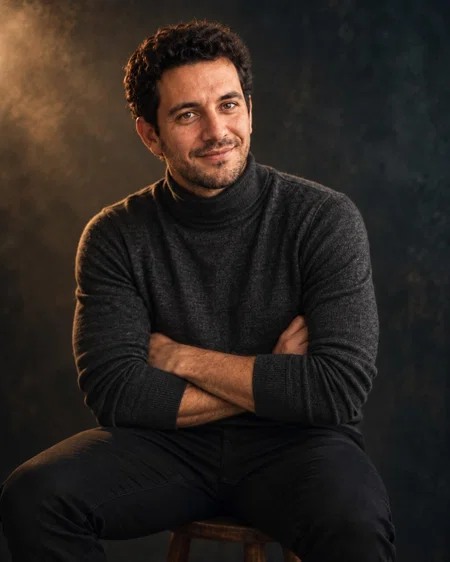
Moody cinematic portrait session in a dark photo studio. Leo wears a charcoal merino turtleneck and sits on a simple wooden stool in front of a dark textured backdrop. A single warm key light from the side creates soft Rembrandt lighting with deep shadows, subtle haze in the air and a faint rim light on his hair. Calm, confident, thoughtful expression. Shot like an 85mm lens at f/1.8: shallow depth of field, gentle film grain, rich teal-and-amber color grade, editorial magazine portrait.
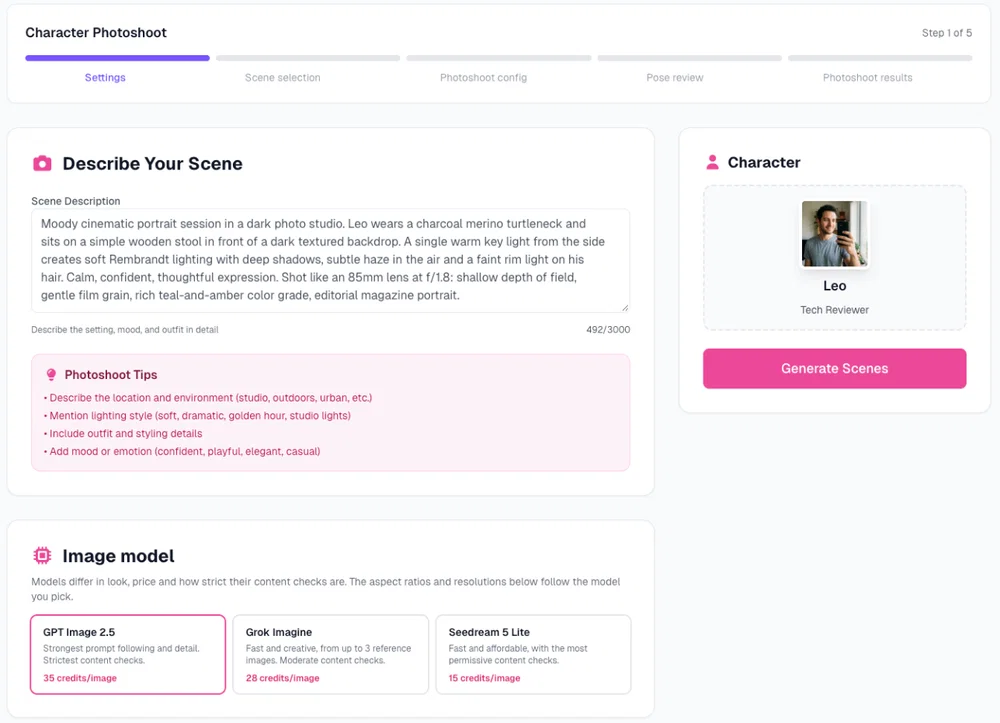
Choose the image model (GPT Image 2.5 follows detailed lighting descriptions best), a portrait aspect ratio like 4:5 and the number of scene variations.
Step 3: Pick the Look
Postcrest generates your scene variations: the same person, set and light, slightly different each time. Pick the one with the light and mood you want for the whole session.
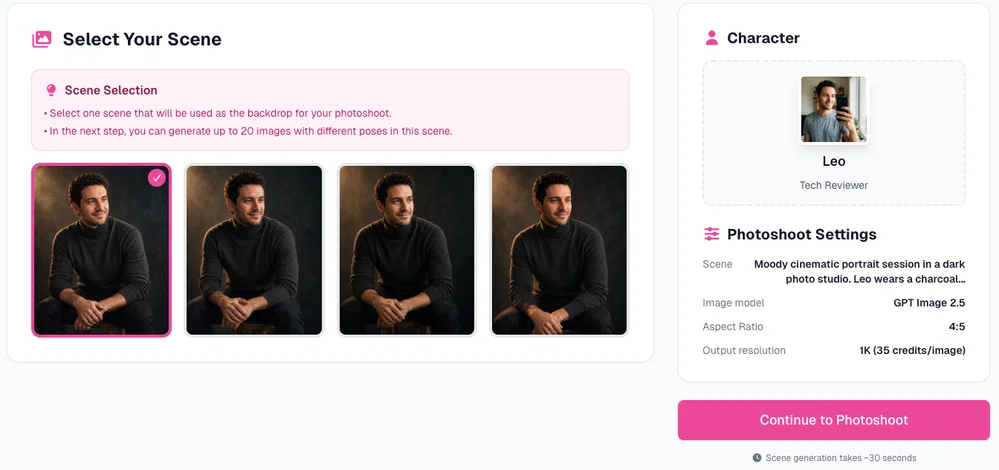
Then choose how many portraits the session should have (up to 20). We picked six.
Step 4: Direct the Poses
Before generating, Postcrest writes one pose per photo. This is where you act like the photographer: edit any pose to get the shot you want. We changed the second pose into a tight close-up with direct eye contact:
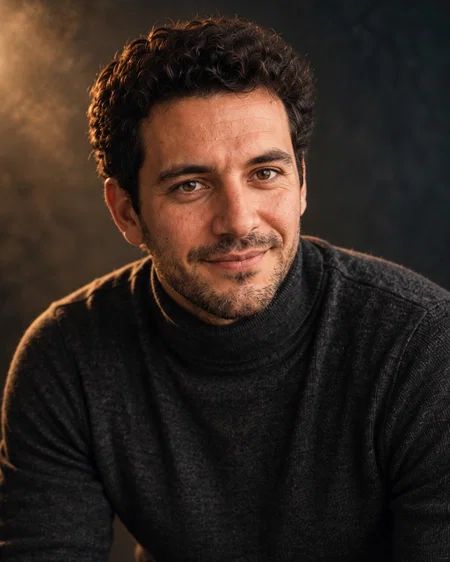
Tight head-and-shoulders close-up: Leo leans slightly toward the camera and looks straight into the lens with a calm, confident half-smile; the warm key light sculpts one side of his face while the other side falls into soft shadow.
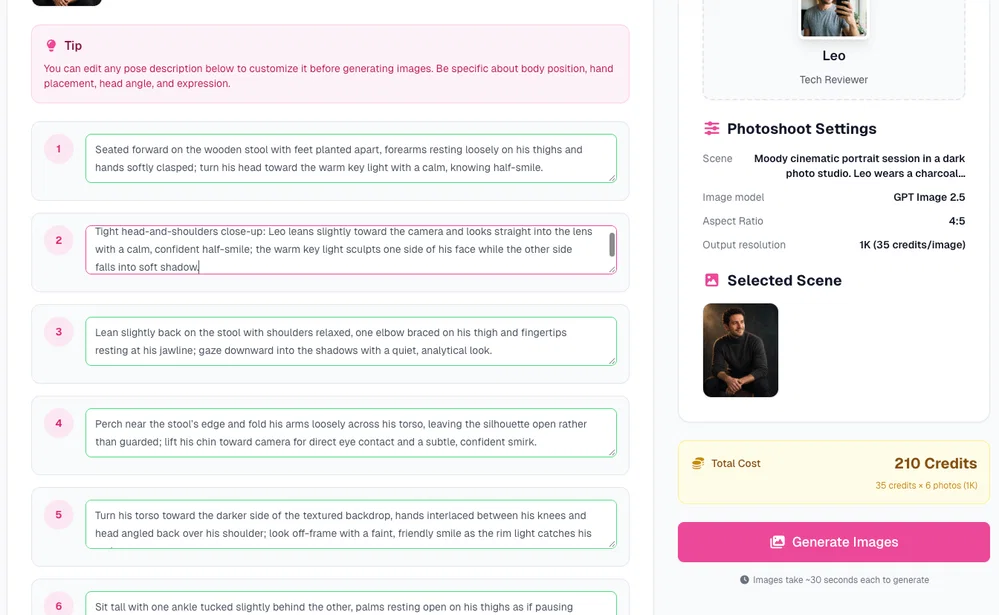
Good pose directions name the body position, the hands, the head angle, the gaze and the expression.
Step 5: Your Portrait Session
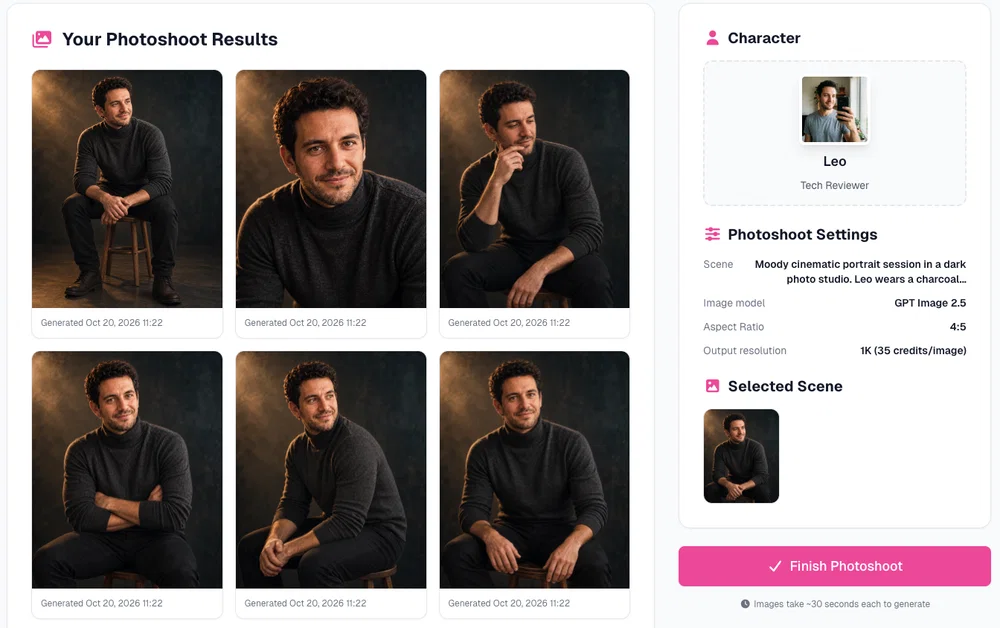
Click Generate Images and you get the full session: the same face, outfit and light in six different portraits, from full seated shots to the close-up we directed.
Step 6: Try Other Portrait Styles
A photoshoot gives you one consistent look. For single portraits in a completely different style, go back to your character and choose Create Images (Create Image from Person with your character selected). We used GPT Image 2.5 in 4:5 on High quality and three prompts:
Black-and-white studio:
Classic black-and-white studio portrait of Leo, head and shoulders, wearing a plain white t-shirt, seamless light grey backdrop, soft large window-style key light, crisp detail in the eyes and natural skin texture, gentle genuine smile, timeless fine-art portrait photography, high contrast monochrome.
Golden hour outdoors:
Golden-hour outdoor portrait of Leo on a city rooftop at sunset, wearing a light denim jacket over a white t-shirt, warm low sun behind him creating a glowing rim light in his curly hair, soft city bokeh in the background, relaxed confident smile, three-quarter view, shot on an 85mm lens with shallow depth of field, natural skin texture, lifestyle editorial portrait.
Oil painting:
Oil painting portrait of Leo in the style of a classical old-master painting: dark umber background, dramatic chiaroscuro window light from the left, visible confident brushstrokes and canvas texture, rich warm skin tones, wearing a dark wool coat with a white shirt collar, dignified calm expression, three-quarter view, museum-quality fine art.
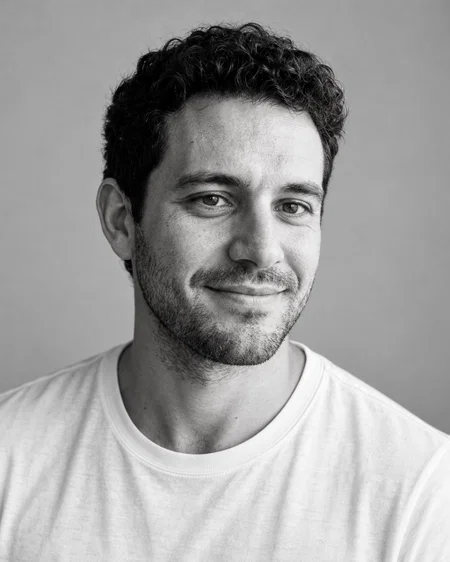
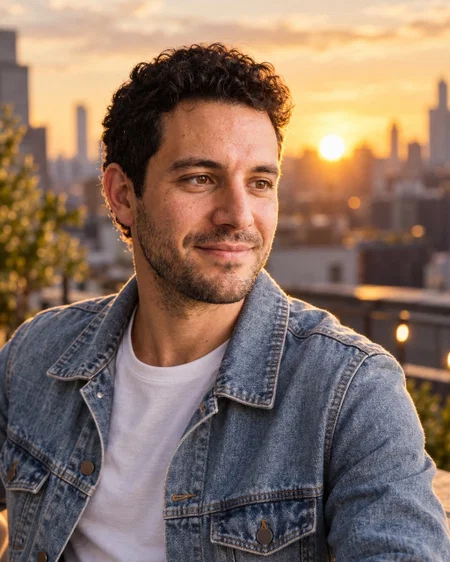
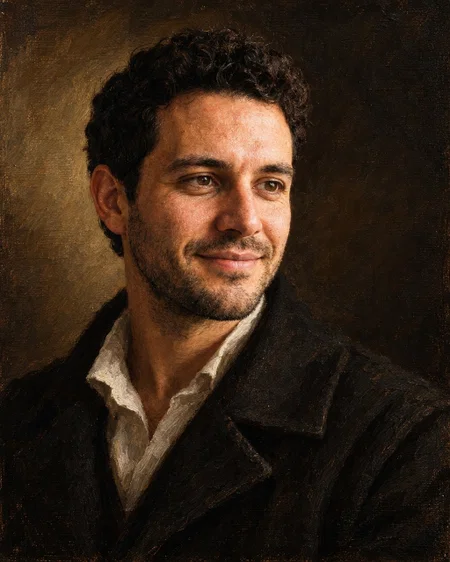
Same face in all three, because every image is generated from the same character.
Portrait Lighting and Lens Cheat Sheet
Add these to any portrait prompt to control the look:
| Term | What it does | Use it for |
|---|---|---|
| Rembrandt lighting | Side key light with a small triangle of light on the shadowed cheek | Moody, cinematic, editorial |
| Butterfly lighting | Light from above and in front, small shadow under the nose | Beauty, glamour, headshots |
| Rim light | A thin edge of light outlining hair and shoulders | Separating the subject from a dark background |
| Window light | Large, soft directional light | Natural, flattering, lifestyle |
| Golden hour | Warm, low sun, long soft shadows | Outdoor, warm, romantic |
| 85mm, f/1.8 | Flattering compression, blurry background | Classic portraits |
| 35mm | Wider, more environment in frame | Environmental and street portraits |
| Film grain | Fine texture, less "digital" smoothness | Realism, analog feel |
| High-key / low-key | Bright and airy / dark and contrasty | Clean commercial / dramatic fine art |
For ready-made prompts, browse our cinematic portrait prompts and realistic portrait prompts, or the deep dives on male portrait prompts and female portrait prompts.
Common Mistakes in AI Portraits
- Prompting for a face instead of using yours. Without a reference you get a stranger who resembles you.
- "Beautiful lighting". Say where the light comes from and what it does.
- Plastic skin. Ask for natural skin texture and film grain.
- Stiff, symmetrical poses. Direct a lean, a head tilt, hands doing something.
- Mixing styles in one prompt. "Cinematic watercolor anime photo" confuses the model. One style per portrait.
Where to Use Your AI Portraits
- Profile pictures and headshots: see how to make an AI profile picture or the AI headshot generator.
- Personal branding: website about pages, speaker bios, podcast covers.
- Social content: a recurring look for Instagram or LinkedIn, or a YouTube thumbnail with your face.
- Gifts: a painted portrait printed on canvas.
Start now and create your first AI portrait session today.
Frequently Asked Questions
Q: Can AI make a realistic portrait of me?
A: Yes, if it starts from your real photos. In Postcrest you create a character from 1 to 10 photos, then generate portraits from that character, so the face stays yours in every style.
Q: How many photos do I need?
A: One clear, well-lit photo is enough to start. Three to five photos from different angles give the most consistent likeness.
Q: What is the best prompt for a cinematic AI portrait?
A: Describe the set, the outfit, the direction and quality of the light (for example Rembrandt lighting with a rim light), the lens (85mm, f/1.8), the texture (natural skin, film grain) and the expression. The full prompt we used is in Step 2.
Q: Can I make a painted or artistic portrait of myself?
A: Yes. Use your character with Create Image and describe the art style: oil painting, watercolor, charcoal sketch, anime or 3D animation. Listing the features to keep helps the likeness.
Q: What is the difference between a portrait photoshoot and a single image?
A: A photoshoot generates one scene first and then several poses in exactly that scene, which gives you a consistent set. Single images are better when every portrait should have a different style or location.
Q: Can I use AI portraits commercially?
A: Content you create in Postcrest comes with a commercial license. Use photos of yourself, or of people who have given you permission.