How to Change the Background of a Photo With AI (Studio, Outdoor, Office or Transparent)
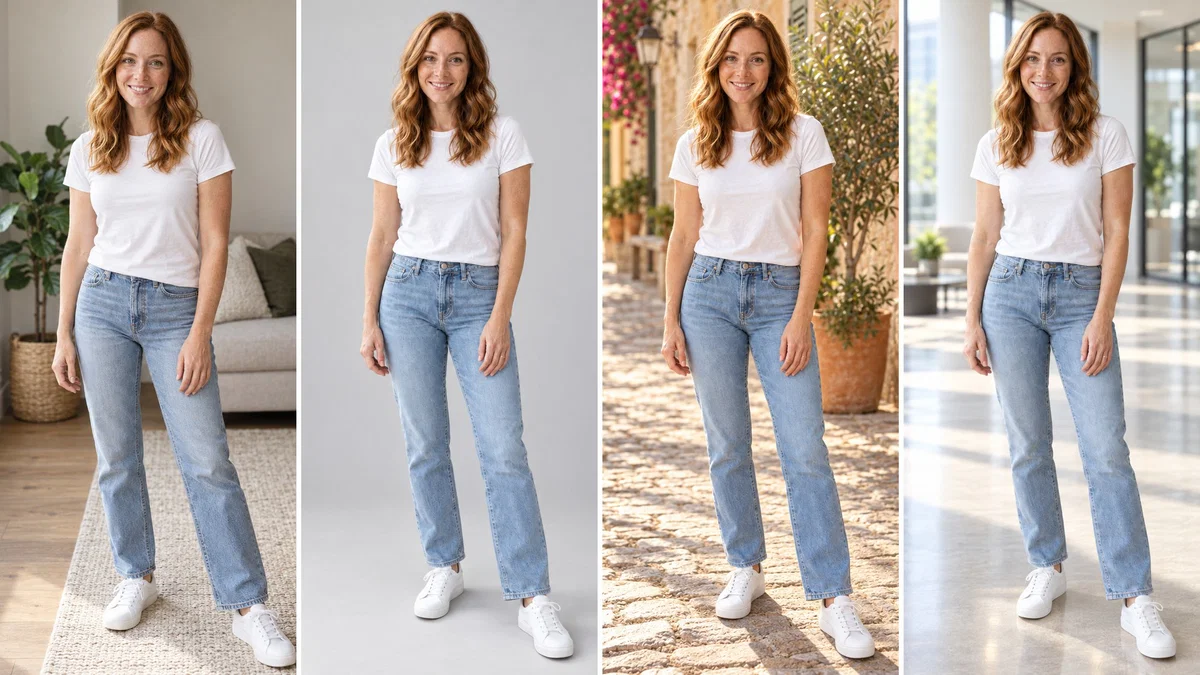
A step-by-step guide with real screenshots: one living-room photo gets a grey studio backdrop, a Mediterranean street and a modern office, plus a transparent PNG cutout, with the person untouched.

Try 7 days for $2.50 · or 25% off your first month · Cancel anytime
Key Takeaways
- Edit Image with GPT Image 2.5 replaces the background from a text prompt and keeps the person, pose and outfit. Each new background costs 100 credits and takes about a minute.
- Tell the model to match the light and shadows on the person to the new scene. That one sentence is what makes a swapped background look real.
- For a transparent PNG, use Remove background on any saved image for 2 credits, then place the cutout wherever you like.
- Start from a sharp photo where the person is clearly separated from the background. Hair, glasses and thin straps are where cheap tools fail.
The person in the photo is fine. The background is the problem: a messy room behind a headshot, a parking lot behind a graduation photo, a sofa behind a product. Changing the background of a photo with AI takes one sentence and about a minute, and unlike the old cut-and-paste method the light on the person changes to match the new scene.
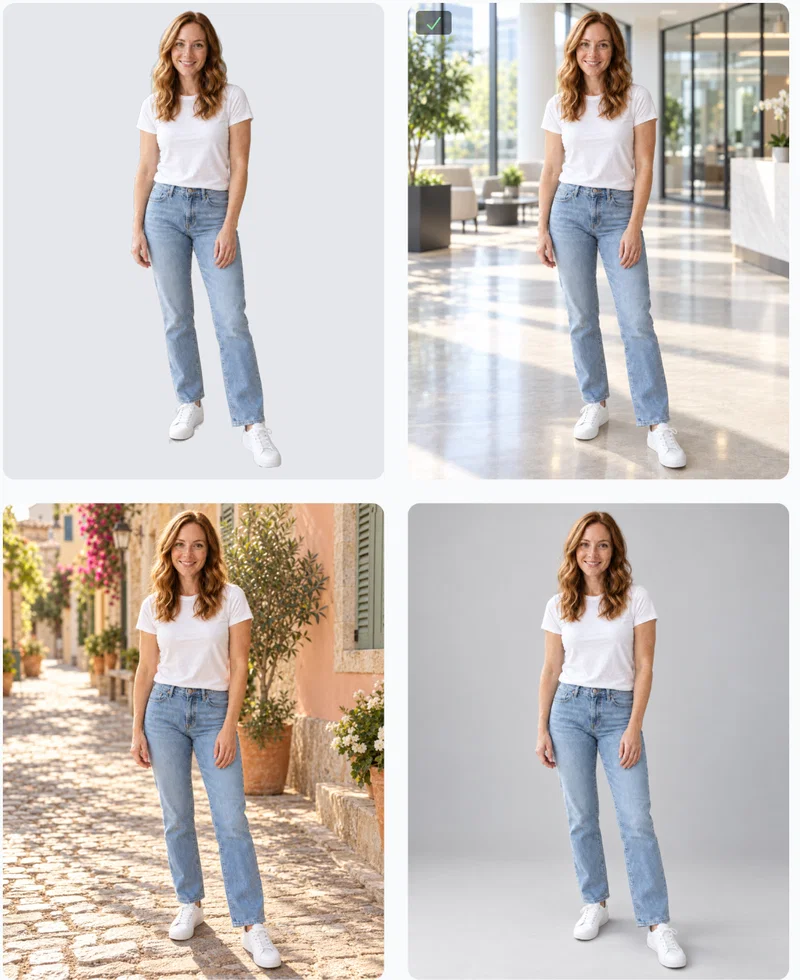
This guide walks through the whole process with screenshots from Postcrest. We started from one photo taken in a living room and gave it three new backgrounds: a plain grey photo studio, a sunlit Mediterranean street and a modern office lobby. Then we cut the person out as a transparent PNG for a fourth option.
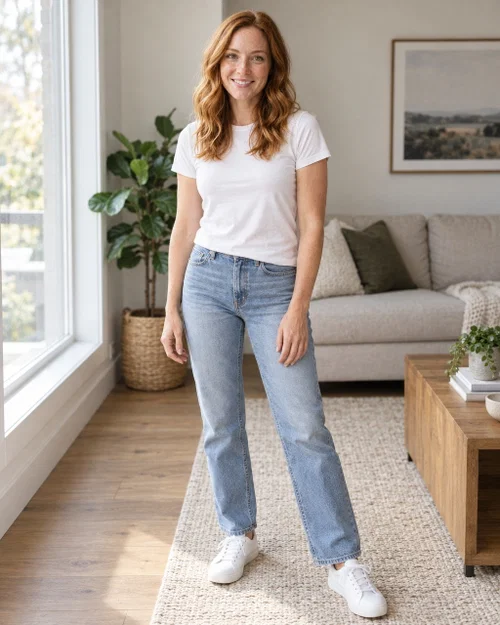
Our model is Maya, a demo persona. Her "photo" was itself generated with AI so we could show the full workflow without editing a real person's picture. With your own photo, the steps are exactly the same.
Change the Background or Remove It?
Two different jobs, two different tools, both in the same workspace:
- Change the background when you want a finished photo: a studio backdrop for a headshot, a city street for a lifestyle shot, an office for a company page. The AI redraws the scene and adjusts the light on the person. This is Edit Image.
- Remove the background when you need a cutout: a transparent PNG for a website, a presentation, a thumbnail or a product listing. This is Remove background, a two-credit action on any saved image.
Most people end up using both: change the background for the photo they publish, remove it for the version they design with.
What Makes a Photo Easy to Work With
- A clear subject. The person stands out from what is behind them. A white shirt against a white wall is hard for any tool.
- Sharp edges and good light. Window light or daylight. Motion blur and heavy noise blur the edges the AI has to find.
- The whole subject in frame. If the feet or the hands are cut off in the original, they stay cut off.
- Room around the person. The new background needs space to exist. A tight crop gives you a new wall and nothing else.
This is the photo we started from, a casual full-length shot in a bright living room:
Step 1: Get the Photo Into Your Media Library
Upload the photo in any workspace, or hover an image you generated in Postcrest and click Save to library. Edit Image works from the media library. If the photo lives in another workspace, the picker has an All Media tab that shows everything you have saved.
Step 2: Open Edit Image and Describe the New Background
Go to Image → Edit Image and set it up:
- Model: GPT Image 2.5. It understands "replace the background" as an instruction and relights the person to match.
- Image dimensions: match the photo. Ours is 4:5.
- Resolution and quality: 1K and High. That gives a 1024×1280 image for a 4:5 photo; 2K doubles the price.
- Images to edit: click the picker, switch to All Media if needed, and select your photo.
Then describe the new background. For the studio version we wrote:
Replace the background with a plain light grey photo studio backdrop, seamless and softly lit. Keep her exactly as she is: face, hair, outfit, pose and body proportions. Match the light and shadows on her to the new background.
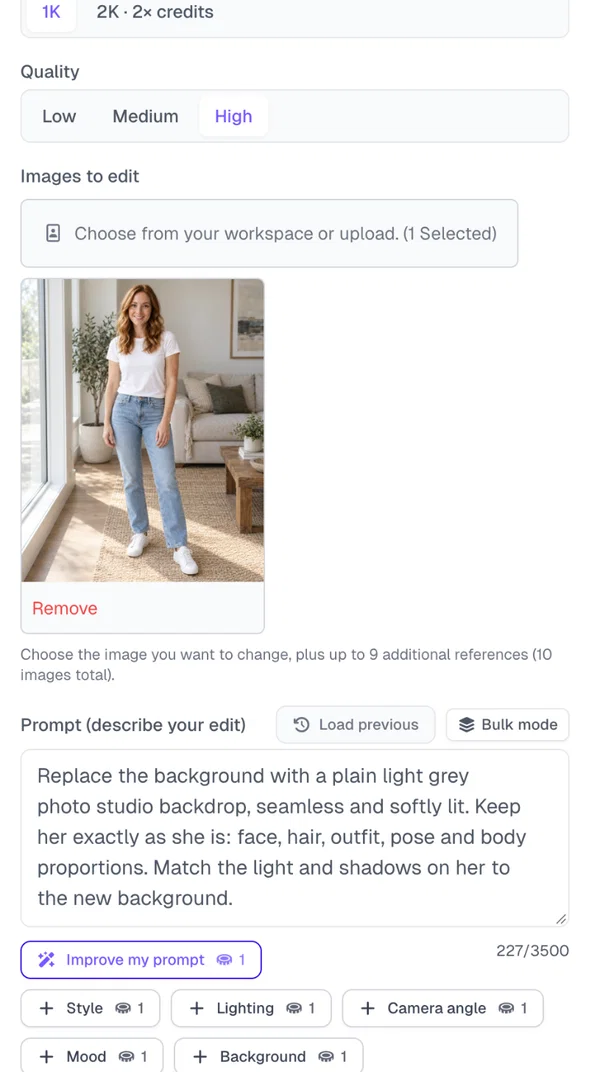
Three parts, every time: what the new background is, what must not change, and "match the light and shadows". Skip the last part and you get a person lit by a window standing in a studio, which is exactly what a bad cut-and-paste looks like.
Click Create. The button shows the price before you start: 100 credits for one edit at 1K and High.
Step 3: Check the Result
About a minute later the studio version appeared next to the original. The pose, the clothes, the hair and the face are identical; the floor shadow and the soft light on her now belong to the studio:
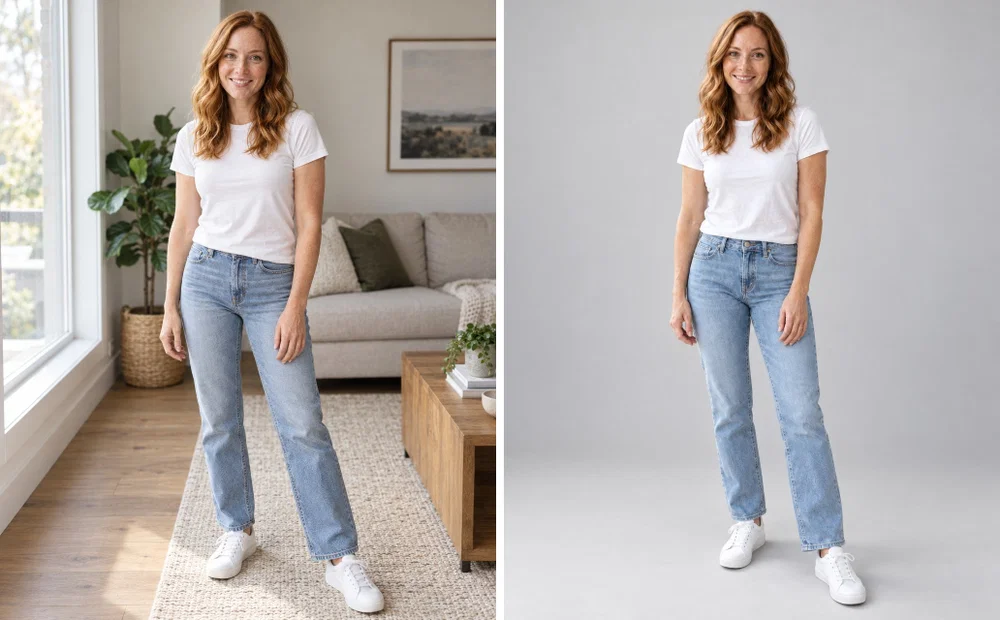
Zoom in on the edges where background swaps usually fail: hair against the backdrop, the gap between the arm and the body, the shoes meeting the floor. If an edge looks cut out, generate again and add "natural soft edges around the hair" to the prompt.
Step 4: Try Different Scenes
Changing the background is cheap enough to try several. Same photo, same keep sentence, different first sentence.
Outdoor: "Replace the background with a sunlit cobblestone street in a Mediterranean old town, pastel house walls, warm late-afternoon light, soft depth of field." The warm light now wraps around her and the shadow on the cobblestones falls the right way:

Office: "Replace the background with a bright modern office lobby with large windows, glass walls and soft daylight, slightly blurred behind her." The blur keeps the attention on the person, which is what you want for a team page or a LinkedIn banner:
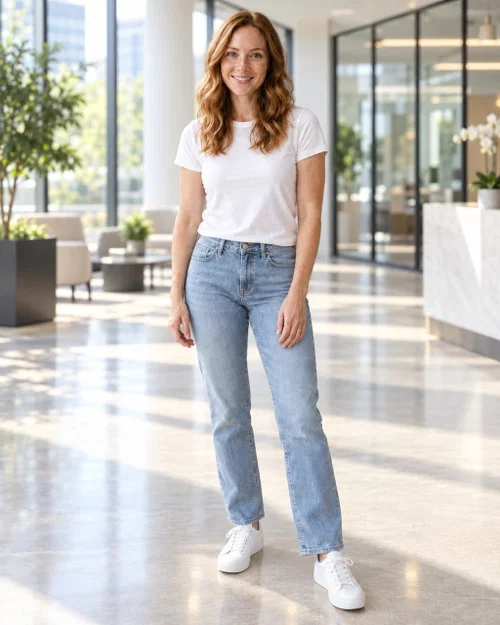
Other backgrounds that work well with the same prompt structure: a plain white background for e-commerce, a bookshelf for an author photo, a graduation lawn with a campus building, a beach at golden hour, a brick wall for a creator portrait, a snowy street for a holiday card.
Step 5: Remove the Background for a Transparent PNG
Sometimes you do not want a new scene, you want no scene. Hover any result, open Actions, click Add to library, and the quick actions unlock:
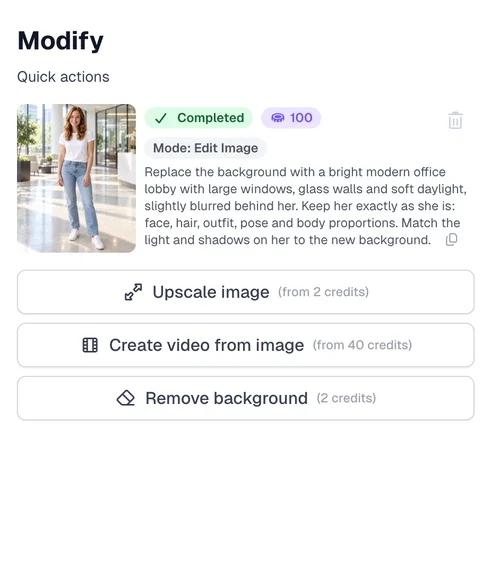
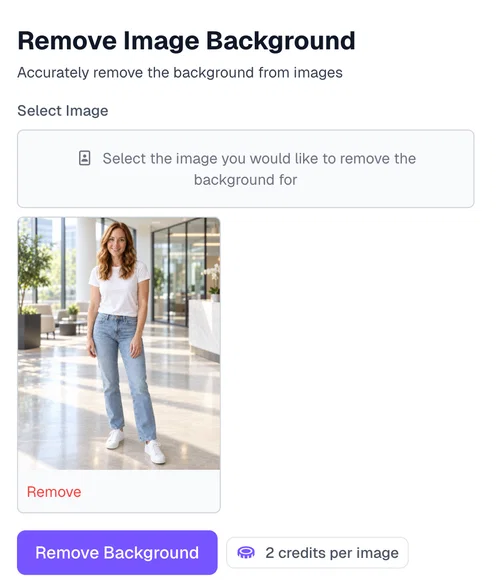
Remove background opens the Remove Image Background tool with the image already selected. It costs 2 credits per image:
A few seconds later you have a transparent PNG with clean edges around the hair and the shoes, ready for a website, a slide, a thumbnail or a product listing:
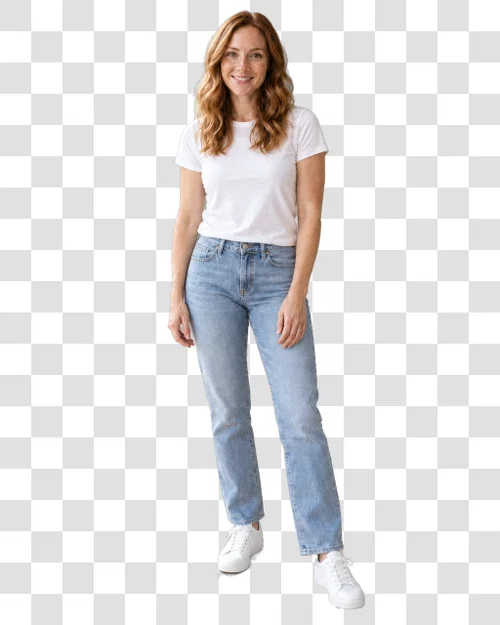
Transparent PNGs keep their transparency when you download them. If a platform wants a white background instead, run one more Edit Image with "replace the background with pure white" or place the cutout on a white canvas in your design tool.
Step 6: Save and Download
All versions sit next to each other in the workspace. Save the ones you want with Save to library and download them from your Media library, one by one or several at once as a ZIP. Saved images can also be upscaled to 2K or 4K for print.
Background Prompt Templates You Can Copy
Replace the parts in brackets. Keep the second and third sentences.
- Studio: "Replace the background with a plain [light grey / white / dark charcoal] photo studio backdrop, seamless and softly lit. Keep [her / him] exactly as [she / he] is: face, hair, outfit, pose and body proportions. Match the light and shadows on [her / him] to the new background."
- Office or workplace: "Replace the background with a bright modern [office lobby / coworking space / conference room] with large windows and soft daylight, slightly blurred. Keep the person exactly as they are. Match the light and shadows to the new background."
- Outdoor: "Replace the background with [a sunlit cobblestone street in a Mediterranean old town / a city park in autumn / a beach at golden hour], soft depth of field. Keep the person exactly as they are. Match the light and shadows to the new background."
- Event: "Replace the background with [a university campus lawn with an old brick building / a wedding venue garden / a conference stage], blurred behind the person. Keep the person exactly as they are. Match the light and shadows to the new background."
- E-commerce: "Replace the background with pure white, no shadows except a soft natural shadow under the feet. Keep the person and the clothes exactly as they are."
- Graphic: "Replace the background with a smooth [purple to blue] gradient with soft studio light. Keep the person exactly as they are. Match the light and shadows to the new background."
Common Mistakes When Changing Backgrounds With AI
- Forgetting the light. A person lit from the left in a scene lit from the right never looks real. Always add "match the light and shadows".
- No keep sentence. Ask only for the background and the model may also change the pose, the clothes or the crop.
- A scene that fights the photo. A night street behind someone photographed in daylight needs the model to relight the whole person. Pick a background with similar light to the original for the most natural result.
- Too much detail behind the head. Busy backgrounds compete with the face. Ask for "slightly blurred" or "soft depth of field".
- Using a cutout for a finished photo. A transparent PNG dropped onto a new picture in a design tool will always look pasted. Use Edit Image when the result should look like a real photograph.
- A low-resolution original. Edges come from pixels. Give the model the largest version of the photo you have.
Where This Is Useful
- Headshots and team pages: one studio backdrop for everyone, even when the photos came from five different phones. See how to make an AI headshot from a selfie for the full headshot workflow.
- Graduation, holiday and family photos: replace the parking lot with the campus, the kitchen with a Christmas scene. Our AI Christmas photos tutorial covers the seasonal version.
- Social media: the same photo in three cities for three posts. Pair it with changing clothes in a photo with AI and one shoot becomes a month of content.
- Thumbnails and designs: cut the person out and place them on a bold color or a graphic, as in our YouTube thumbnail guide.
- Product and e-commerce photos: white backgrounds for listings, lifestyle scenes for ads.
Ready to Change a Background?
Upload a photo, describe the scene, keep the person. Start now and try your first background swap today.
Frequently Asked Questions
Q: How do I change the background of a photo with AI?
A: In Postcrest, open Image → Edit Image, select the photo, and write what the new background should be, what must stay the same and "match the light and shadows". GPT Image 2.5 redraws the scene and relights the person in about a minute.
Q: How much does it cost to change a background?
A: Each new background costs 100 credits at 1K resolution and High quality. Removing the background for a transparent PNG costs 2 credits.
Q: Will the person in the photo stay the same?
A: Yes, if your prompt says so. Add "keep her exactly as she is: face, hair, outfit, pose and body proportions" and the model only replaces what is behind her.
Q: Can I get a transparent background?
A: Yes. Save the image to your media library and click Remove background. You get a transparent PNG with clean edges around hair and clothing for 2 credits.
Q: Can I make the background plain white for a product listing?
A: Yes. Either run Edit Image with "replace the background with pure white, soft natural shadow under the feet", or remove the background and place the cutout on a white canvas.
Q: Why does my swapped background look fake?
A: Almost always because the light on the person does not match the scene. Add "match the light and shadows on her to the new background" to the prompt, and choose a scene lit similarly to the original photo.